Melodee 0.10.4This is the manual for Melodee 0.10.4. The newest release is 0.10.6: what's new since 0.10.4 · this page for 0.10.6.
Manual · Chapter 03
Basics
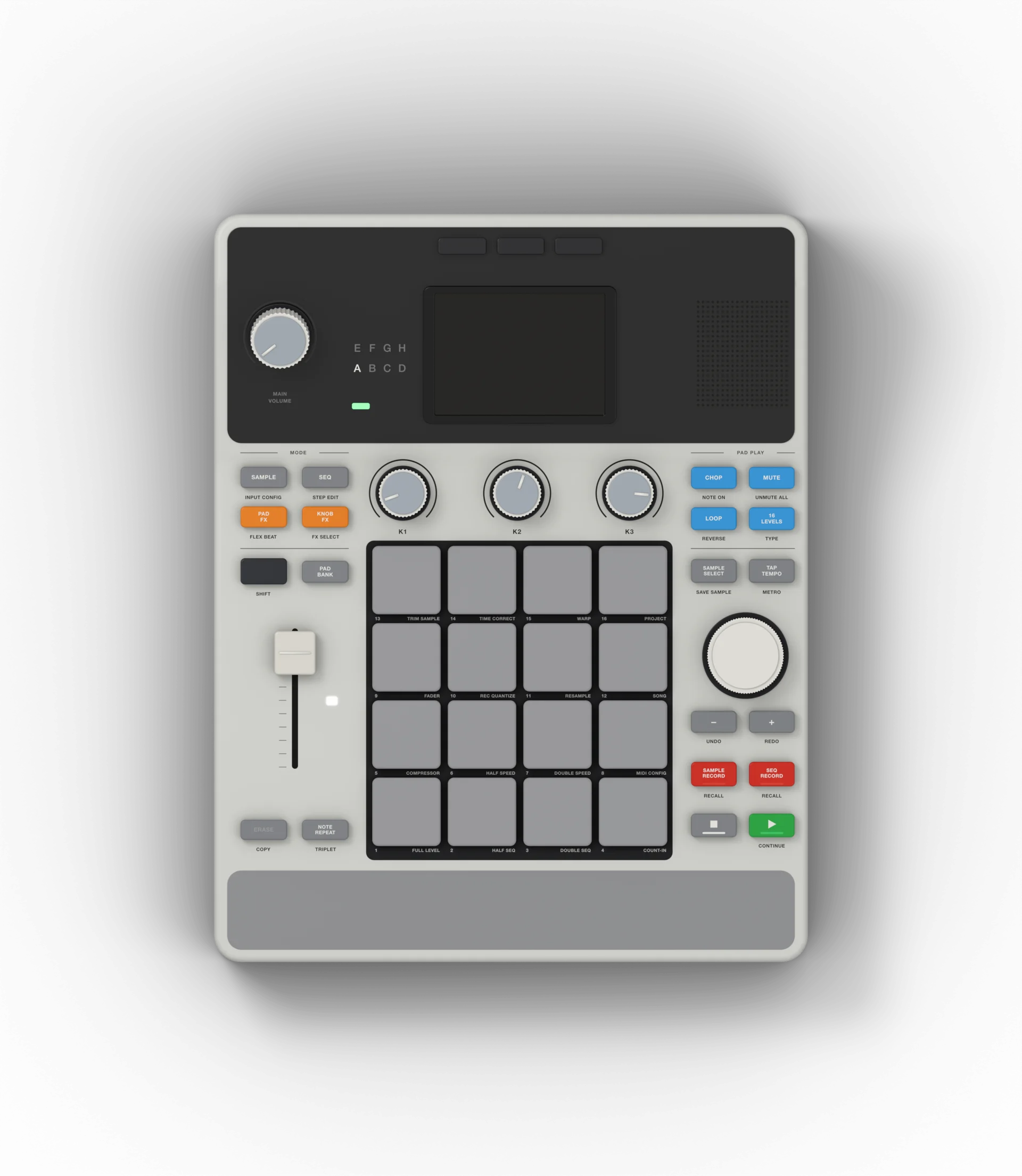
How Melodee uses the MPC's controls: what each one does, how to move between pages, the Menu, undo, erase and copy, mute, and the pad lights.
The panel
Pick a control on the MPC or in the list to see what it does: pressed, held, and with SHIFT.
- More
- Signal flow
- Press
- A lit key pressed again goes to its next page. A key with several pages lists them by name for a moment after each press.
- More
- Navigation
- SHIFT
- SHIFT + K1–K3: the second value of a card with an arrow.
- More
- Knob takeover
- Press
- Stage, the track’s sound pages; on Stage, its first page.
- Hold
- Pads or Keys, and B1–B3 open Stage’s sections. + pad: select a kit pad without playing it. + MUTE: light show on or off; + − / +: its style.
- SHIFT
- Input Config.
- Press
- Sequences, Patterns, Roll or Motion, the last open on the track; on one of them, Sequences.
- Hold
- The pads launch the selected track’s patterns (SHIFT + pad: a sequence on every track), the encoder sets the tempo, B1–B3 open Sequences, Roll and Motion.
- SHIFT
- Step Edit; again, back.
- More
- Hold SEQ
- Press
- Pad FX. With KNOB FX: the mixer.
- SHIFT
- Flex Beat.
- More
- Pad FX
- Press
- Knob FX mode on or off. With PAD FX: the mixer.
- SHIFT
- Effect chains, from the track’s (on the mixer, the selected channel’s); again, the next along.
- More
- Knob FX
- More
- SHIFT + pads
- Press
- Next bank (on Sequences and Patterns, and with SEQ held: the bank of patterns; on Pad FX: the other bank of punches; on Chop: the next 16 slices; on Roll of a keygroup, plug-in or MIDI track: the pads an octave up). On the mixer: the tracks, or the submixes, buses, input and master.
- Hold
- + pad: select a track; K1–K3: its level, pan and send A. + B1: the mixer on the tracks. + B2 / B3: move or copy a track. + ERASE + pad: clear a track.
- SHIFT
- Previous bank (on Roll: the octave down).
- More
- Select a track
- Press
- Some pages give it their own job: the selected channel’s level on the mixer, A to B on Knob FX, the amount on the Compressor, the mix on Flex Beat, the preview level in the sample browser.
- SHIFT
- SHIFT + PAD 9: the Fader page.
- More
- Fader
- Press
- Erase the selection (on Song, the clip, or the loop range’s bars; in the sample browser and the plug-in picker, delete the file or folder from the card).
- Hold
- + pad, knob, step or fader: erase it, or set it back. + an empty kit pad: close the gap. + SEQ RECORD on a kit: erase the selected pad’s notes. + CHOP on Chop: take every cut out.
- SHIFT
- Copy.
- More
- Erase and copy
- Press
- Tap to latch, hold for momentary. On Roll: ratchet the marked notes. On Song: repeat the clip to the next marker.
- SHIFT
- On Roll and Step Edit: write the arpeggio as notes.
- SHIFT
- SHIFT + pad: the job printed under the pad.
- More
- SHIFT + pads
- Press
- Chop the last pad; on Chop, back to Trim. On Roll and Step Edit: split the notes. On Song: split the clip.
- SHIFT
- Note On / One Shot. On Roll and Step Edit: legato.
- More
- Chop
- Press
- Tap to latch, hold for momentary. On Roll: mute the marked notes. On the mixer’s FX: the lit effect off or on.
- SHIFT
- Unmute all.
- More
- Mute and solo
- Press
- Loop the last pad. On Roll and Step Edit: loop the bars in view. On Song: set the loop’s first bar, then its last (twice on a clip: the clip’s bars).
- Hold
- The pads control the Looper. With 16 LEVELS: open the Looper.
- SHIFT
- Reverse (on Roll and Step Edit, the notes; on Patterns, the track’s direction FWD, REV, RND). Hold 0.5 s: Looper on or off.
- More
- Looper
- Press
- 16 Levels on or off.
- Hold
- K1–K3 its settings, − / + its octave, B1 SCALE, B2 CHORDS; on Chords B2 FILE and B3 SET.
- SHIFT
- 16 Levels type.
- More
- 16 Levels
- Press
- Sample browser on a kit or keygroup track, plug-in picker on a plug-in track, sounds on a MIDI track. On Step Edit with a step held: the sounds on the pads for that step. Again: closes it.
- SHIFT
- Save Sample. On the browser: Save Bank. On a MIDI track: Save sound.
- More
- Loading samples
- Press
- Tap tempo.
- Hold
- + encoder: the tempo. Held alone: Tempo page; held again there: closes it.
- SHIFT
- Metronome Off, On, Rec.
- More
- Tempo
- Press
- Turn: move through a list, or fine-tune the outlined card. Push: open, or next card (acts when let go).
- Hold
- The Menu.
- SHIFT
- SHIFT + push: back.
- More
- The Menu
- Press
- Octave, bank, or list. On the mixer: held, the card (+) or the strips (−).
- SHIFT
- Undo / redo. Hold SHIFT + −: the undo list.
- More
- Undo
- Press
- On a kit: record onto a pad. On a keygroup, plug-in or MIDI track: the PRINT sheet. On an audio track: its INPUT. With SEQ held: freeze patterns.
- SHIFT
- Audio Recall.
- More
- Record a sample
- Press
- Arm or stop recording.
- SHIFT
- Recall.
- More
- Record
- Press
- Stop. Again while stopped: all notes off.
- SHIFT
- All notes off.
- Press
- Play from the start (on Song, from the cursor). Held while playing: Fill.
- SHIFT
- Continue.
Level meters
The meters right of the screen show the mix, left and right, before MAIN VOLUME. On Record and Input Config, and while a recording waits or runs, they show the input instead. They light as on the stock app:
| Light | Lights past |
|---|---|
| Three green, then yellow | −24.1, −12.1, −6.1 and −3.1 dBFS |
| Red | −0.1 dBFS |
The screen
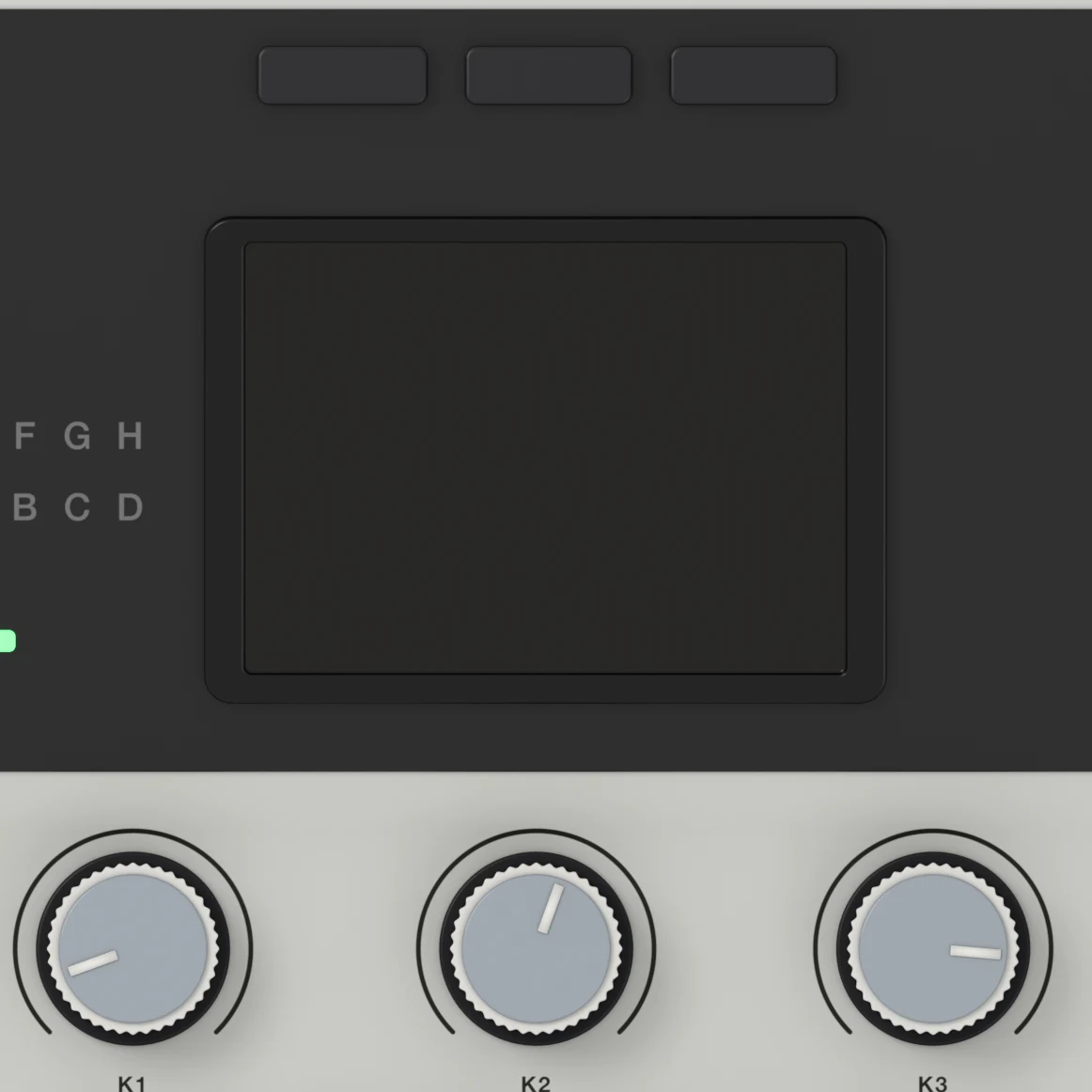
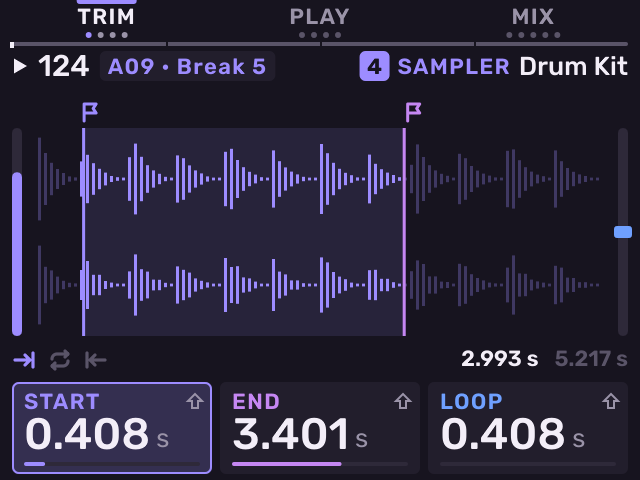
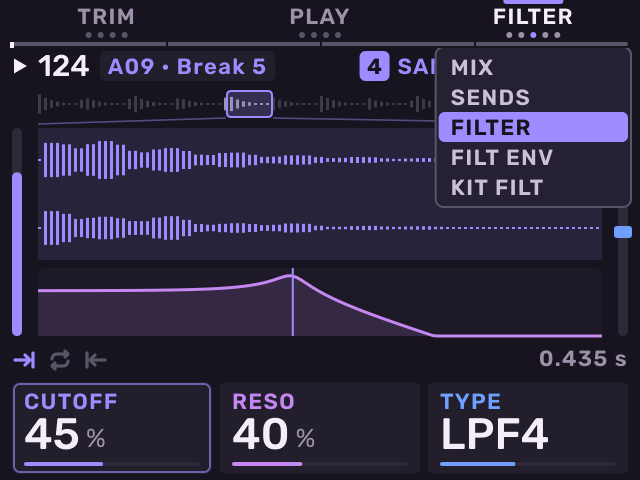
The parts of a page, here on Trim:
 12345
TRIM Where the sample starts and ends, and its loop point.
| Part | What it shows | |
|---|---|---|
| 1 | Soft keys | Labels for B1, B2 and B3 above the screen. The underlined label is the open page. Dots under a label: the key has more pages; press it again for the next one. |
| 2 | Place bar | Where playback is. Green: playing. Red: recording. Amber: waiting for a bar to start. |
| 3 | Header | The play state, the tempo and the state of the page on the left. The selected track on the right: its number, type and name. |
| 4 | Picture | What the page edits. |
| 5 | Knob cards | The values of K1, K2 and K3 below the screen. The outlined card is the one the encoder edits. A card with an arrow has a second value on SHIFT + knob. |
The keys under the figure work as on the MPC: press B1, B2 or B3 for one of Stage’s pages, and the lit key again for its next page.
The play state is a symbol: a triangle while playing, a square while stopped, a red dot while recording, a red ring while recording is armed.
When the pads do not play the selected track, the first chip in the header says what they do: TRACKS, PATTERNS, SEQUENCES, STEPS, PAD FX, LOOPS, LEVELS or CHORDS. The button of that job is bright; on the mixer, where the pads select channels, that is PAD BANK. Press SAMPLE to open the sound’s page, where the pads play again.
Lists work the same way on every page. The symbol before a name shows what the row is (folder, sample, instrument, plug-in), and facts about it are at the right edge. K1 jumps through any list.
Navigation
- B1, B2 and B3 open the page or action named above each key. Press a lit key again for its next page.
- K1, K2 and K3 set the card above each knob. SHIFT + knob sets a card’s second value.
- The encoder moves through lists and fine-tunes the outlined card. Push it to open; hold it for the Menu.
123| Control | Action |
|---|---|
| B1, B2, B3 | Select the page or action named above each key. A lit key pressed again goes to its next page. A key with several pages lists them by name for a moment after each press. |
| K1, K2, K3 | Set the value on the card above each knob. |
| SHIFT + K1–K3 | Set the second value of a card with an arrow. |
| Encoder, turn | Move through a list, or fine-tune the outlined card. |
| Encoder, push | Open the item under the cursor, or move to the next card. It acts when you let go. |
| Encoder, hold | Open the Menu. |
| SHIFT + encoder push | Go back one page. |
| The button that opened the page | Press it again to close the page, on Fader, Time Correct, Compressor, Settings, Song, Project, Input Config, Step Edit, the sample browser and the PRINT sheet. |
| − / + | The octave on play pages, the bank on kit pages, or move through a list. |
| SHIFT + − / + | Undo / redo. |
Held keys
Hold SAMPLE, SEQ or PAD BANK on any page: the pads pick something and K1–K3 set it. Let go and the page’s own cards are back. A held key’s cards also take over from Knob FX.
| Hold | The pads pick | K1–K3 set |
|---|---|---|
| SAMPLE | A kit pad, without playing it | Its pitch, volume and pan |
| SEQ | A sequence, on every track. On Patterns: a pattern of the selected track | The length and Q of the selected track’s pattern, and the project’s swing |
| PAD BANK | A track | Its level, pan and send to bus A |
123On an instrument track, SAMPLE held shows the keys and their root, scale and layout instead.
The Menu
Hold the encoder for a moment to open the Menu over any page. It has two halves.
- Hold the encoder.
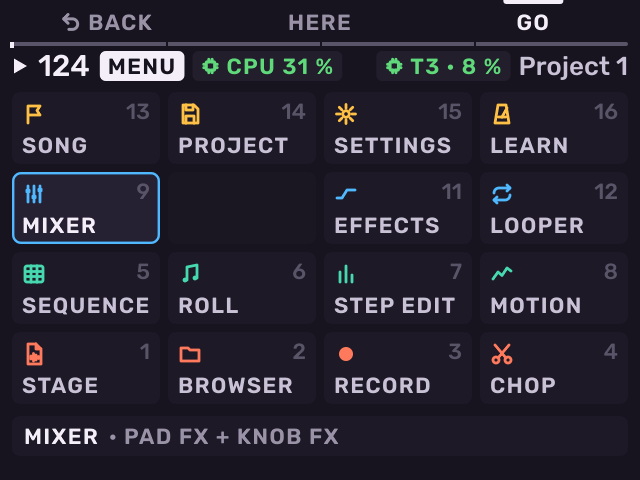
- Press B2 (HERE) for what this page can do, or B3 (GO) for the 16 places.
- Turn the encoder to pick a card and push it. On GO, a pad opens its place.
12B1 (BACK) closes the Menu. Any other button closes it and does its own job.
HERE
HERE lists, as cards, what the open page can do that no printed button says. Each card shows its shortcut under its name, so the Menu also teaches the shortcuts.
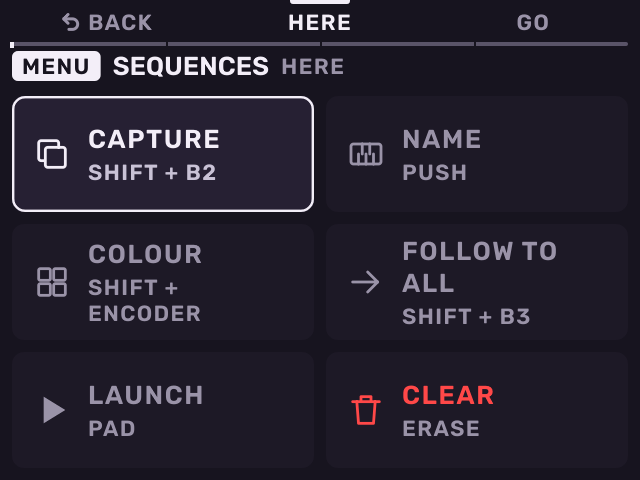
HERE The Menu opens on HERE: what Sequences can do, each card with its shortcut.
The Menu opens on HERE when the page has something to list (Stage, the mixer’s pages, Sequences, Patterns, Roll, Motion, MOD and Step Edit), and on GO otherwise.
GO
GO shows the 16 places, laid out as the pads. The pads light in four colours: sound, sequence, mix and project. The line at the foot shows how the lit place opens without the Menu.
| Pad | Place | Pad | Place |
|---|---|---|---|
| 1 | Stage | 9 | Mixer |
| 2 | Browser | 10 | – |
| 3 | Record | 11 | Effects |
| 4 | Chop | 12 | Looper |
| 5 | Sequence | 13 | Song |
| 6 | Roll | 14 | Project |
| 7 | Step Edit | 15 | Settings |
| 8 | Motion | 16 | Learn |
Pad 10 is empty. In Basic (see Settings), pads 8 and 12 are empty too.
The Menu’s header shows how much of the processor the tracks use (CPU), and the selected track’s share (snowflake: frozen).
Lessons
LEARN is a list of four short lessons.
- Hold the encoder, then press B3 (GO).
- Press PAD 16 (LEARN).
- Turn the encoder to pick a lesson and push it, or press B3 (START). B1 goes back.
123| Lesson | What it covers |
|---|---|
| First beat | Play two pads and record them into a pattern. |
| Sequences | Launch sequences from the Sequences page, then a track’s pattern with SEQ held. |
| Mix a track | Open the mixer, set a track’s level and pan, open its effects. |
| Shape a pad | Set a pad’s end on Trim, then its tune. |
A finished lesson keeps a check. During a lesson:
- Each step uses one control. The header shows the step number and what to do.
- The step’s button or pad blinks, and every other light is off. B1–B3 and K1–K3 have no light: the key’s label or the knob’s card pulses on the screen instead.
- Any other press does nothing.
- To leave, hold the encoder and press PAD 16 (LEAVE).
Lessons need the card and the MPC’s factory kits on its internal storage.
Knob takeover
K1–K3 are absolute knobs. When a knob is not at the value on its card, the card shows the value dim, with a tick where the knob is. By default the knobs use Scaled takeover: the value moves toward the knob until they meet. Change this in Settings (KNOBS).
Undo
- Hold SHIFT.
- Press − to undo, + to redo.
12Melodee keeps the last 512 steps.
The undo list
Hold SHIFT + − for a moment to open the undo list. It shows the steps, newest on top, each with its track and how long ago. NOW marks where you are; steps you undid are above it, dim.
- Turn the encoder, or press − / +, to pick a step. The steps above it go dim: they are undone when you go there.
- Push the encoder, or press B3 (UNDO or REDO and how many), to go to the state after that step. START is the state before every step in the list.
B1 (BACK) closes the list with no change. Any other button closes it and does its own job.
| What | Undo |
|---|---|
| A recording take | One step |
| Turning a knob | One step per control |
| Mute, solo, the transport | Not undo steps |
| Loading or creating a project | Clears the undo history |
Erase and copy
Hold ERASE and press
| Press | What it erases |
|---|---|
| A pad, on a kit, stopped | Empties the pad. |
| An empty pad, on a kit, stopped | Closes the gap (below). |
| A pad, on a kit, playing | That pad’s notes as the playhead passes them, while you hold both. Notes outside the hold stay. One undo. |
| A pad, on a keygroup, plug-in or MIDI track | That key’s notes (asks first). |
| CHOP, on Chop | Every cut, so the region is one slice again. One undo. |
| SEQ RECORD, on a kit | Every note of the selected pad in the pattern (asks first). With 16 Levels on, this is the 16 Levels pad, so every level goes. |
| A knob | Sets the value back to its default. |
| The fader | The fader’s Motion lane (asks first). |
12Closing a gap. The pads after the empty pad move down one, with their notes, through its bank and the next one. In bank A, B’s pad 1 moves onto A16 and B’s pads move down one, leaving B16 empty. Bank C stays, and a gap in bank H never pulls from A.
To take a pad out and close the gap, press ERASE + that pad twice. The first press shows Deleted A05 · again closes gap, the second which pads moved, such as A06-B01 moved down one.
ERASE alone
ERASE pressed alone erases what the page has selected:
| Page | ERASE alone |
|---|---|
| Roll | The selected note, or the marked notes |
| Step Edit | The selected event. In STEPS mode: the caret’s step |
| Sequences | The selected sequence’s name and tempo |
| Patterns | The pattern (asks first). On the SEQUENCE cards: the sequence’s name and tempo |
| Tracks | The track (asks first) |
| Looper | The selected loop (asks first) |
| Effect chains | The selected effect |
| Chop | The selected slice: it joins the slice before it (slice 1 joins the next) |
| Layers | The selected layer |
| Mod | The selected target |
| Project | The selected project: press twice |
| Song | The clip under the cursor |
| Sample browser, plug-in picker | The file or folder under the cursor, deleted from the card (asks first) |
Copy
- Press SHIFT + ERASE.
- Press what to copy.
- Press where it goes.
- Press ERASE to stop.
1234| Where | SHIFT + ERASE copies |
|---|---|
| PAD BANK held, or Tracks | Tracks |
| SEQ held, or Patterns | The selected track’s patterns |
| Sequences | A sequence, with copies of its patterns (see Sequences page) |
| Step Edit in STEPS mode | A step to another step |
| Roll with marked notes | The marked notes: push the encoder to paste them at the cursor |
| Roll, Step Edit in PLAY mode, the play pages of a keygroup, plug-in or MIDI track | A key’s notes to another key |
| A kit’s play pages | Kit pads. To copy to another kit, hold PAD BANK and press its pad between the source and the target. |
| Song | The clip, placed after itself |
| Project | The selected project |
| Effect chains | The selected effect, placed after itself |
| Chop | The selected slice, onto the next empty pad |
Before a loss
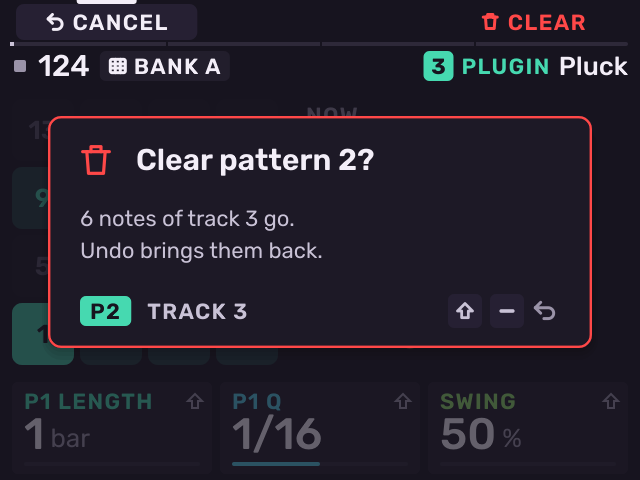
When an action deletes something, Melodee asks first. The question says what is lost and whether undo brings it back. B1 cancels, B3 does it. Or turn the encoder to pick one and push it.
Mute and solo
- Press MUTE for mute mode. Hold it instead for mute mode only while it is held.
- Press a pad to mute it. SHIFT + pad solos.
- SHIFT + MUTE unmutes everything.
12| Page | The pads mute |
|---|---|
| A kit page | Kit pads |
| Other pages | Tracks |
| The mixer’s second row (PAD BANK) | Submixes and buses |
Mutes on the beat
While a pattern plays with Mute quantize on (Settings > SEQ), a mute or solo waits for the next step of the pattern’s Q, so breaks land on time. Its pad blinks until then. Press the pad again before that to call it off. With Mute quantize off, a mute is heard at once. Stopping sets any mute still waiting.
Mutes and sequences
A track mute is kept in the sequence in hand. Launching a sequence sets each track’s mute as the sequence keeps it, at the next bar (see Sequences). Solo and kit pad mutes are not kept.
What a mute does
Mute in Settings (SEQ) sets it:
| Setting | A muted track or pad |
|---|---|
| Audio | Is silent at once, as on the MPC. |
| Notes | Plays no new notes. What it plays rings out. A MIDI track sends each note’s Note Off when it is due. |
With SEQ RECORD on, kit pad mutes are recorded in the pattern (see Sequencing, Motion).
Pad lights
The pads show what a press does on the page:
| Light | Means |
|---|---|
| The track’s colour | The track’s notes or pads. A kit pad with a colour of its own lights in that colour (see COLOUR). |
| White | The selected pad, or a panel job (for example while SHIFT is held). |
| Red | Muted, about to be erased, or recording. |
| Brighter | More important: the selected pad, a note’s velocity, a playing pattern. |
| Blinking | Waits for the next bar. |
Change the pad lights to white or off, and how fast a pad fades after its sound stops, in Settings (PADS).
Light show
- Hold SAMPLE and press MUTE: the light show is on. Again: off.
- While it is on, hold SAMPLE and press − / + to pick its style.
123Every light on the panel keeps time with the tempo, and a pad you press flashes white. The pads, buttons and pages work as usual. The styles are Pulse, Sweep, Chase, Ripple and Levels (the pads show the mix as a meter). The light show is off when Melodee starts.