Melodee 0.10.4This is the manual for Melodee 0.10.4. The newest release is 0.10.6: what's new since 0.10.4 · this page for 0.10.6.
Manual · Chapter 13
MIDI and sync
MIDI Config's rows, what Melodee takes in and sends out over MIDI, clock and timecode sync, and worked examples with a MIDI controller.
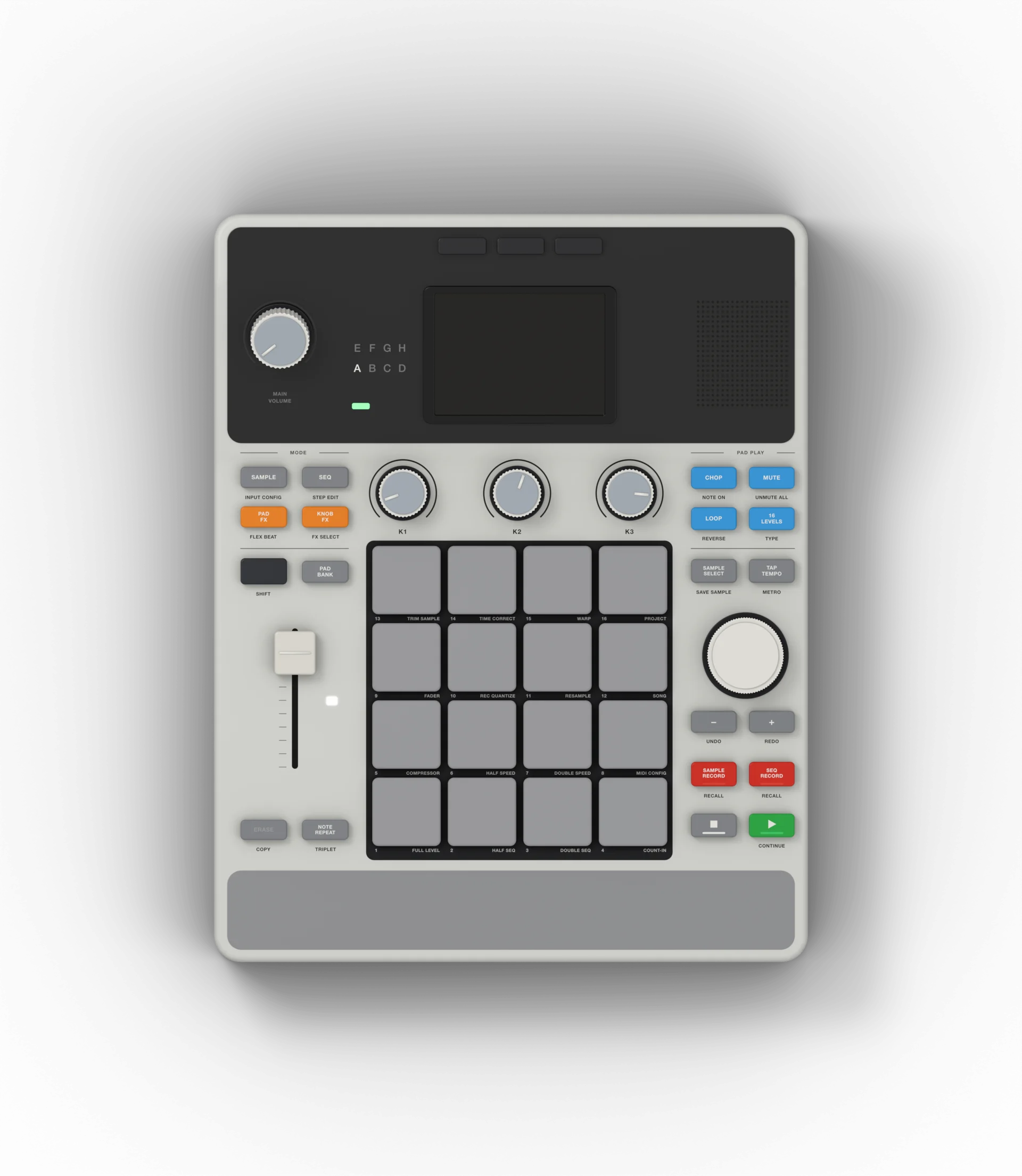
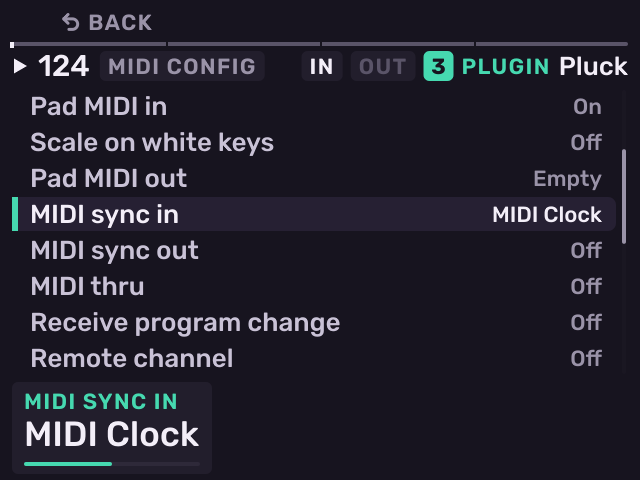
- Hold SHIFT and press PAD 8, then open MIDI.
- Turn the encoder to a row.
- Turn K1 to set it: its card shows the row’s name and value. − / + step it one value at a time.
123- Push the encoder on MIDI panic or Reset factory settings to do it.
- Push the encoder on a Remote CC row to learn it: move a control on the controller, and the row takes its CC and Remote channel its channel.
- B1 goes back.
- The header lights IN and OUT as MIDI passes.
Rows
Ports and channels
| Row | Setting |
|---|---|
| MIDI port | External (the MIDI jacks) or USB |
| MIDI in channel | All or 1–16. Notes on this channel play the selected track. |
| MIDI out channel | The channel for pads and patterns |
| Track channel | Off or 1–16: the selected track’s own channel. It plays that track whichever track is selected, and the track’s notes go out on it. |
| Track MIDI in | Where the track’s own channel is heard: Any, External or USB |
| Pad MIDI in | On or off: whether notes and pressure in play the tracks |
| Scale on white keys | On or off. On a Scale or Chords track, the white keys play the scale with the root on C4, and the black keys play nothing. See Play the scale on the white keys. |
| Pad MIDI out | Never, Always or Empty (only pads and tracks with no sound of their own send notes) |
Sync and thru
| Row | Setting |
|---|---|
| MIDI sync in / out | Off, MIDI Clock or MTC |
| MIDI thru | On or off |
Program change
| Row | Setting |
|---|---|
| Receive program change | Off, Sequence or Plug-in. Sequence: a program change launches that sequence, as a pad on Sequences does. Plug-in: it loads that preset into the plug-in of the track it plays. See Example 5. |
| Send program change | On or off. On: when you pick a preset on a plug-in track, it goes out as a program change. See Send program changes. |
Remote
| Row | Setting |
|---|---|
| Remote channel | Off or 1–16: the channel of the Remote CCs |
| Remote track CC | Selects a track. Value 0 is track 1. Default CC 102. |
| Remote pattern CC | Launches a pattern on the selected track. Value 0 is A01. Default CC 103. |
| Remote sequence CC | Launches a sequence. Value 0 is the first sequence. Default CC 104. |
| Remote play CC | Off or a CC: a press plays, and stops while playing. See Example 7. |
| Remote record CC | Off or a CC: a press does what SEQ RECORD does |
| Remote preset CC | Off or a CC: a knob that steps the selected track’s presets. See Example 6. |
| Remote preset knob | How that knob sends: Absolute, Binary offset, 2’s complement, Signed bit or Signed bit 2 |
CV, takeover and reset
| Row | Setting |
|---|---|
| CV/sync out | On or off: clock pulses on the sync output. CV/sync base (1–8) and CV/sync division (1–24) set how many a quarter note. |
| Parameter, Knob FX and Fader takeover | As in Settings, KNOBS: Pickup, Scaled or Instant |
| MIDI panic | Push: ends every note on every channel and port |
| Reset factory settings | Push, then B3 to reset or B1 to keep. Your starred sounds and Basic or Full are kept. |
MIDI in
Melodee takes notes, pressure, CC 1 (mod wheel), the pitch wheel, the sustain pedal and other CCs, and All Notes Off, on every page and every kind of track.
- A kit plays note 36 as pad A01.
- Notes record with SEQ RECORD.
| In | What it does |
|---|---|
| Pitch wheel | Bends plug-in tracks and kits (2 semitones each way on a kit). Records as a Motion lane on the selected track. |
| Mod wheel (CC 1) | Records as a Motion lane on the selected track. |
| Sustain pedal (CC 64) | Holds a kit’s notes. |
| CCs | Plug-in tracks get every CC as it comes. MIDI tracks send CCs out on their own port and channel. |
| Remote CCs | Heard from any port, and not passed on to the tracks. A value past the last track, pattern or sequence does nothing. |
On Step Edit and Roll, keys write notes as the pads do:
- Step Edit writes at the caret and moves on when every key is let go.
- With a step held on Step Edit’s pads, the keys played go into that step.
Each track can take its own controller:
- Select the track (PAD BANK + pad).
- Set Track channel.
- Set Track MIDI in.
| What | Listens on |
|---|---|
| The selected track, sync, Thru and program changes for sequences | MIDI port |
| A track’s own channel | Its Track MIDI in |
SEQ RECORD records every track that a channel plays, at once.
Sync in
| MIDI sync in | Melodee takes | Header |
|---|---|---|
| MIDI Clock | Start, Continue, Stop, Song Position and tempo | EXT CLOCK |
| MTC | Timecode at 24, 25, 29.97 drop-frame and 30 fps. Melodee follows it: the song on Song, else the patterns. | EXT MTC |
- Continue plays on from the Song Position, counted at the selected track’s speed (see Track speed), as SHIFT + PLAY counts it.
- An MTC cue while stopped moves the playhead there, counted the same way.
- While the clock comes in, it sets the tempo: turning the tempo or tapping TAP TEMPO shows Tempo locked to MIDI sync. Set MIDI sync in to Off to set the tempo on the MPC.
MIDI out
Melodee sends pads, patterns, the arpeggiator, MIDI clock (with Start, Continue, Stop and Song Position), MTC and the CV clock.
| Goes out | When |
|---|---|
| What you play: pads, keys, MIDI in, the fader, knobs | At once |
| Patterns, the arpeggiator and the clocks | As their sound is heard, so outside gear plays in time with Melodee’s own tracks |
Using a MIDI controller
The examples use an Arturia MiniLab 3: 25 keys, 8 pads in two banks, a pitch strip, a mod strip, 8 encoders, 4 faders and a sustain pedal input. Any controller that sends notes and CCs works the same way.
What the MiniLab 3 sends as it comes:
| Control | Sends |
|---|---|
| Keys | Notes on channel 1. To change the channel, hold the MiniLab 3’s Shift and press a key: the first F is channel 1, each key up is one more, to channel 16. |
| Pads, bank A | Notes 36–43 on channel 10 |
| Pads, bank B (MiniLab 3 Shift + pad 2) | Notes 44–51 on channel 10 |
| Pitch strip | Pitch bend |
| Mod strip | CC 1 |
| Pedal input | The pedal’s CC (CC 64 for a sustain pedal) |
Connect it
The MPC’s USB-C port is for a computer. A controller cannot plug into it.
| Connection | How | MIDI port |
|---|---|---|
| MIDI In jack | Connect the MiniLab 3’s 5-pin MIDI Out to the MPC’s MIDI In jack with a 5-pin to 3.5 mm MIDI adapter. Power the MiniLab 3 from a USB power adapter. | External |
| Through a computer | Plug the MiniLab 3 and the MPC into the computer. Route the MiniLab 3 to the MPC’s MIDI port in your DAW or MIDI app. | USB |
Example 1: play the selected track
- Set MIDI in channel to All.
- Select a track.
- Play the keys. Bend with the pitch strip, use the mod strip, hold notes with the sustain pedal.
- Press SEQ RECORD and PLAY to record. The pitch strip and the mod strip record as Motion lanes.
On Step Edit, each key writes a note at the caret. On Roll, a key writes at the cursor.
Play the scale on the white keys
- Hold SAMPLE on an instrument track to see Keys. Set the root with K1, the scale with K2 and the layout to Scale or Chords with K3.
- On MIDI Config, set Scale on white keys to On.
- Play the white keys. C4 plays the root, D4 the second note of the scale, and so on. The black keys play nothing.
| Scale or track | The white keys |
|---|---|
| A scale of seven notes | Every C plays the root. |
| A scale with fewer or more notes, such as Minor pent | Go on up the white keys one note a key. |
| The Chromatic scale | Every key plays as it is. |
| Kits, and tracks on the Chromatic, Drums or Prog layout | Not changed. |
Example 2: keys on a synth track, pads on a kit
The pads send notes 36–51 on channel 10, and a kit plays note 36 as pad A01:
| MiniLab 3 pads | Notes | Kit pads |
|---|---|---|
| Bank A | 36–43 | A01–A08 |
| Bank B | 44–51 | A09–A16 |
- Select the kit track. Set Track channel to 10.
- Select the synth or plug-in track. Set Track channel to 1.
- Play the pads and the keys. Both tracks play, whichever track is selected.
- Press SEQ RECORD and PLAY. Melodee records both tracks in one pass.
Example 3: two controllers on one MIDI In jack
The MPC has one MIDI In jack. To play two controllers, join them with a MIDI merge box and connect its output to the MIDI In jack. Melodee tells the controllers apart by channel, so each one needs its own channel.
This builds on Example 2: the MiniLab 3 plays a synth (keys, channel 1) and a kit (pads, channel 10). A second keyboard plays a bass track.
- Set the second keyboard to channel 2.
- Select the bass track. Set Track channel to 2.
- Play both controllers. The keys, the pads and the second keyboard each play their own track, whichever track is selected, and SEQ RECORD records all three tracks.
Track MIDI in tells the MIDI In jack apart from a computer on USB-C:
- A track set to External does not hear notes on its channel from the computer.
- A track set to USB does not hear the jack.
- The selected track, sync, Thru and program changes for sequences listen on MIDI port only.
Example 4: change tracks, patterns and sequences from the MiniLab 3
Make a User program in Arturia’s MIDI Control Center that sends:
| MiniLab 3 control | Set it to send | In Melodee |
|---|---|---|
| Fader 1 | CC 102, channel 16, range 0–15 | Selects tracks 1–16 |
| Pads 1–8, bank A | CC 103, channel 16, values 0–7 | Launches patterns A01–A08 on the selected track |
| Pads 1–8, bank B | CC 104, channel 16, values 0–7 | Launches sequences 1–8 |
Option names can differ between versions of MIDI Control Center.
- Send the program to the MiniLab 3.
- Select it: hold the MiniLab 3’s Shift and press its pad 3. Each press steps through Arturia, DAW and the User programs on the MiniLab 3’s screen.
- In Melodee, set Remote channel to 16. Remote track CC, Remote pattern CC and Remote sequence CC are 102, 103 and 104 already.
- Move fader 1 to pick a track.
- Press a bank A pad to launch that track’s pattern, or a bank B pad to launch a sequence. Both start at the next bar (at once when stopped).
- Use a channel for Remote that no track plays on. Remote CCs do not reach the tracks.
- With Receive program change set to Sequence, a pad set to send Program Change launches that sequence.
Example 5: change plug-in presets from a controller
Set Receive program change to Plug-in. A program change then loads a preset into the plug-in of the track it plays, as a note on the same channel would: the track with that Track channel, else the selected track. This works for VST3, VST2, CLAP, LV2 and MPC plug-ins, also for plug-ins that ignore MIDI program changes.
| Message | Loads |
|---|---|
| Program 1 (sent as 0) | The first preset |
| Program 2–128 | The presets after it, in the order the encoder steps through them on PRESETS |
| Bank Select CC 32 = 1, then program 1 | Preset 129 |
| Bank Select CC 0 = 1, CC 32 = 0, then program 1 | Preset 16385 |
- Select the plug-in track.
- On the controller, send program 5. The screen shows Program 5 and the name of the fifth preset.
- Press SHIFT + B2 (PRESETS) to see the preset in the list.
- The bank stays set on that channel until the next Bank Select.
- A program past the last preset shows No preset and changes nothing.
- The plug-in of a frozen track keeps its preset.
- Program changes that come quickly, from a held PROG + button or a knob that sends one a step, do not queue up. The preset loading finishes, then the last one sent loads.
- A single program change loads at once.
Example 6: step presets with a knob
Learn a knob of the controller as Remote preset CC. Turning it right loads the next preset of the selected track, turning it left the previous one, on any page.
- Open MIDI (SHIFT + PAD 8).
- Turn the encoder to Remote preset CC.
- Push the encoder. The row shows Learning.
- Turn the knob slowly to the right, then let go. The screen shows the CC, the channel and how the knob sends. Remote channel is set to the knob’s channel. Turns that go on after that do nothing until the knob has rested for a moment.
- Select a plug-in track and turn the knob. The screen shows each preset’s name. The preset loads when the knob stops.
| Track | The knob steps |
|---|---|
| Plug-in | Its presets, as the encoder does on PRESETS |
| MIDI | PROGRAM 1–128, sent at once |
If the knob steps the wrong way or skips, set Remote preset knob to how the controller sends:
| Remote preset knob | The controller sends | For example |
|---|---|---|
| Absolute | Its position, 0–127 | A knob with ends. It stops stepping at the ends. |
| Binary offset | 65 one step right, 63 one step left | MiniLab 3 encoders in Relative1, SMK-37 knobs in DAW mode REL |
| 2’s complement | 1 one step right, 127 one step left | MiniLab 3 encoders in Relative2 |
| Signed bit | 1 one step right, 65 one step left | |
| Signed bit 2 | 65 one step right, 1 one step left |
- Use an endless encoder in a relative mode: it keeps stepping in both directions.
- Push the encoder again on the row to stop learning. Learning also stops after 10 seconds, or when you leave MIDI.
Example 7: start and stop with a foot pedal
Learn a foot pedal (a footswitch on a keyboard or MIDI controller that sends a CC) as Remote play CC. Each press then starts playback, and the next press stops it, while your hands stay on the keys.
- Open MIDI (SHIFT + PAD 8).
- Turn the encoder to Remote play CC.
- Push the encoder. The row shows Learning.
- Press the pedal. The screen shows the CC and the channel. Remote channel is set to the pedal’s channel.
- Press the pedal to play. Press it again to stop.
Learn a second pedal or button as Remote record CC the same way. A press arms recording, records, or stops recording, as SEQ RECORD does.
- A press is a value of 64 or more. The pedal’s release (a value below 64) does nothing.
- A pedal set to latch sends 127 on one press and 0 on the next, so it acts on every other press: set it to momentary.
- Remote CCs do not reach the tracks, so use a pedal other than the sustain pedal, or another channel.
Send program changes
Set Send program change to On. When you pick a preset on a plug-in track, Melodee sends it from MIDI port on the track’s channel: its Track channel, else MIDI out channel. A controller with a screen or a second instrument on that channel can then follow it.
| Sent | Value |
|---|---|
| Bank Select MSB (CC 0) | The bank ÷ 128 |
| Bank Select LSB (CC 32) | The bank’s remainder ÷ 128 |
| Program change | The preset’s place in the bank, 1–128 |
- The numbers are the same as for Receive program change: preset 1 is bank 0, program 1, and preset 129 is bank 1 (CC 32 = 1), program 1.
- Turning the encoder on PRESETS or the preset knob sends only the preset you stop on.
- A program change that came in by MIDI is not sent back.