Manual · Chapter 02
Coming from the stock MPC Sample
What works as on the stock MPC Sample app, what is different in Melodee, and the habits to change first.
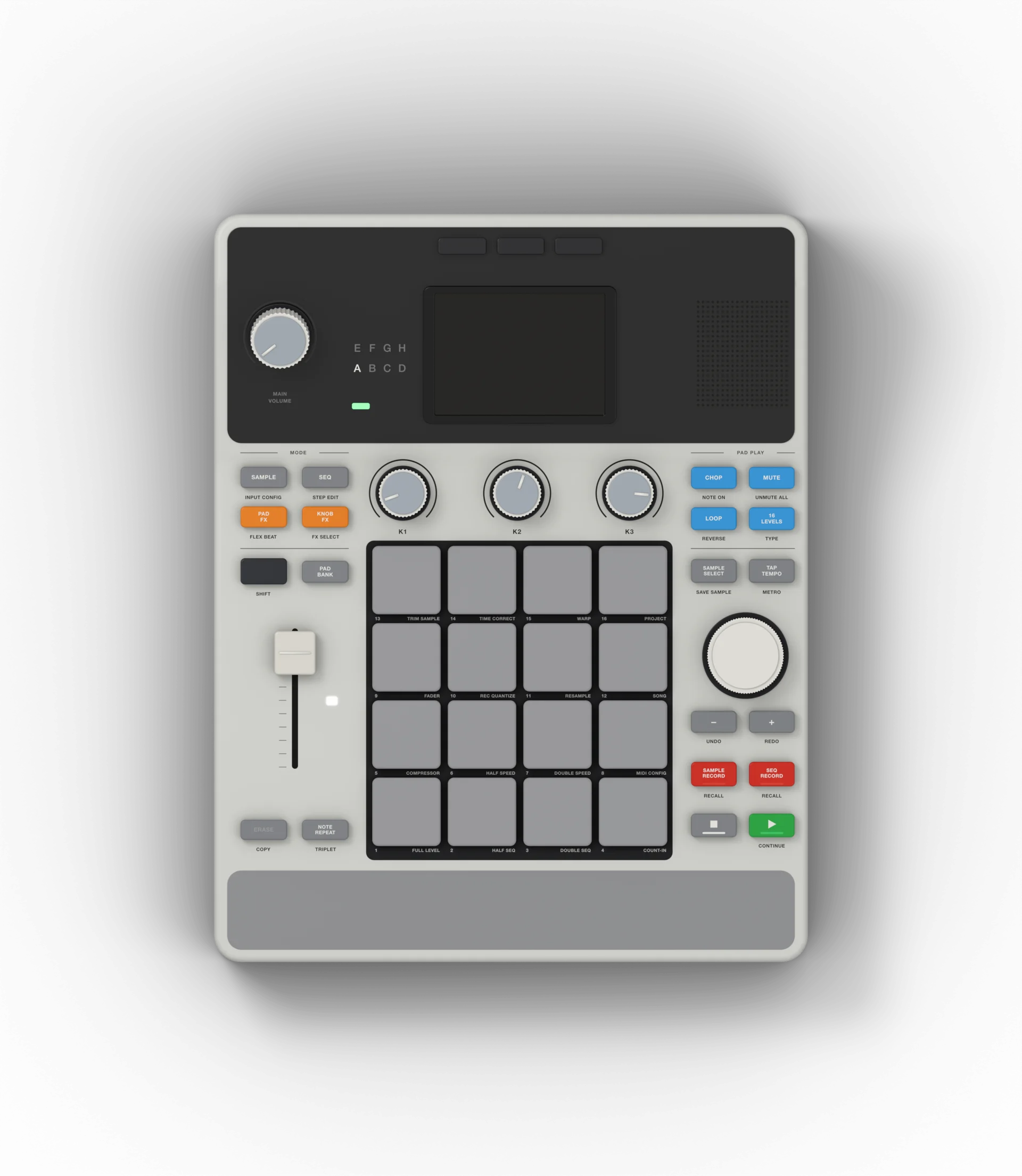
Melodee keeps the MPC Sample’s printed controls. If you know the stock app, most of what you do still works. This chapter lists what is the same, what is different, and how to change your habits.
Melodee starts on Full, which shows every page. Basic shows the stock app’s pages plus tracks, plug-ins, the mixer and Song (see Basic and Full).
What stays the same
Printed buttons
The printed button names keep their meaning:
| Button | Does |
|---|---|
| CHOP | Chops |
| SAMPLE RECORD | Records a sample |
| SAMPLE SELECT | Opens the browser |
| NOTE REPEAT | Repeats |
| 16 LEVELS | Spreads a pad over all 16 pads |
| MUTE | Mutes |
| LOOP | Loops the current pad |
SHIFT jobs
The printed SHIFT jobs work as on the stock app:
| Button | With SHIFT |
|---|---|
| SAMPLE | Opens Input Config |
| SEQ | Opens Step Edit |
| ERASE | Copies |
| PAD FX | Opens Flex Beat |
| CHOP | Sets Note On |
| LOOP | Reverses the pad |
| 16 LEVELS | Sets the type |
| TAP TEMPO | Sets the metronome |
| PLAY | Continues |
| − / + | Undo and redo |
The SHIFT + pad jobs printed under the pads work as on the stock app. The one change is PAD 8: it opens Settings, and MIDI Config is one of its pages (see SHIFT + pads).
Kits
- A kit has 128 pads in 8 banks (A–H). Press PAD BANK for the next bank and SHIFT + PAD BANK for the previous one.
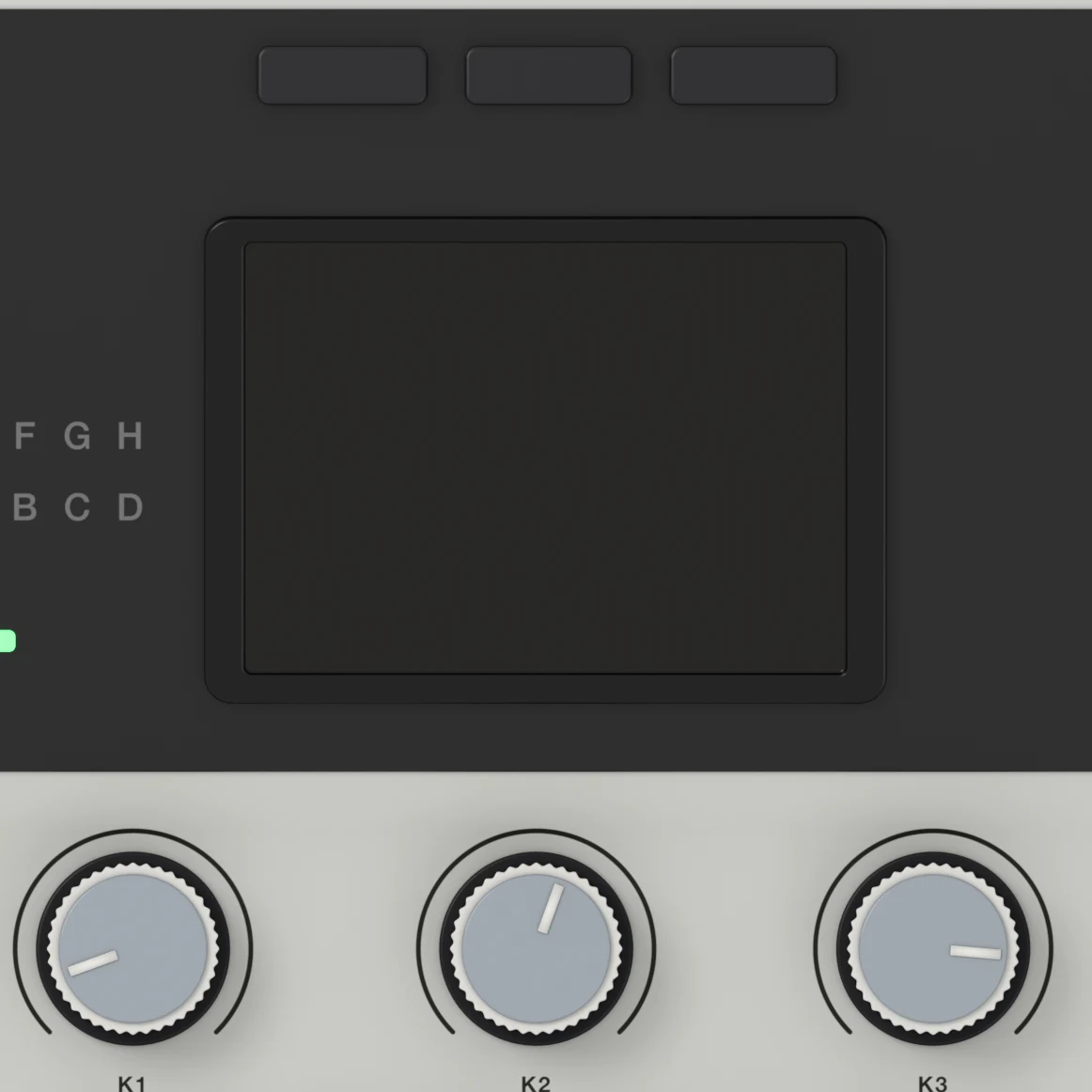
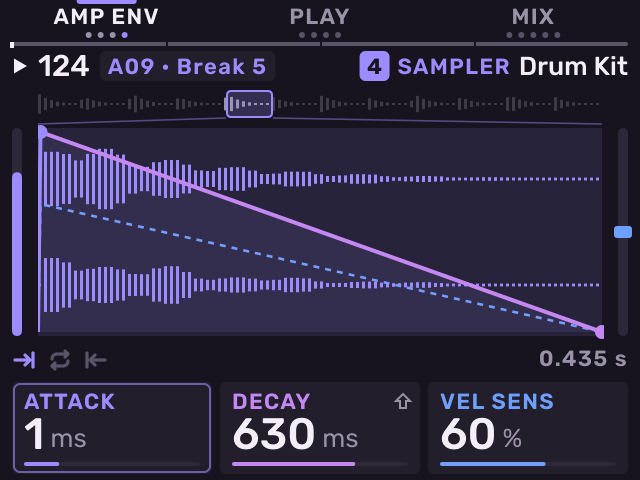
- A kit’s pad pages are the stock Sample mode pages: Trim, Tune, Amp Env, Play, Mix, Filter and Filt Env. The knobs do the same jobs.
- MPC kits keep their pad colours.
- Hold SAMPLE and press a pad to select that pad without playing it.
On Stage the pad pages are grouped by what they do:
| Key | Pages |
|---|---|
| B1 | Trim, Tune and Amp Env |
| B2 | Play |
| B3 | Mix, Filter and Filt Env |
Recording, transport and saving
| Task | Controls |
|---|---|
| Record a pattern | SEQ RECORD and PLAY |
| Erase a pad or its notes | ERASE + pad, as on the stock app |
| Erase the selected pad’s notes | ERASE + SEQ RECORD. It asks first, in the stock app’s words. |
| Open Song | SHIFT + PAD 12 |
| Open Project | SHIFT + PAD 16 |
| Stop all notes | Press STOP twice: the second press, while stopped, sends all notes off. |
| Set the tempo | Hold TAP TEMPO and turn the encoder. Held without a turn, it opens the Tempo page. |
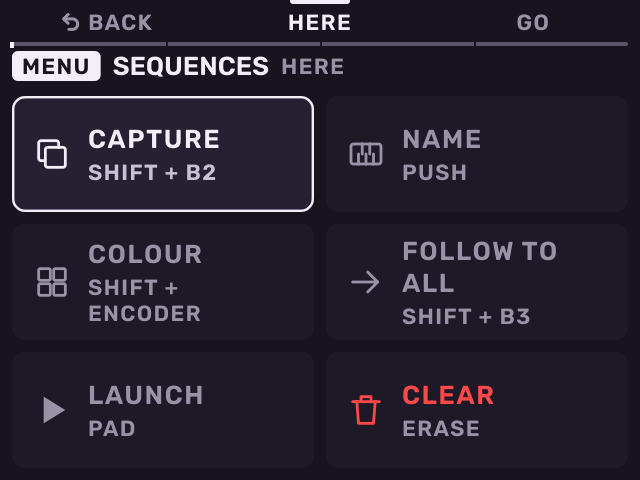
| Move to the next knob card | Push the encoder. Melodee adds one thing to the encoder: hold it to open the Menu (see The Menu). |
| Save under a new name | SHIFT + PAD 16, B1 (SAVE AS). The project saves in the background. |
- Knob FX, Pad FX, Flex Beat and the master compressor work as on the stock app, with the stock effects in the stock order.
- The level meters light at the stock app’s levels.
What is different
| On the stock app | In Melodee |
|---|---|
| A project is one kit. | A project has 16 tracks. Each track can be a kit, a keygroup, a plug-in instrument, a MIDI track or an audio track. A new project has none: it opens on track 1 with the track types. To start with the MPC’s factory kit on track 1, press B3 (NEW) on the Project page, then B2 (KIT). |
| PAD BANK held + Pads 1–8 jumps to bank A–H. | PAD BANK held + pad selects track 1–16. To jump banks, hold PAD BANK and turn the encoder or press − / +. |
| SAMPLE opens Sample mode. | SAMPLE opens Stage, the selected track’s sound pages, from any page. On a kit, Stage has the Sample mode pages. On Stage, SAMPLE goes back to B1’s first page. Hold SAMPLE to see the track’s pads: Pads on a kit, Keys on an instrument. |
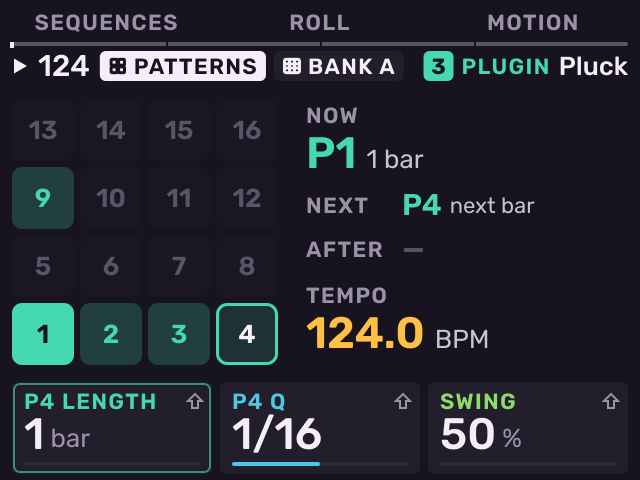
| In Sequence mode the pads select sequences. | The same: SEQ opens Sequences, and the pads launch a sequence on every track. B2 and B3 open Roll and Motion. Hold SEQ on any page for the selected track’s patterns; SHIFT + pad then launches a sequence. |
| A sequence plays every pad of the kit. | A sequence keeps one pattern for each track. Each track has its own 128 patterns, in banks A–H. To put one track on a different pattern in the sequence, press B1 again for Patterns, or hold SEQ and press a pad. |
| Song mode is a list of sequences. | Song is a timeline with a lane per track. You place pattern clips on it, add markers and tempo changes. A stock project’s song opens as clips, one marker a step. |
| Projects are on the internal drive. | Melodee’s projects are on the card in Melodee/Projects. On the project list, B2 (INTERNAL) shows the internal drive. Stock projects open as copies (see MPC Sample projects). |
| SHIFT + KNOB FX (FX Select) picks pad effects. | SHIFT + KNOB FX opens the effect chains: Track, Bus, Master and, on a kit, Pad. |
| SHIFT + SEQ RECORD brings the last loop into the sequence. | SHIFT + SEQ RECORD (Recall) puts the last phrase you played on every track into each track’s next empty pattern. |
| SAMPLE RECORD records a sample. | On a kit, the same. On a keygroup, plug-in or MIDI track, SAMPLE RECORD opens the PRINT sheet, which freezes the track to audio (see Freeze a track). On an audio track it opens the track’s INPUT. |
| No looper. | Press LOOP and 16 LEVELS together to open the Looper (in Full). |
| No mixer. | Press PAD FX and KNOB FX together to open the mixer: every track, submix, bus, the input and the master, with sends, effects, EQ and a compressor. |
| Power off with POWER. | A short press of POWER opens the Exit screen: stay, power off, or go back to the stock app. |
Change your habits
These are the actions stock users look for first.
Pick a track before you play
- Hold PAD BANK.
- Press a pad to choose a track.
12- The pads play the selected track.
- The header shows the selected track on the right.
Make a kit and use it as before
- In a new project, track 1 shows the track types. Push the encoder on Drum.
- Push the encoder on a source.
SAMPLE SELECT, SAMPLE, CHOP, SAMPLE RECORD and 16 LEVELS work on the kit as on the stock app.
Tap SEQ for sequences, hold it for patterns
| Press | Does |
|---|---|
| SEQ, a tap | Opens Sequences (or Patterns, Roll or Motion, if one of them was open last on the track). |
| SEQ held | The pads are the selected track’s patterns, from any page. |
| SEQ held, SHIFT + pad | Launches a sequence on every track. |
A change comes at the next bar, or at once when stopped.
Use SHIFT + encoder push to go back
Melodee’s pages open from each other.
| To go back | Press |
|---|---|
| One page | SHIFT + encoder push |
| From a sheet | B1: BACK or CANCEL on every sheet |
| From a page you opened with a SHIFT + pad job | That job again: the page closes. |
1Open your stock projects
- Hold SHIFT and press PAD 16: the Project page.
- Press B2 (OPEN).
- Turn the encoder to the MPC Sample folder and push it, for stock projects on the card. For the projects on the internal drive, press B2 (INTERNAL) instead.
123See MPC Sample projects.