Manual · Chapter 14
Projects and files
How Melodee saves and opens projects, the Name sheet, stock MPC projects, copying files to and from the card, the web page and updates.
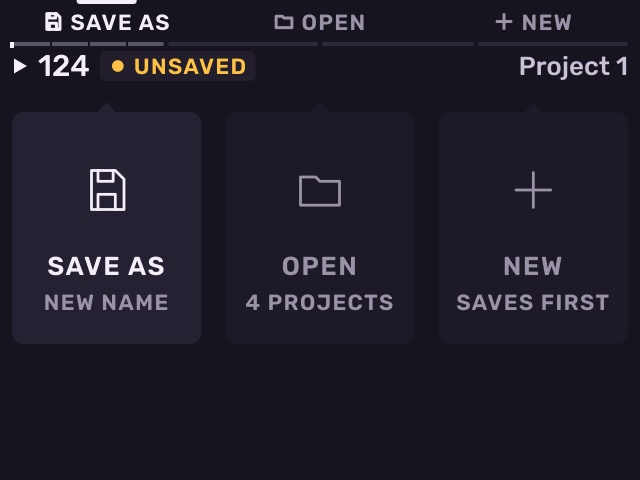
The Project page
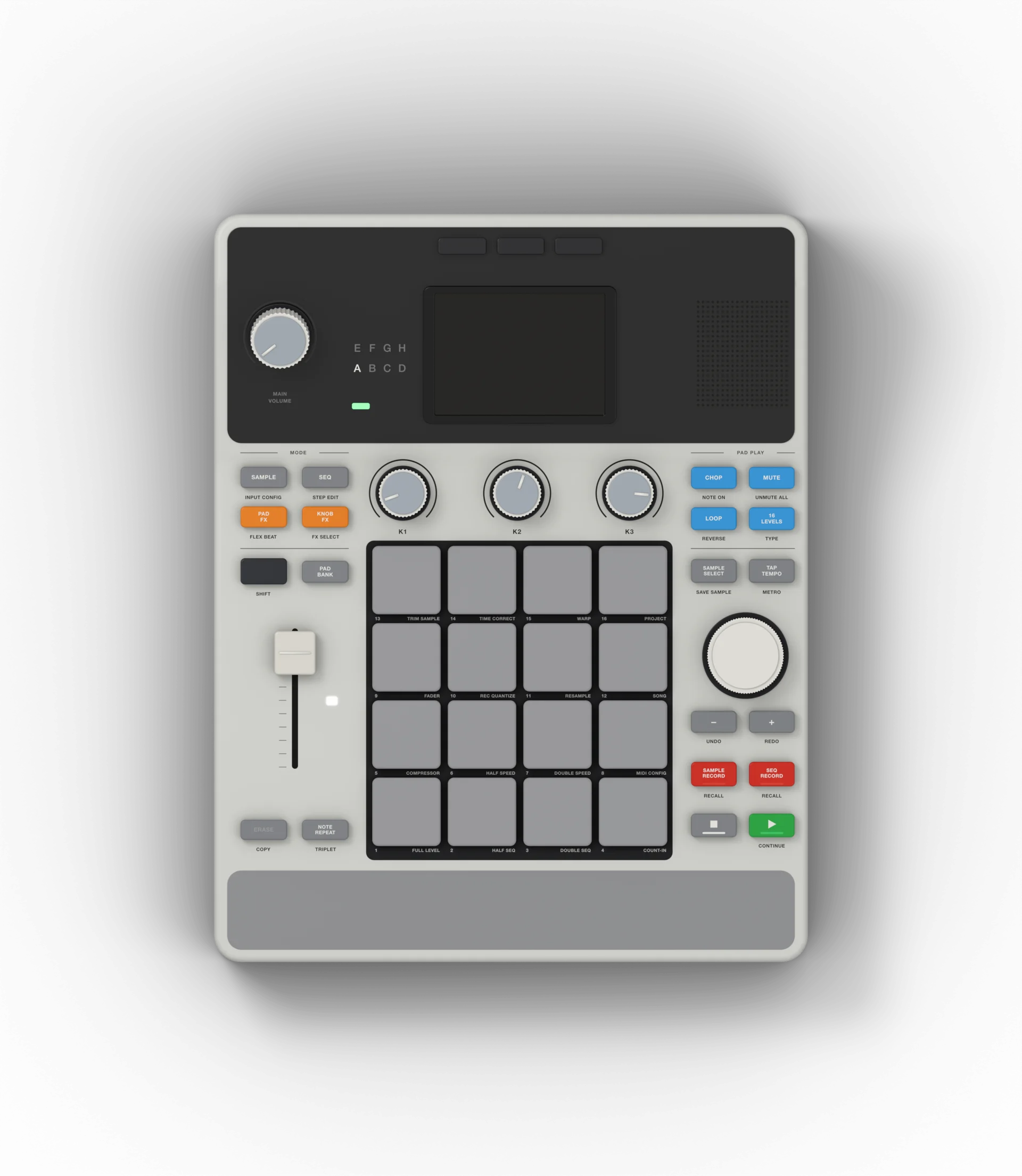
- Hold SHIFT and press PAD 16.
- Press B1, B2 or B3. Or turn the encoder to pick a card and push it.
12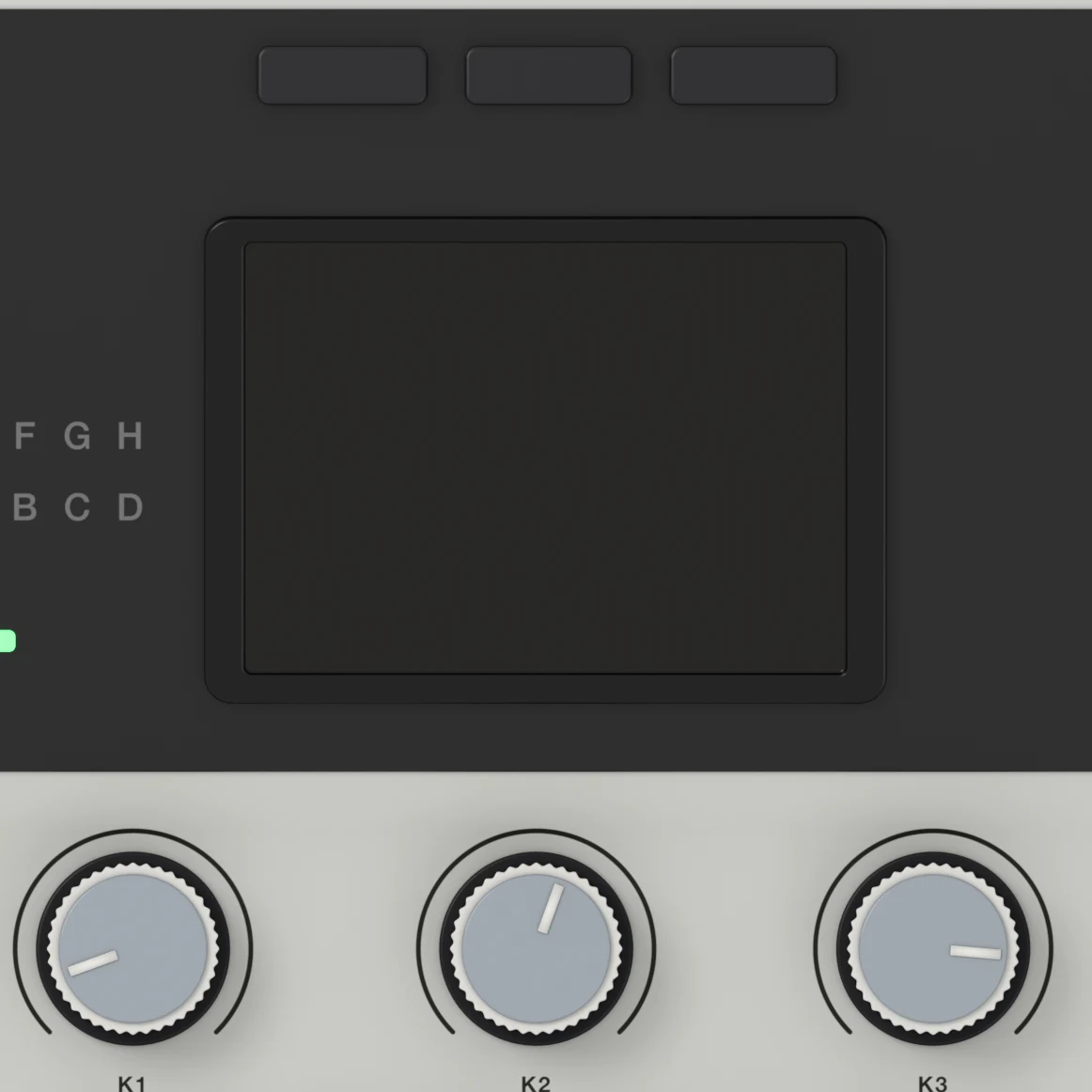
| Key | Action |
|---|---|
| B1 (SAVE AS) | Save the project under a new name. The old file stays as it was. |
| B2 (OPEN) | The list of projects (see The project list). |
| B3 (NEW) | Start a new project (asks first). |
A new project
B3 (NEW) asks first. The question says whether the open project is saved first or its changes are lost.
| In the question | Action |
|---|---|
| B3 (NEW) | Start the project with no tracks. The track types open on track 1. |
| B2 (KIT) | Start it with one of the MPC’s factory kits on track 1, so the pads play at once. |
| B1 | Cancel. |
Saving
Melodee saves the project in the background, as the stock app does.
- Three seconds after you last used a control, Melodee writes the project to its file, as long as nothing plays, records or prints.
- A new project gets a file of its own the first time: Project 1, Project 2 and so on.
- While the sequencer plays, nothing is saved. Stop, and the save follows.
- The Project page shows SAVED, or UNSAVED until the next save.
- The Exit screen saves before it powers off or leaves.
- An MPC project you open is not saved in the background. Press B1 (SAVE AS) to give it a file of its own.
- Undo and redo are not saved with the project.
- To keep an earlier state, press B1 (SAVE AS) before you go on.
A sample’s chop is saved in the sample’s WAV file, as the MPC saves slices: the slices, the chop type and the cuts made by hand. The chop comes back with the sample in any project.
Autosave off
To save only when you choose, turn Autosave off in Settings (SEQ). Then:
| Control | Action |
|---|---|
| B1 (SAVE) | Write the project to its file. A project with no file yet still gets SAVE AS. |
| SHIFT + B1 (SAVE AS) | Save it under a new name. |
| NEW, LOAD of another project, the Exit screen | No save. While the project has changes they say DISCARDS (LOAD: CHANGES LOST), and LOAD asks once more. |
The header shows UNSAVED in amber while the project has changes.
To go back to what was last saved:
- Press B2 (OPEN) on the Project page.
- Push the encoder on the open project.
- Turn the encoder to REVERT (TO SAVED) and push it.
- Push it again to confirm.
The project list
- Hold SHIFT and press PAD 16.
- Press B2 (OPEN).
- Turn the encoder to a project and push it, or press B3: its sheet opens.
123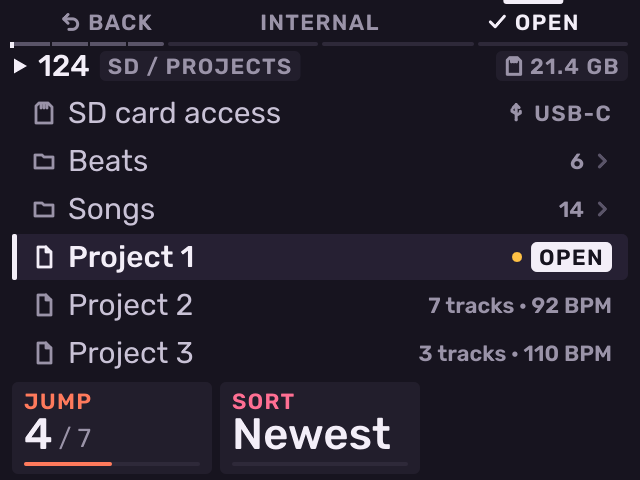
| Control | Action |
|---|---|
| Encoder, turn | Move. |
| K1 | Jump. |
| K2 | Sort. |
| Encoder push, B3 | Open a folder. On a project: open its sheet. |
| B1 | Go back. At the top of Melodee/Projects: go up to the card’s own folders, so a project or kit anywhere on the card can be loaded. At the card’s top: close the list. |
| B2 | Switch between the card and the MPC’s internal drive (INTERNAL). |
| ERASE | Open the project’s sheet on Delete. Press ERASE again to delete it. |
| SHIFT + ERASE | Duplicate the project. |
- The internal drive holds the stock app’s projects, its Autosave, and the factory Demos and Kits. It is read only: its projects have Load and Load kit.
- The list opens on the open project the first time, then where you left it. A project not yet saved on the card opens it at the card’s top.
- Each drive keeps its own folder and row.
A project’s sheet
A project’s jobs are cards.
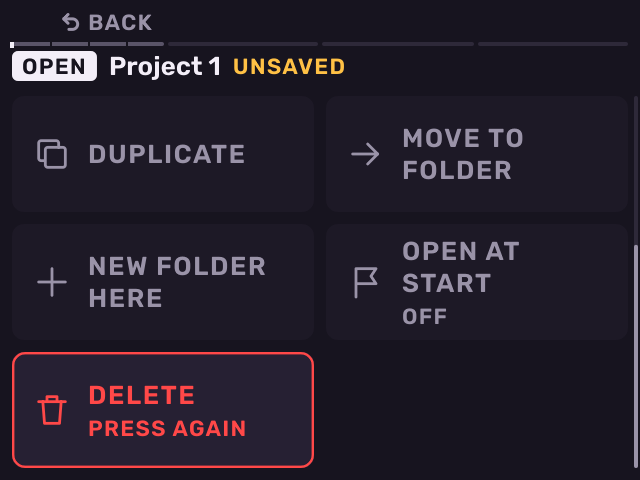
| Project | Cards |
|---|---|
| The open project | Save, Save as new, Rename, Duplicate, Move to folder, New folder here, Open at start and Delete |
| Another project | Load and Load kit first. Load kit (no patterns) loads its first kit onto the selected track. |
- Save (or Load) is picked when the sheet opens. Turn the encoder to pick another card and push it.
- Delete says PRESS AGAIN: push once more to delete.
- B1 closes the sheet.
While a project loads, a Loading sheet shows its progress. The audio fades out and back in.
Naming
The Name sheet opens when you save or rename a project, sample, sound, bank, marker, sequence or track.
- Press the pads to type, like phone keys. Each pad shows the letter it types next.
- Turn the encoder to move the cursor.
- Press B3 (SAVE), or push the encoder.
123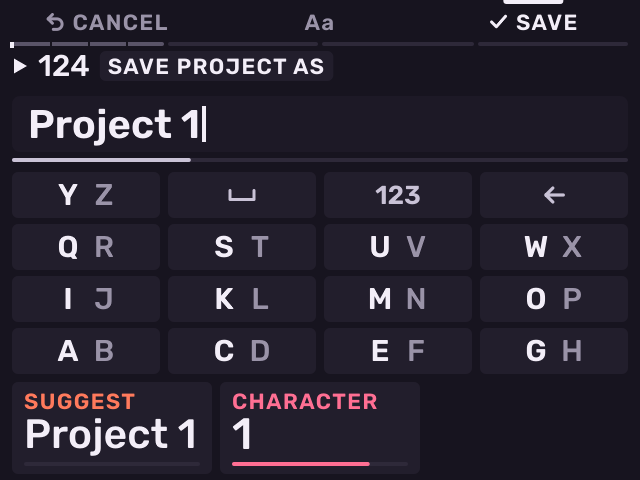
| Control | Action |
|---|---|
| Pads | Type, like phone keys. Each pad shows the letter it types next. |
| PAD 14 | Type a space. |
| PAD 15 | Switch to digits. |
| PAD 16 | Delete. |
| Encoder, turn | Move the cursor. |
| K1 | Choose a suggested name. |
| K2, or SHIFT + encoder | Change the character under the cursor. |
| ERASE | Delete. |
| SHIFT + ERASE | Clear the name. |
| B2 | Switch between capitals and lower case. |
| B3 (SAVE), encoder push | Save. |
| B1 | Cancel. |
MPC Sample projects
Melodee opens stock MPC Sample projects (.xpj), wherever they are on the card.
| Where they are | In the project list |
|---|---|
The stock app’s MPC-Sample/Projects folder on the card | The MPC Sample folder |
| The MPC’s internal drive, with the factory demos and kits | B2 (INTERNAL) |
- Their sheet has Load and Load kit.
- Load opens a copy. The stock project is not changed.
- SAVE AS on the Project page makes a Melodee project (
.mldp) that plays the samples from where they are.
What carries over
| In the stock project | In Melodee |
|---|---|
| Each Drum track | A kit track |
| Each sequence | That numbered pattern, with its tempo |
| A sequence’s name | Its name on Sequences. A default name, such as Sequence 01, stays blank. |
| The song | Song (see The stock song and Song) |
| Keygroup tracks (MPC 3) | Keygroup tracks |
| Audio tracks (MPC 3) | Audio tracks (see Audio tracks) |
MPC 3 projects open the same way.
| Carried over | Not carried over |
|---|---|
| Pad regions, tune, volume, pan, play type, mono, mute group, envelope, loop, Warp, filter, and pads with several layers | Pad FX, insert effects and sends |
The stock song
- Each step becomes a clip on each track that has notes in its sequence. A track with no notes in that sequence gets no clip there.
- A clip is as long as the sequence times its repeats. The steps follow one another from bar 1.
- Each step has a marker with its sequence’s name, or SEQ and its number.
- When the sequences have their own tempos, the tempo lane changes the tempo where a step’s tempo differs from the step before. With one global tempo, or Ignore Tempo on, the song has no tempo lane.
- Melodee has one song. When the project has more than one song with steps, the first opens.
- The message after loading says when something was left out.
A new card
A project plays its samples from where they are on the card. It keeps no copies.
To move to a new card, copy the folders from the old card to the new one with the same names, for example Melodee/Projects, Melodee/Samples and Melodee/Plugins. Projects and bank files then find their samples and plug-ins at the same place on the new card.
SD card access
Connect the MPC to a computer to copy files to and from the card, without taking it out. Connect it with a USB-C cable, then:
- Hold SHIFT and press PAD 16.
- Press B2 (OPEN).
- Push the encoder on SD card access, at the top of the list. The card appears on the computer as a drive. Copy your files, then eject the drive on the computer.
- Press B1 (EJECT). Melodee reads the card again.
1234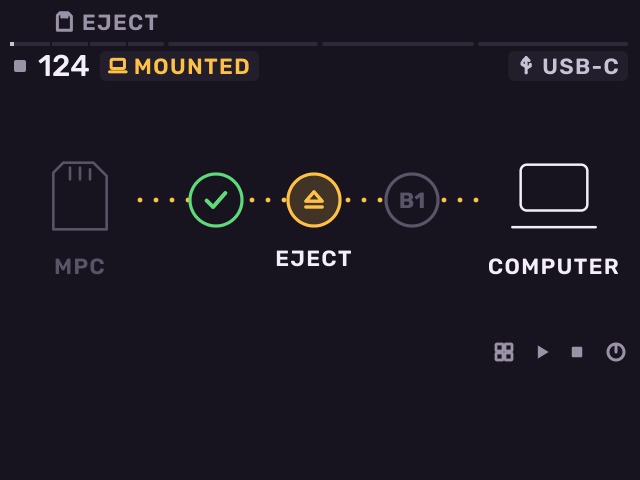
While the card is mounted on the computer:
- The pads still play the selected track, and PLAY, STOP and MAIN VOLUME still work. The other controls wait.
- USB audio and USB MIDI keep working.
- If you press B1 before you eject the drive, the page shows STILL MOUNTED. Press B1 again and Melodee asks whether to eject anyway.
File sharing
While Melodee runs, a computer connected with USB-C can also open the card as a network drive. Melodee keeps working and keeps the card.
- Connect the MPC to the computer with a USB-C cable.
- On a Mac, choose Melodee under Network in the Finder sidebar, or choose Go > Connect to Server and enter smb://melodee.local. On Windows, open
\\192.168.155.1in File Explorer. - Connect as Guest, or enter any name with an empty password.
- Open SD Card. Copy your files.
- Eject SD Card on the computer when you are done.
- File sharing is on until you turn it off in SETTINGS > AUDIO > File sharing.
- While the computer has SD Card open, SD card access does not start. Eject it on the computer first.
Files on the card
| Folder | Contents |
|---|---|
autorun/ | Melodee itself. Do not change it. |
Melodee/Samples/ | Your samples. Melodee writes Recorded/, Edits/, Banks/, Looper/, Expansions/, Keygroups/ (auto sampled programs), Stems/ (a sample’s stems) and Flattened/ (flattened pads) here. |
Melodee/Projects/ | Projects (.mldp), and each project’s Loops, Prints and Audio folders |
Melodee/Mixdowns/ | Song mixdowns |
Melodee/Stems/ | A song’s stems |
Melodee/MIDI/ | Exported MIDI files |
Melodee/MPC 3/ | MPC 3 projects exported from Song |
Melodee/Ableton/ | Ableton Live Sets exported from Song, a folder each |
Melodee/Progressions/ | Chord progressions you make |
Melodee/Sounds/ | Sounds you save |
Melodee/Cache/ | Decoded instrument samples, and long MP3, FLAC, Ogg and AIFF samples as WAV. Safe to delete: Melodee makes them again. |
Melodee/Plugins/ | VST3, LV2, CLAP and VST2 plug-ins |
Melodee/Plugin Data/ | Plug-in settings and presets |
Melodee/Crashes/ | Crash reports, one file a crash (see Troubleshooting) |
Melodee/Usage/ | The usage log, a file for each start while it is on (see Settings) |
Melodee/SysEx/ | .syx files for MIDI tracks |
Melodee/settings | Melodee’s settings |
Melodee makes no other folders at the top of the card.
The web page
While Melodee runs, connect the MPC to a computer with USB-C and open http://melodee.local (or http://192.168.155.1) in a browser. It has four tabs:
| Tab | What it has |
|---|---|
| Device | The version running, the card’s free space and the plug-ins in Melodee/Plugins. Drop a Melodee release zip on Update and press Send (see Update Melodee). Drop a plug-in’s -mpc-sample.zip on Plug-ins and press Install (see What runs). |
| Files | The folders on the card. Play audio files in the browser, download files, upload files (with Upload or by dropping them on the list), make folders, and delete files or folders. |
| Quickstart and Manual | The quickstart and this guide. They work without an internet connection. |
On Files:
- The browser asks before it deletes.
- An upload never replaces a file of the same name.
- The
autorunfolder is not shown. - Uploads wait while the card is on a computer with SD card access.
When Melodee stops, the MPC’s own web page comes back.
Update Melodee
- Download the new release zip (
Melodee-MPC-Sample-<version>.zip). Do not unzip it. - Put the zip on the card, in one of two ways:
- Copy it to the top level of the card, with SD card access or a card reader.
- Send it from a browser: with the MPC connected to the computer by USB-C, open http://melodee.local (or http://192.168.155.1), choose the zip under Update and press Send.
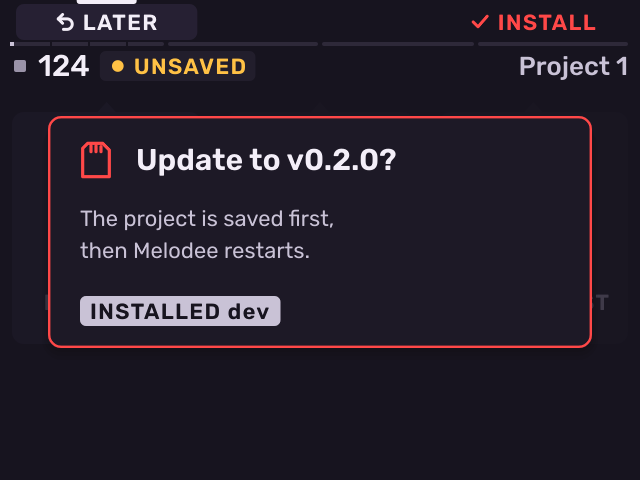
- When playback is stopped, Melodee asks Update to <version>?. Press B3 (INSTALL).
- Melodee saves the project, checks the zip, writes it to the card and restarts. The header then shows Updated to <version>. Melodee deletes the zip from the card.
To keep this version for now, press B1 (LATER) at step 3. Melodee asks again after SD card access or the next time it starts.
- Melodee only offers official releases. A zip that was changed, or that did not come from Melodee’s releases page, is ignored.
- If the update fails (for example, the card is full), the screen shows the reason and nothing is changed. Press B1 to close it.
- The previous version stays on the card in
autorun/melodee.prev.