Manual · Chapter 07
Instrument and MIDI tracks
Tracks that play notes: Stage on a plug-in track, keygroup tracks and Auto sample, Keys and chord progressions, and MIDI tracks for external instruments.
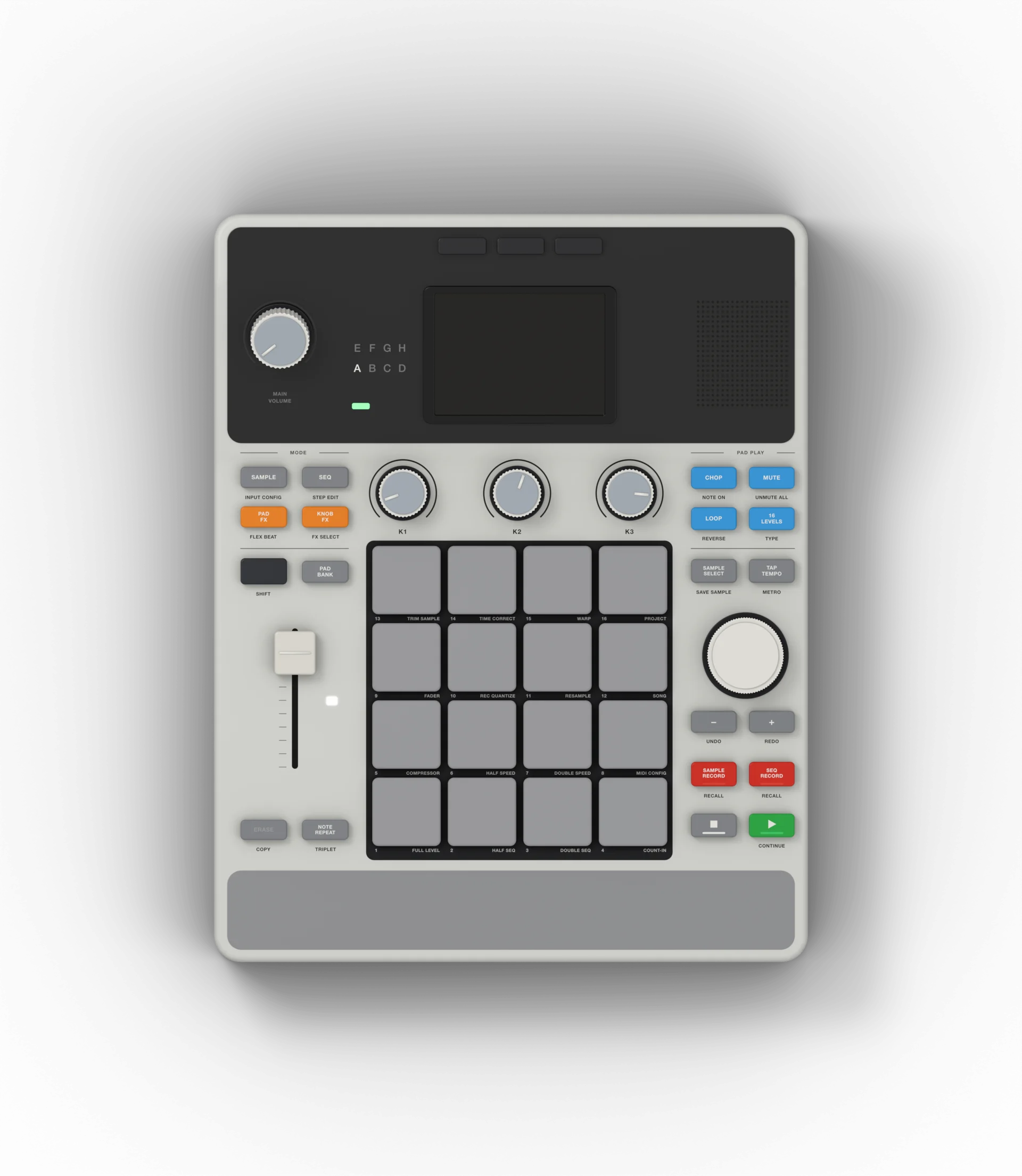
Stage on a plug-in track
| Key | Pages |
|---|---|
| B1 | PANEL (a plug-in that draws its own screen), PRESETS (or PLUG-IN), EDIT |
| B2 | ARP, CHORD |
| B3 | FX |
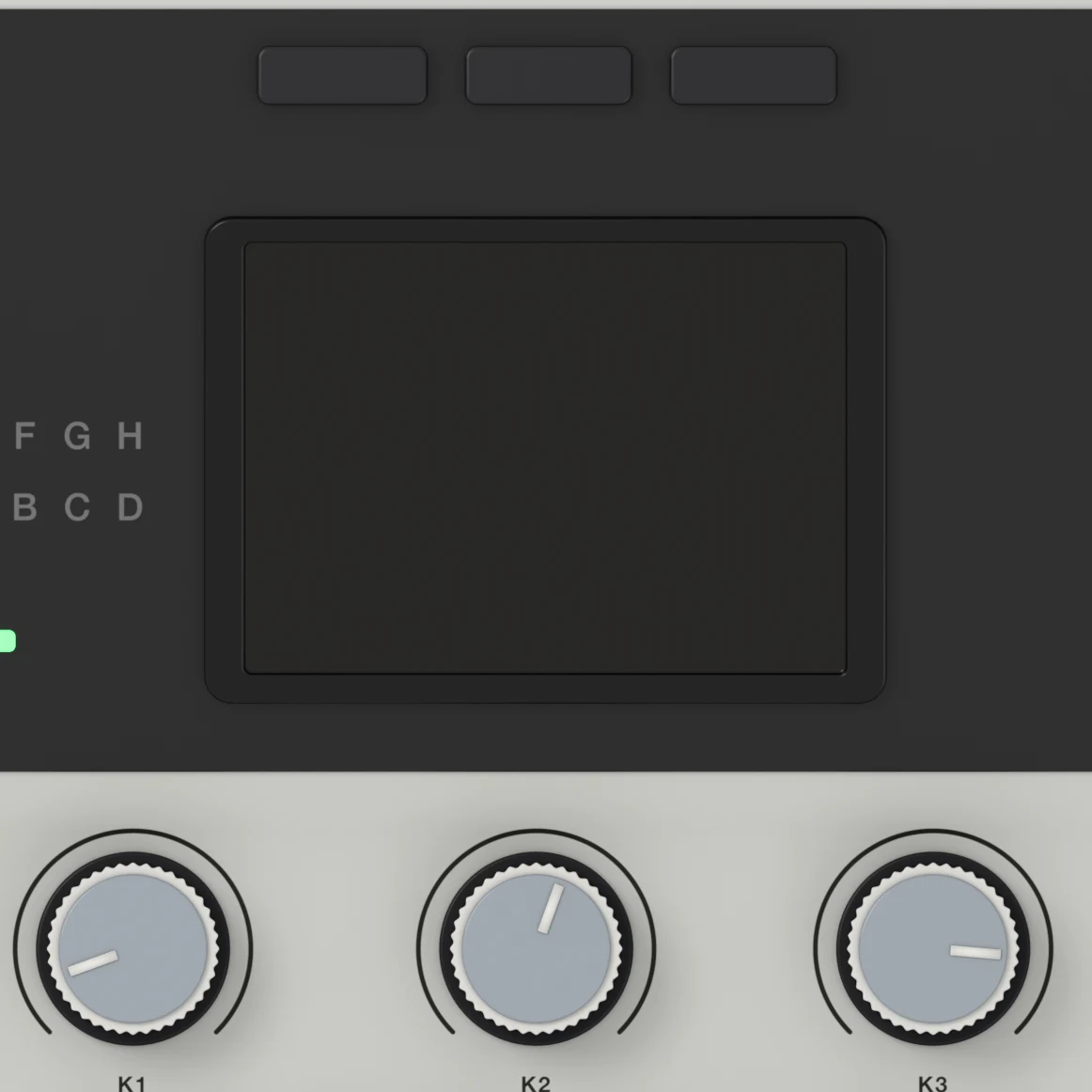
Press B1 or B2 under the screen to step through Melodee Poly’s pages, as on the MPC:
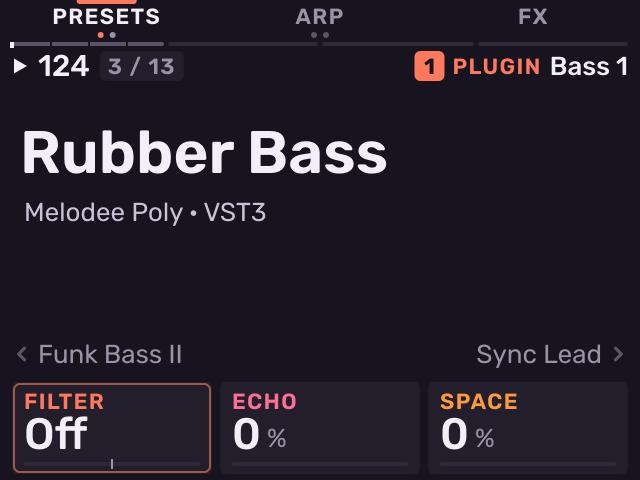
PRESETS The preset playing, with the ones before and after it.
Hold SHIFT on a B1 page for the plug-in’s own keys:
| Key | With SHIFT |
|---|---|
| B1 | PLUG-INS: the plug-in picker |
| B2 | PRESETS: the whole preset list |
| B3 | TRANSPORT: whether the plug-in hears Play and Stop |
The track’s level, pan and sends are on the mixer.
PRESETS
- Press B1 until PRESETS is lit.
- Turn the encoder to load the next preset. It loads when you stop turning.
- Push the encoder for the whole list.
12The name of the preset playing is large, with the ones before and after it in the corners. A plug-in with no presets shows PLUG-IN instead: its name, its format and how much of each audio block it uses.
K1–K3 are the same three knobs on every plug-in, applied to what it plays:
| Knob | Card | Does |
|---|---|---|
| K1 | FILTER | Left of the middle a low pass, right of it a high pass, off in the middle. |
| K2 | ECHO | How much goes into a dotted-eighth echo at the tempo. |
| K3 | SPACE | How much goes into a reverb. |
- The echo’s repeats and the reverb’s tail ring on when you turn their knob back.
- The knobs are saved with the track and record as Motion.
- ERASE + knob sets one back to off.
PANEL and EDIT
| Page | Shows |
|---|---|
| PANEL | The plug-in’s own page, when it draws one (see A plug-in’s own screen). It is the first page under B1; a plug-in without one starts on PRESETS. |
| EDIT | All of the plug-in’s parameters. Turn the encoder or press − / + to move through them. |
Picking a plug-in opens EDIT, or PANEL once the plug-in is open when it draws its own screen.
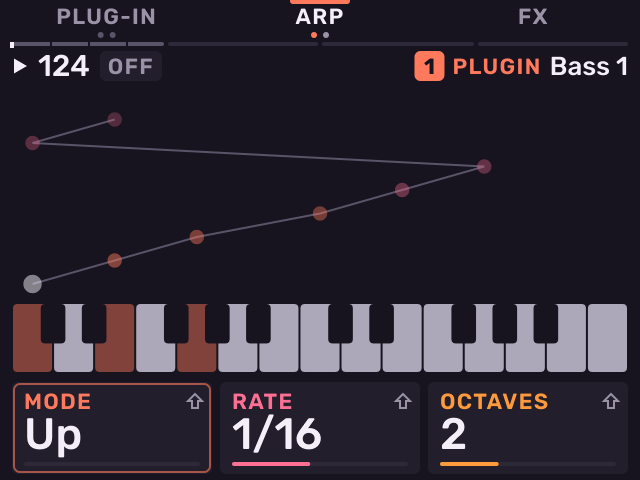
ARP
| Knob | ARP | With SHIFT |
|---|---|---|
| K1 | Mode: Up, Down, Up-down, Random, Order | Gate |
| K2 | Rate: 1/4 to 1/64T | Turns the arpeggiator on or off |
| K3 | Octaves: 1–4 | Hold |
The arpeggiator is separate from NOTE REPEAT: Note Repeat plays every pad held together on each step.
CHORD
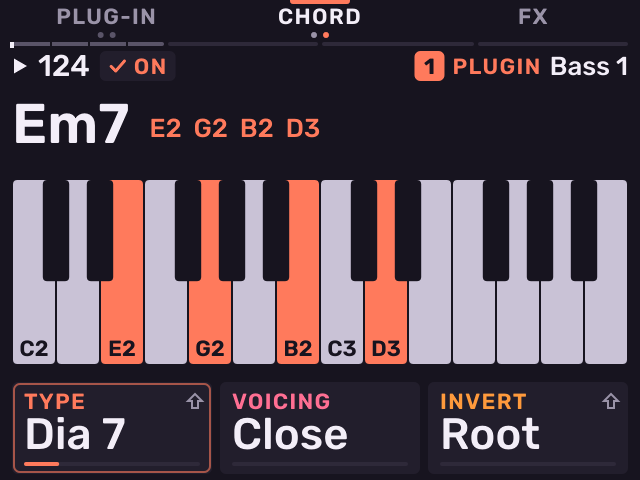
One pad plays a chord from the scale.
| Knob | CHORD | With SHIFT |
|---|---|---|
| K1 | Type: Triad, Dia 7, Sus2, Sus4, Power, Dia 9 | Turns chords on or off |
| K2 | Voicing: Close, Open, Drop 2, Spread | |
| K3 | Inversion | Hold |
FX
The track’s effect chain. The cards edit the selected slot. Push the encoder for the next slot. After the last effect comes the +: push there to open the effect picker and add one at the end.
Keygroup tracks
A keygroup track plays one instrument across its pads and keys: an SFZ, an MPC keygroup program, an EXS, a DecentSampler preset, a SoundFont preset, or a single sample. Its pads play notes, as on a plug-in track.
- Select an empty track (PAD BANK + pad).
- Turn the encoder to Keygroup and push it.
- Pick the instrument or sample in the browser.
12- SAMPLE SELECT on the track opens the browser again to change it.
- B3 (PREVIEW) plays each sample, program or instrument when you move to it, as on a kit. The fader sets the preview level. Melodee keeps both when you restart.
| Key | Pages |
|---|---|
| B1 | TRIM (ZONES on an instrument), TUNE, AMP ENV, FILTER, FILT ENV |
| B2 | PLAY, ARP, CHORD |
| B3 | FX |
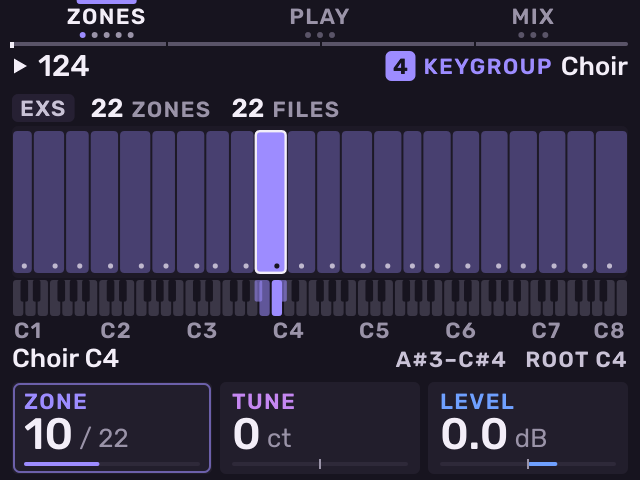
- TUNE moves every note.
- The fader starts on the sound’s volume and can take pitch bend.
- A MIDI keyboard’s pitch wheel and sustain pedal play it too.
- In an MPC 3 export a keygroup track is an MPC keygroup track, and an MPC 3 project’s keygroup tracks open as keygroup tracks.
A single sample’s note
When a sample is loaded or recorded, Melodee finds the note it holds: a bass note, a sung note, a synth note, or the root of a chord stab. A keygroup track of that one sample plays it at its own pitch on the key of that note, between G3 and F#4. The pads and a MIDI keyboard then play the notes they name.
- Make a keygroup track and load a bass note played in E.
- Play E4 on the pads or a MIDI keyboard. The sample plays as recorded.
- Play D4. The sample plays a tone lower.
| Loaded | Plays |
|---|---|
| A sample with a note | At its own pitch on the key of that note, between G3 and F#4 |
| A drum, a phrase, a noise or a sliding pitch: no note | At its own pitch on C4 (note 60) |
| An instrument (SFZ, program, EXS, DecentSampler, SoundFont) | On the notes set in its file |
| A sample in a project saved with an older version | On C4, as before |
- TUNE moves the sample from there.
- An MPC 3 export plays the sample from the same note.
Auto sample a plug-in
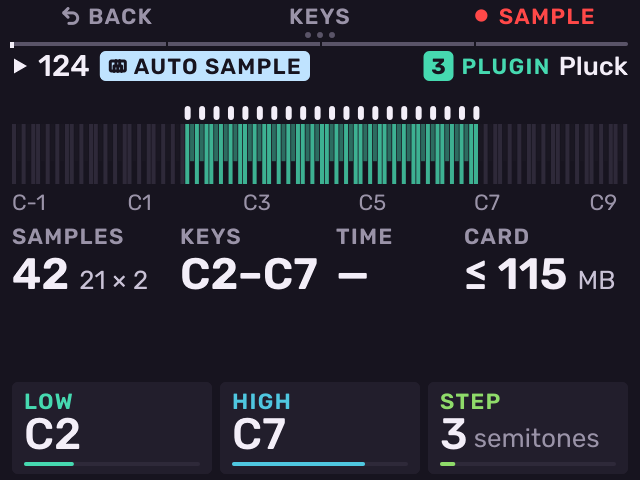
Auto sample plays a plug-in track one key at a time and records each note. The result is an MPC keygroup program on a new keygroup track, which takes almost no CPU and opens on MPC One, Live, Key, X, Force and MPC Beats.
- Select the plug-in track and set the sound you want.
- Press SHIFT + PAD 11 (Resample). SHIFT + PAD 11 again closes the sheet.
- Wait for the check (CHECKING, a few seconds). It plays a few notes and finds out what the plug-in is.
- Set the cards. B2 (or the encoder) shows the next row.
- Press B3 SAMPLE (or push the encoder).
 1234
| Sheet shows | Means |
|---|---|
| CHECKING | The check runs: a few seconds. |
| OPENING | The plug-in is still opening. The check starts when it is ready. |
| WAITING | A print is under way. |
| Row | K1 | K2 | K3 |
|---|---|---|---|
| KEYS | LOW: lowest note | HIGH: highest note | STEP: semitones between notes, 1–24 |
| NOTE | LAYERS: velocity layers, Auto or 1–8 | HOLD: how long each key is held (up to 20 s), or Auto | TAIL: longest release measured |
| SOUND | TAP: Pre FX or Post FX | LOOP: Auto, On or Off | LEVEL: as played, or loudest at −1 dB |
Under the keys the sheet shows:
| Block | Shows |
|---|---|
| SAMPLES | How many samples it makes |
| KEYS | The keys |
| TIME | About how long sampling takes, once the check has played the plug-in |
| CARD | The most it takes on the card |
- The pads play the plug-in so you can try the sound first. − / + move their octave.
- While it samples, the marks over the keys light as each note is done, and the note being recorded is drawn as it plays: the held part, then the release.
- B1 CANCEL stops it and deletes what was made.
When it is done, the program is in Melodee/Samples/Keygroups/<name>/:
| File | What it is |
|---|---|
| <name>.xty | The track file for MPC 3. Melodee’s browser shows this one. |
| <name>_[TrackData] | The samples, and <name>.xpm, the program for an MPC on version 2 and MPC Beats. |
- To use it on an MPC on version 2 or MPC Beats, copy the whole <name> folder and load the .xpm from inside <name>_[TrackData].
- An .xpm holds 4 velocity layers a keygroup. With more, each of its 4 plays the velocities of two (8 layers: layers 2, 4, 6 and 8). The .xty and the keygroup track in Melodee have all of them.
The new track:
- The first empty track becomes a keygroup track with the plug-in track’s patterns, Song clips, mix and pitch bend.
- With TAP at Pre FX it also gets the plug-in track’s effects (not plug-in effects). At Post FX the effects are in the samples.
- The plug-in track stays as it was.
- SHIFT + − undoes the new track. The files stay on the card.
The check sets these for you; the sheet’s chip shows the type:
| Found | What Auto sample does |
|---|---|
| KEYS | Samples every STEP keys, as set. |
| MONO | The program plays one note at a time and glides like the plug-in (GLIDE shows the time). Mono, legato: a key pressed while another is held carries the note on. Mono, retrigger: it starts the note again. |
| SPLIT | The plug-in has two sounds side by side on the keyboard (a bass under a lead). A line on the keys shows where the upper one starts. Each side is checked on its own and gets its own mono or poly playing, hold, loops, release and velocity response. |
| DRUMS | Samples each key that makes a sound, one sample per key. STEP is not used. Each drum plays whole however short the tap. |
| VELOCITY | How many velocity layers the sound needs: Tone, 5 layers where its tone changes with velocity, Accent at 101 where it jumps (a layer starts there), Level only where only its level changes (one layer: the keygroup’s Velocity follows it). LAYERS at Auto takes that many, up to 8. |
| TAKES ×3 | Each key is recorded three times and the program plays them in turn. |
| LOOPS | The sound keeps sounding while a key is held, so each note loops and plays on for as long as you hold the pad. With LOOP at Auto this follows the check; set it to On or Off to choose yourself. |
| HOLD Auto | A steady sound is held 2 s. A sound that moves while held (a slow LFO, detuned oscillators) is held 8 s and gets a long loop, so its movement carries on. A sound that fades is held until it has died away. |
On a keygroup track from a MONO program:
| Action | The note |
|---|---|
| A key pressed while another is held | Does what the plug-in did: carries on to the new key (legato), or starts again (retrigger) |
| That key let go while the first is still held | Goes back to the first |
| A Slide step, on any keygroup track | Always carries on |
The glide is saved in the program, so it also works on an MPC. MPC 3 exports set Mono Retrig to match. An MPC on version 2 has no such setting and always starts the note again.
How the program plays:
| What | In the program |
|---|---|
| Keys | Each key covers the notes halfway to the next sampled key. A key where the plug-in makes no sound is left out. |
| LOOP | Finds a loop in the held part of each note and crossfades it, so pads and organs sustain. Sounds that move while held get a loop several seconds long. Sounds that fade while held (plucks, a 303) are not looped at Auto; put LOOP On to hold them. |
| Release | When you let a key go, the note fades as the plug-in’s did. Auto sample measures how fast the plug-in falls and how much of it rings on (echoes, reverb), and sets the program’s release to match. A sound that rings on plays as two keygroups over the same keys, one with the short release and one with the long. |
| VEL | In the row over the cards: the check’s 16 hits of one key, soft to hard, each bar as tall as its tone. The layers alternate full and faint; an accent’s are amber. Each layer is recorded at its top velocity. |
| LEVEL | Starts as played: the keygroup track is as loud as the plug-in track at the same settings. At −1 dB every sample is raised by the same amount (the loudest to −1 dB), so velocity layers keep their balance. |
| Velocity | The program follows velocity as far as the plug-in did. A plug-in that plays every note at one level gives a program that does the same. |
| Mono samples | A sample that is the same on both sides (a mono synth) is saved as a mono WAV. It takes half the room on the card and in memory and sounds the same. |
Some things samples cannot hold, so the program does not have them:
- What the mod wheel, aftertouch and other controllers do in the plug-in.
- Movement that follows the tempo (an arpeggio, a synced LFO or delay). It is recorded at the tempo it was sampled at.
- More than one split. One is found; a plug-in with three sounds side by side gets two.
- On an MPC, the mono side of a split cuts its last note but does not glide, and a program plays as mono or poly as a whole. In Melodee each side plays as the plug-in did, unless the program has more than 4 velocity layers: the track then plays the .xty, where the mono side does not glide either.
Auto sample an external instrument
Auto sample also works on a MIDI track. Melodee plays the instrument over MIDI and records its sound from an input. This runs in real time: each note plays for its hold and its release.
- Connect the instrument: MIDI from the MPC (the MIDI Out jack or USB) and its audio to the rear inputs.
- Select the MIDI track and play the pads to check that the instrument answers.
- Press SHIFT + PAD 11 (Resample).
- On the SOUND row (B2), set INPUT (K1) to the input the instrument is on: Rear, Rear L, Rear R, Mic or USB. It starts at Rear.
- Play a pad and watch the IN meter. Amber is close to clipping: turn the instrument down.
- Set the other cards as for a plug-in and press B3 SAMPLE.
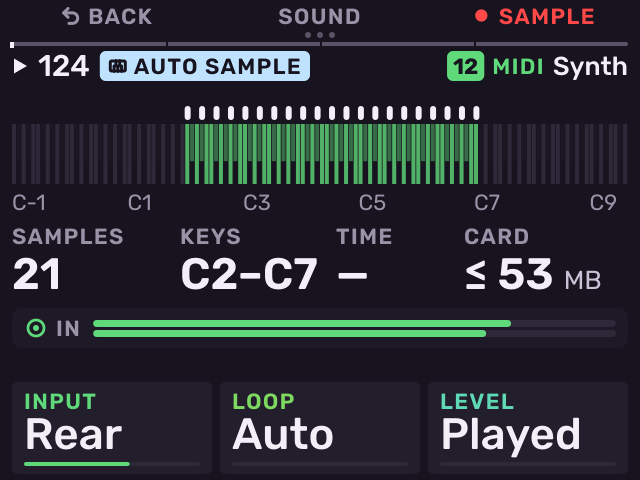 12345
Melodee first listens to the input once with nothing playing, then plays one short note to measure how long the instrument takes to answer. The check (CHECKING) follows. The sampling starts straight after it, without listening to the input again. Each sample starts where its sound starts.
- INPUT is the track’s own audio input (the AUDIO page in Edit; see Hear the instrument through the track), so you hear the instrument through the track. Input Config’s source is not used and does not change; its gain applies.
- The program goes on the first empty track as a keygroup track with the MIDI track’s patterns, Song clips and mix. The MIDI track stays as it was.
When sampling stops, the reason stays at the top of the sheet in amber, with the key it stopped on in amber on the keys, until you press B3 SAMPLE again.
| Message | Means |
|---|---|
| No sound at the input | Check the cables, the MIDI channel and INPUT. |
| The input is not quiet | Something is sounding or humming at the input before the first note. |
| G#3 clips (the key named) | The instrument reached full scale on that key, three samples in a row or more. Turn the instrument down and sample again. A peak that touches full scale for one or two samples is kept. |
Keys
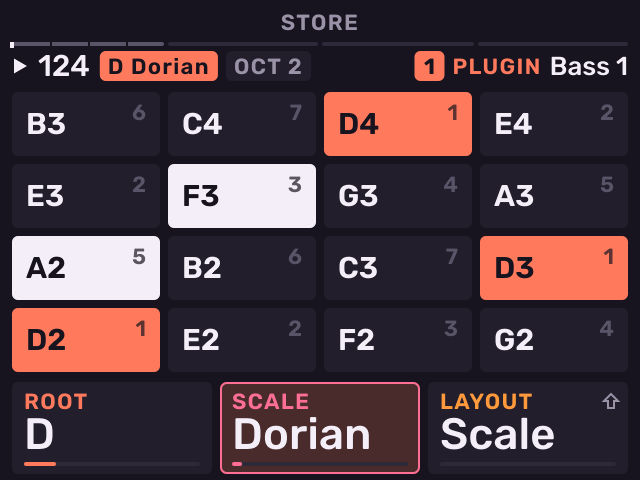
- Hold SAMPLE on an instrument track. Keys shows while it is held.
- Turn K1 for the root, K2 for the scale, K3 for the pad layout.
- Press − / + for the octave.
 123
The 16 pads fill the screen. Each pad shows its note and its degree in the scale. Root notes are in the track’s colour.
| Control | On Keys |
|---|---|
| K1 | Root |
| K2 | Scale |
| K3 | Layout: Scale, Chromatic, Chords, 16 Levels, Drums or Prog |
| SHIFT + K3 | Transpose the pads −12 to +12 semitones |
| − / + | Octave |
| Encoder push | Open Edit |
- Drums lays the pads out as a kit’s; see Drum machine plug-ins.
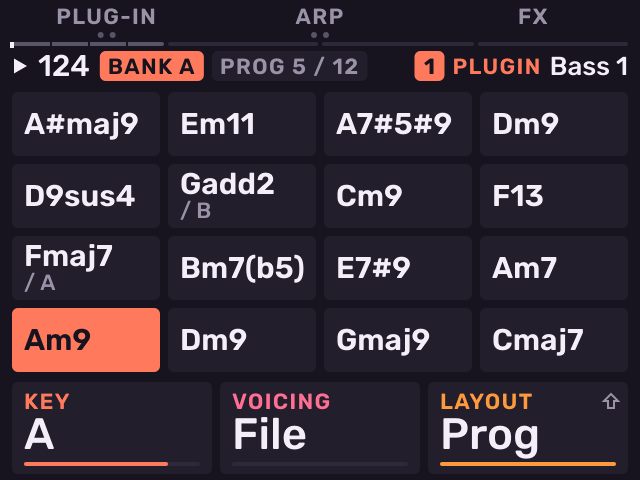
- Prog plays chord progressions; see Chord progressions.
- The key and scale belong to the project. The layout belongs to each track.
- To play the scale on a MIDI keyboard’s white keys, see Play the scale on the white keys.
Chord progressions
The quickest way to chords, on any track but an audio track or one on the Drums layout:
- Hold 16 LEVELS.
- Press B2 (CHORDS). The pads then play the track’s chord progression.
12Hold 16 LEVELS again for B2 (FILE), the progression files on the card, and B3 (SET), to make chords of your own. See 16 Levels. The encoder Menu’s HERE on Stage has CHORDS and CHORD FILE too.
The Prog layout plays a chord progression: each pad plays one chord. Melodee reads MPC 3 progression files (.progression). A progression has up to 48 chords, 16 in each of pad banks A to C.
- Hold SAMPLE on an instrument track to see Keys.
- Turn K3 to Prog.
- Turn the encoder to select a progression. Its name shows on the screen.
- Play the pads.
- Press PAD BANK for banks B and C.
12345The chord marked as the root in the file is in the track’s colour. A pad with no chord is dark.
| Control | Action |
|---|---|
| Encoder | Select the progression |
| K1 | Key. All chords move to the new key. |
| K2 | Voicing: File (as in the file), Close, Open or Spread |
| K3 | Layout |
| − / + | Octave |
| PAD BANK | Banks A–C |
Melodee looks for progressions in these folders on the SD card, and in their subfolders up to four deep (for example a folder for each genre):
| Folder | Holds |
|---|---|
Melodee/Progressions | Your own progressions |
Progressions | |
Melodee/Samples/Expansions | Each expansion’s folders |
Make your own chords
- On Keys (SAMPLE held), set K3 to Scale, Chromatic or Chords.
- Hold the pads of the chord. B2 shows STORE.
- Press B2. The layout changes to Prog. Empty pads are outlined.
- Press the pad for the chord. To cancel, press B1 (BACK).
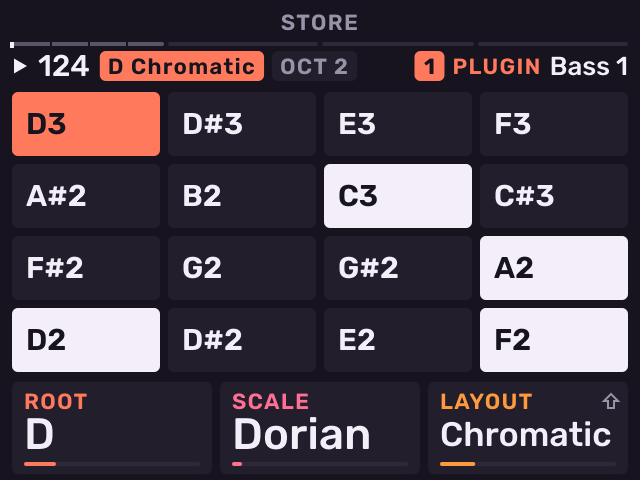 1234
- Melodee saves the progression to
Melodee/Progressionson the SD card. - A new progression is named Mine 1, Mine 2 and so on.
- When you add a chord to a progression from another folder, Melodee saves the changed copy in
Melodee/Progressionsand does not change the original file. - The project keeps the progression of each track, its key and its voicing.
MIDI tracks
A MIDI track sends its pads, patterns and arpeggiator to an external instrument on its own port and channel.
- Select an empty track (PAD BANK + pad).
- Turn the encoder to MIDI and push it.
- Turn to Out jack, USB-C or All USB and push again.
12| Key | Pages |
|---|---|
| B1 | DEVICE, PROGRAM, CC |
| B2 | ARP, CHORD |
| B3 | EDIT: opens the Edit pages. |
| Page | Does |
|---|---|
| DEVICE | K1 port (the MIDI Out jack, USB-C, all USB devices, or a USB device by name), K2 channel. The picture shows the notes going out. |
| PROGRAM | Bank MSB, bank LSB and program number. Melodee sends them when they change and when the track loads. Off sends none. |
| CC | Three MIDI CCs on K1–K3. SHIFT + knob sets what the knob sends: a CC number, a 14-bit CC, pitch bend, channel pressure or an NRPN. Knob moves record as Motion. |
| EDIT (B3) | Every page of the MIDI track (see Edit pages on a MIDI track). Press SAMPLE to go back to Stage. |
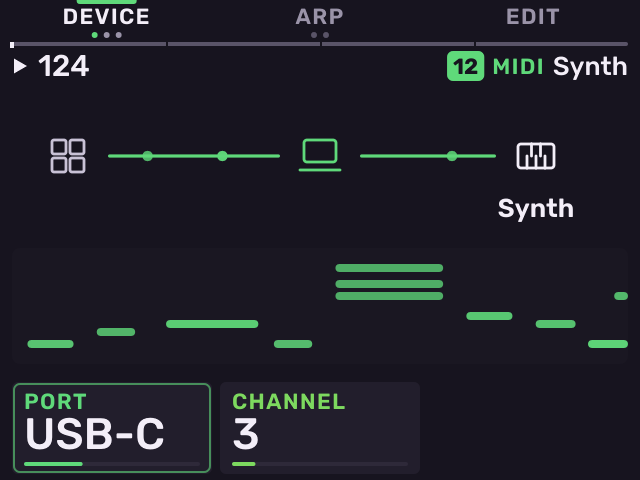
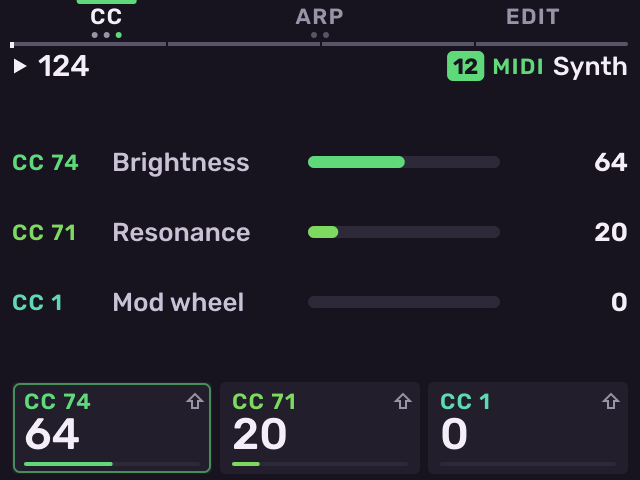
SHIFT + PAD 11 samples the instrument into a keygroup program; see Auto sample an external instrument. For how MIDI tracks were designed, see the MIDI tracks design notes.
Edit pages on a MIDI track
Press B3 (EDIT) on Stage.
- B1 and B3 go to the page before and after.
- B2 (MAP) lists every page: turn the encoder to one and push to open it.
- On a page with two rows of cards, turn the encoder to change rows.
| Page | K1 | K2 | K3 |
|---|---|---|---|
| DEVICE | PORT | CHANNEL | DELAY: −50 to +50 ms. − sends the pattern’s notes that much early, for an instrument heard late (one on a computer: about −12 ms); + later. What you play goes out at once, later only by a + delay |
| PROGRAM | BANK MSB | BANK LSB | PROGRAM. Second row: this pattern’s own program, sent when the pattern starts |
| SLOTS 1–8 | Three knobs a page, 24 in all. Second row: what each sends (CC, 14-bit CC, pitch bend, channel pressure or NRPN). | ||
| PADS | LAYOUT, as on Keys | NOTE: on Drums, the note of the last pad played, with its General MIDI drum name | |
| EXPRESS | BEND | PRESSURE: how pad pressure goes out (Poly, Channel or Off) | |
| AUDIO | INPUT | MONITOR | LEVEL |
| SYSEX | FILE: a .syx file in Melodee/SysEx on the card | ON LOAD: send it when the project loads | Push the encoder to send it now |
The first three slots are the CC page’s knobs on Stage.
Hear the instrument through the track
The AUDIO page brings the instrument’s sound back into Melodee on the MIDI track. It then plays through the track’s level, pan, effects and sends, as any other track’s sound does.
- Connect the instrument’s audio to the rear inputs (or the mic input, or USB).
- Select the MIDI track and press B3 (EDIT) on Stage.
- Press B2 (MAP), turn to Audio and push the encoder.
- Turn K1 (INPUT) to the input the instrument is on.
- Play the pads. The instrument plays through the track.
12345| Control | Action |
|---|---|
| K1 (INPUT) | None, Rear L, Rear R, Rear, Mic or USB. |
| K2 (MONITOR) | On: the input plays through the track. Off: the track is silent. |
| K3 (LEVEL) | The input’s level in the track. |
USB from a computer, by Settings’ USB-C in:
| USB-C in | USB from a computer |
|---|---|
| Direct (the default) | Plays straight to the jacks, at the track’s LEVEL, level and pan but without its effects, so an instrument on the computer answers the pads sooner. MONITOR still turns it on and off, and muting the track fades it out. |
| Tracks | Plays through the track’s effects. |
The MPC takes sound from the mic or the rear inputs, not both at once, and the rear inputs come first:
- While another MIDI track or a Looper loop uses the rear inputs, a track set to Mic shows IN USE and is silent.
- Two MIDI tracks can take Rear L and Rear R.
- Input Config and audio tracks follow the same rule.