Melodee 0.10.5This is the manual for Melodee 0.10.5. The newest release is 0.10.6: what's new since 0.10.5 · the manual for 0.10.6.
Melodee 0.10.5 for the Akai MPC Sample
Manual
Every page, button and shortcut, with Melodee's own screens. Start with Basics, or find a control on the panel below.
Chapters
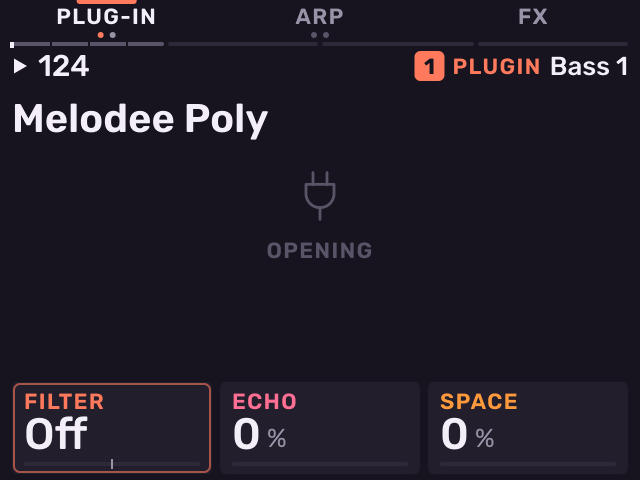 01Overview
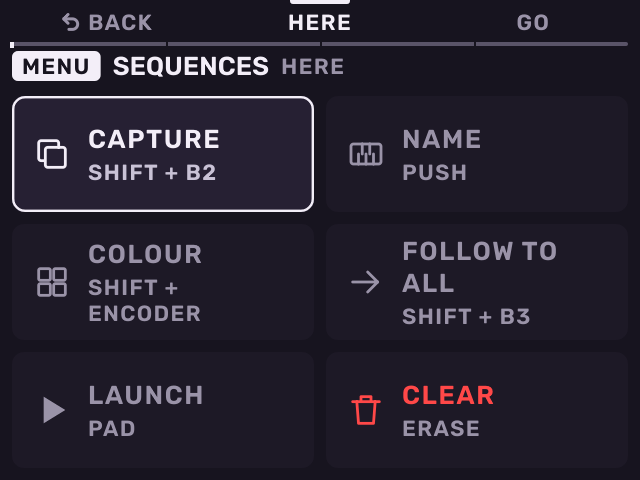 02Coming from the stock MPC SampleWhat stays the same · What is different · Change your habits
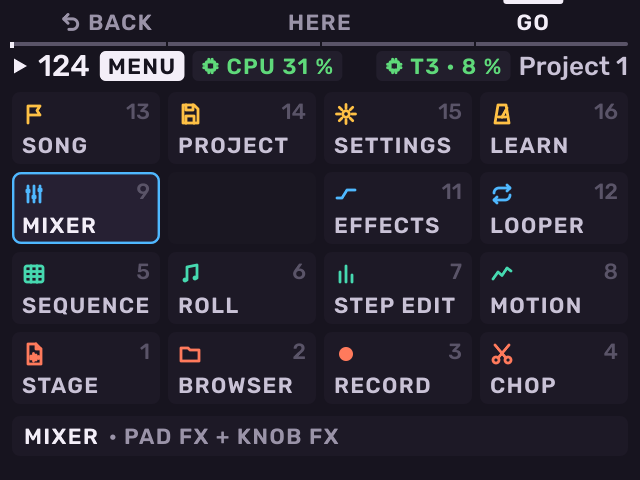 03BasicsThe panel · The screen · Navigation · Held keys · The Menu …
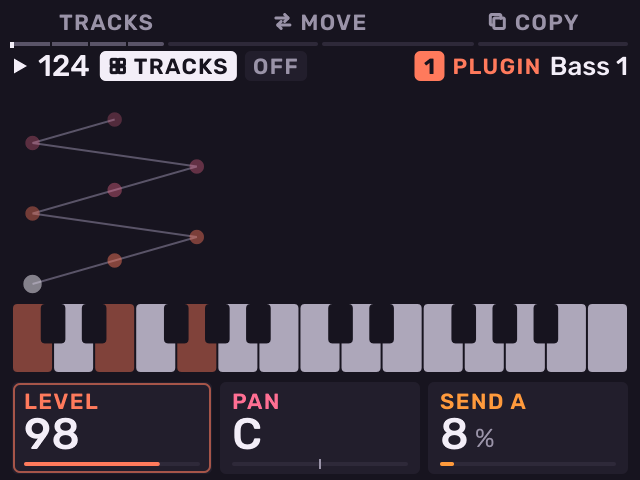 04TracksSelect a track · Track colour · Track speed · Track direction · Make a new track …
 05Kits and samplingStage on a kit · The Pads page · Loading samples · Sampled instruments · Banks …
 06Plug-insWhat runs · Plug-in instruments · Drum machine plug-ins · Plug-in effects · A plug-in’s own screen …
 07Instrument and MIDI tracksStage on a plug-in track · Keygroup tracks · Keys · Chord progressions · MIDI tracks
 08Audio tracksMake an audio track · Input · Record · Edit the take · Patterns and the Song …
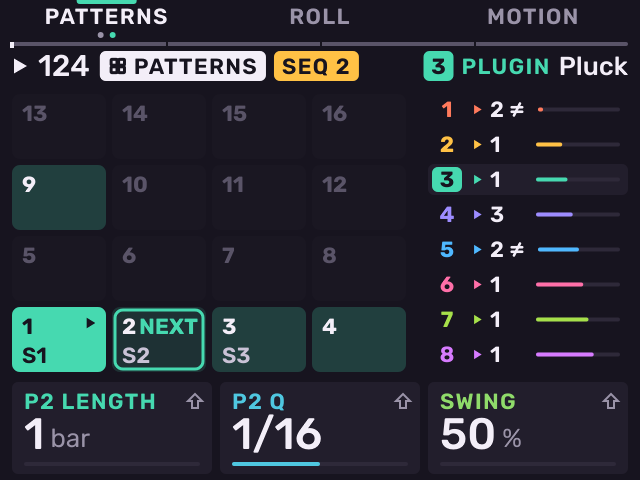 09SequencingSequences · Patterns · Hold SEQ · Record · The pattern editors …
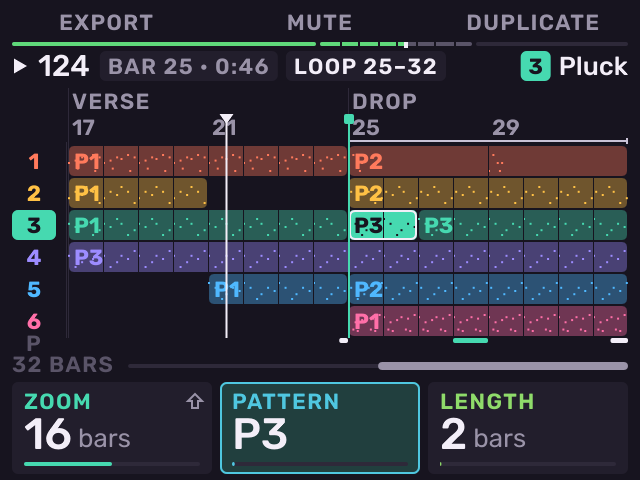 10SongSections · Record into the song · Jam capture · Export
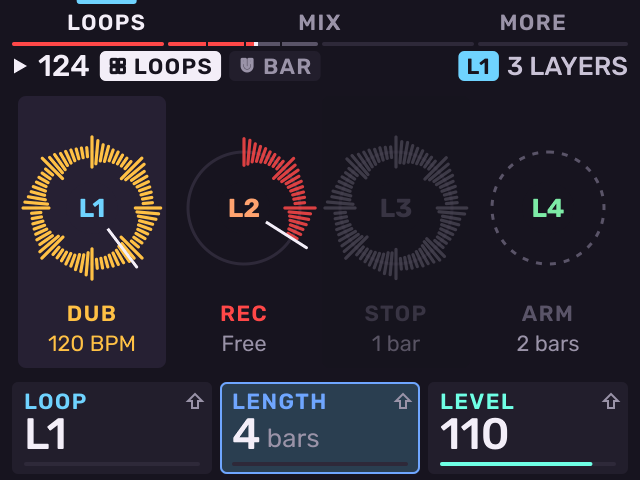 11Looper
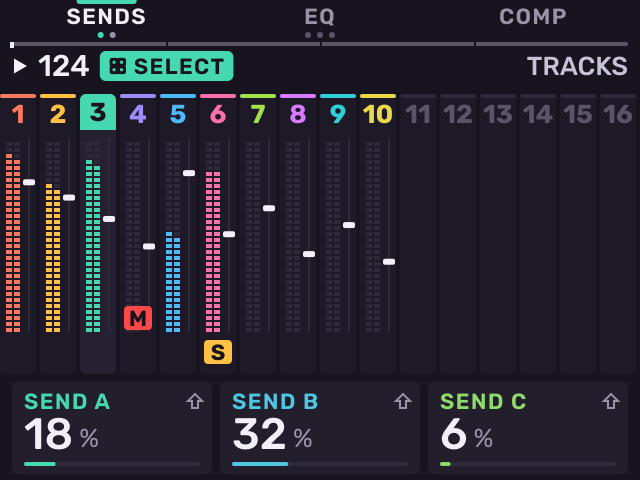 12Mixer and effectsSignal flow · The mixer · Pad sends · Pad outputs · Effect chains …
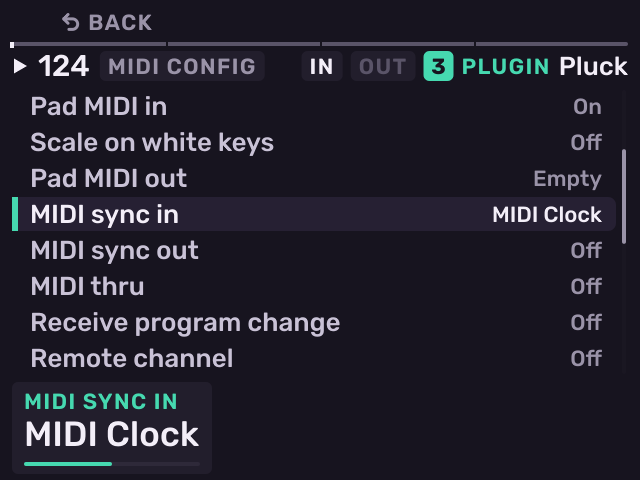 13MIDI and syncUsing a MIDI controller
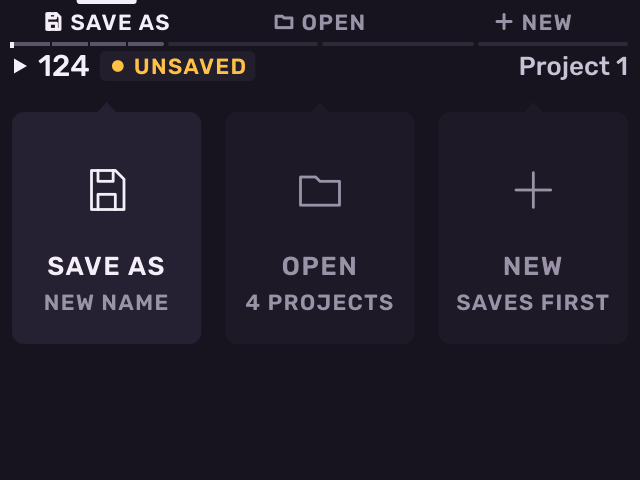 14Projects and filesThe Project page · Naming · MPC Sample projects · A new card · SD card access …
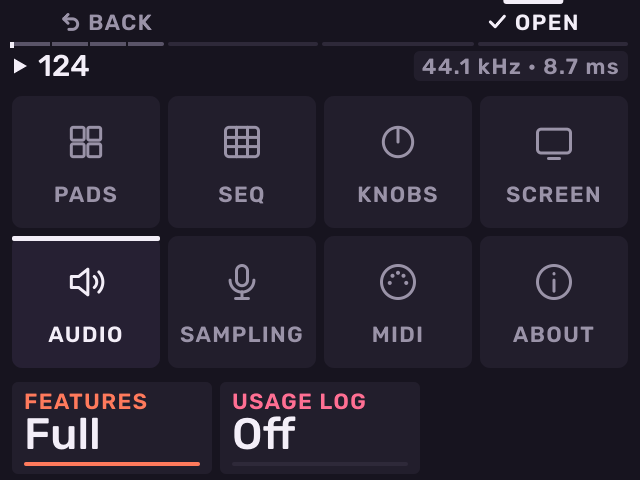 15SettingsBasic and Full · Usage log · Screensaver · Palette and Font · Screen Mirror
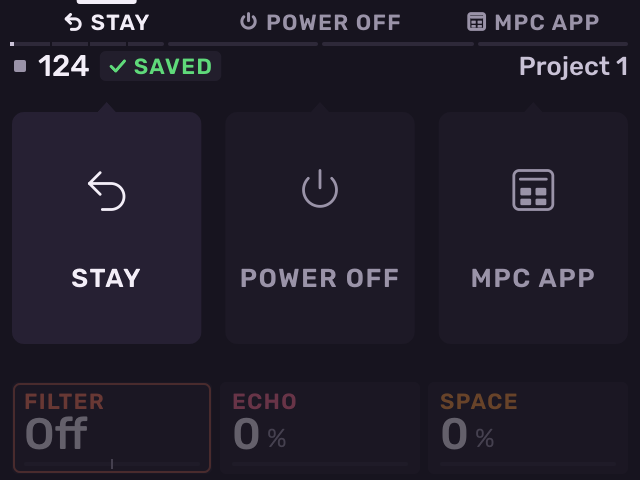 16Exit and troubleshootingExit · Troubleshooting
- 17Shortcut tablesButtons · SHIFT + pads
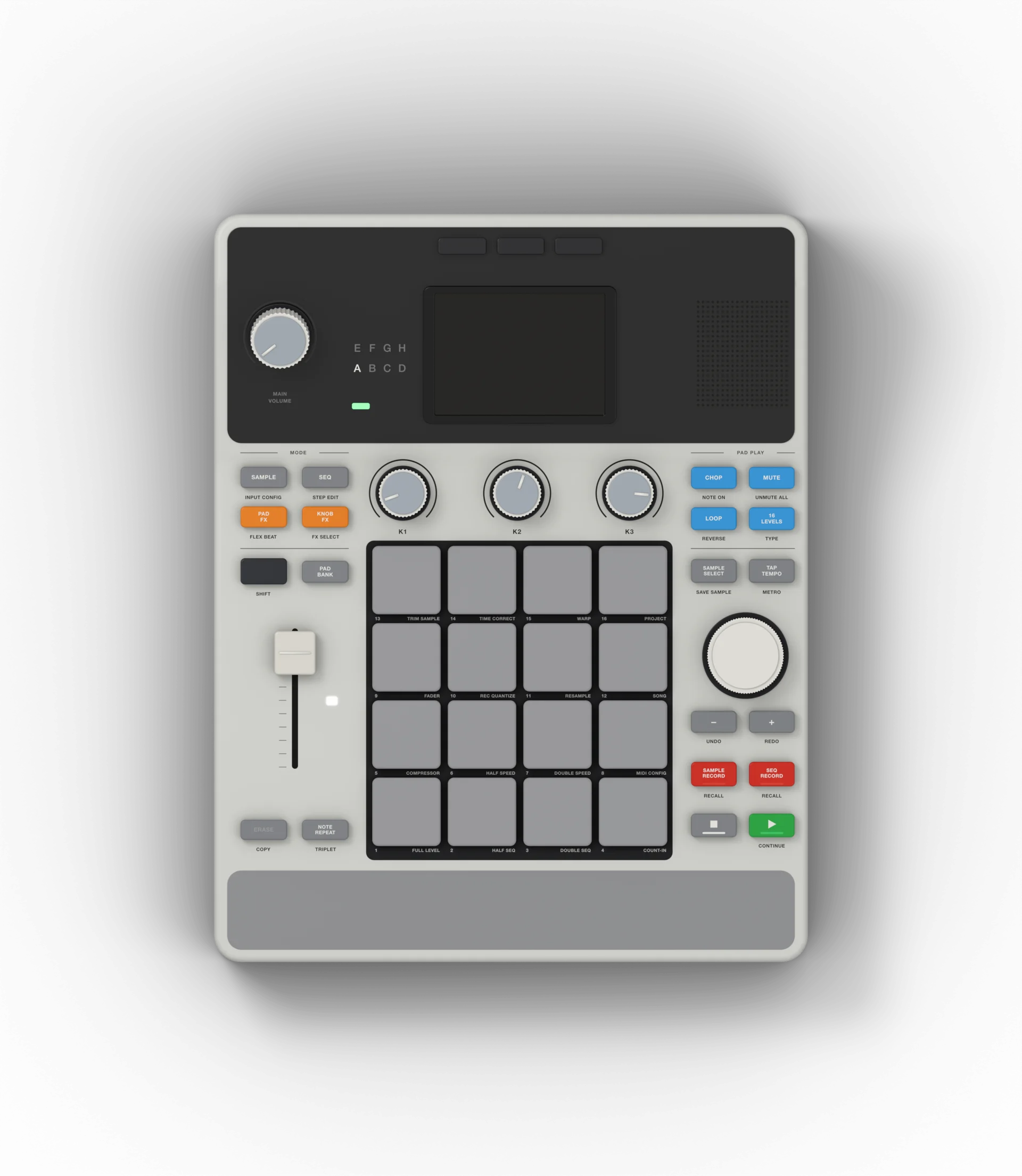
The panel
Pick a control on the MPC or in the list: what it does in Melodee, held, and with SHIFT.
- More
- Signal flow
- Press
- A lit key pressed again goes to its next page. A key with several pages lists them by name for a moment after each press.
- More
- Navigation
- SHIFT
- SHIFT + K1–K3: the second value of a card with an arrow.
- More
- Knob takeover
- Press
- Stage, the track’s sound pages; on Stage, its first page.
- Hold
- Pads or Keys, and B1–B3 open Stage’s sections. + pad: select a kit pad without playing it. + MUTE: light show on or off; + − / +: its style.
- SHIFT
- Input Config.
- Press
- Sequences, Patterns, Roll or Motion, the last open on the track; on one of them, Sequences.
- Hold
- The pads launch the selected track’s patterns (SHIFT + pad: a sequence on every track), the encoder sets the tempo, B1–B3 open Sequences, Roll and Motion.
- SHIFT
- Step Edit; again, back.
- More
- Hold SEQ
- Press
- Pad FX. With KNOB FX: the mixer.
- SHIFT
- Flex Beat.
- More
- Pad FX
- Press
- Knob FX mode on or off. With PAD FX: the mixer.
- SHIFT
- Effect chains, from the track’s (on the mixer, the selected channel’s); again, the next along.
- More
- Knob FX
- More
- SHIFT + pads
- Press
- Next bank (on Sequences and Patterns, and with SEQ held: the bank of patterns; on Pad FX: the other bank of punches; on Chop: the next 16 slices; on Roll of a keygroup, plug-in or MIDI track: the pads an octave up). On the mixer: the tracks, or the submixes, buses, input and master.
- Hold
- + pad: select a track; K1–K3: its level, pan and send A. + B1: the mixer on the tracks. + B2 / B3: move or copy a track. + ERASE + pad: clear a track.
- SHIFT
- Previous bank (on Roll: the octave down).
- More
- Select a track
- Press
- Some pages give it their own job: the selected channel’s level on the mixer, A to B on Knob FX, the amount on the Compressor, the mix on Flex Beat, the preview level in the sample browser. With Fader lock on: the last pad’s volume, on every page except the mixer.
- SHIFT
- SHIFT + PAD 9: the Fader page.
- More
- Fader
- Press
- Erase the selection (on Song, the clip, or the loop range’s bars; in the sample browser and the plug-in picker, delete the file or folder from the card).
- Hold
- + pad, knob, step or fader: erase it, or set it back. + an empty kit pad: close the gap. + SEQ RECORD on a kit: erase the selected pad’s notes. + CHOP on Chop: take every cut out.
- SHIFT
- Copy.
- More
- Erase and copy
- Press
- Tap to latch, hold for momentary. On Roll: ratchet the marked notes. On Song: repeat the clip to the next marker.
- SHIFT
- On Roll and Step Edit: write the arpeggio as notes.
- SHIFT
- SHIFT + pad: the job printed under the pad.
- More
- SHIFT + pads
- Press
- Chop the last pad; on Chop, back to Trim. On Roll and Step Edit: split the notes. On Song: split the clip.
- SHIFT
- Note On / One Shot. On Roll and Step Edit: legato.
- More
- Chop
- Press
- Tap to latch, hold for momentary. On Roll: mute the marked notes. On the mixer’s FX: the lit effect off or on.
- SHIFT
- Unmute all.
- More
- Mute and solo
- Press
- Loop the last pad. On Roll and Step Edit: loop the bars in view. On Song: set the loop’s first bar, then its last (twice on a clip: the clip’s bars).
- Hold
- The pads control the Looper. With 16 LEVELS: open the Looper.
- SHIFT
- Reverse (on Roll and Step Edit, the notes; on Patterns, the track’s direction FWD, REV, RND). Hold 0.5 s: Looper on or off.
- More
- Looper
- Press
- 16 Levels on or off.
- Hold
- K1–K3 its settings, − / + its octave, B1 SCALE, B2 CHORDS; on Chords B2 FILE and B3 SET.
- SHIFT
- 16 Levels type.
- More
- 16 Levels
- Press
- Sample browser on a kit or keygroup track, plug-in picker on a plug-in track, sounds on a MIDI track. On Step Edit with a step held: the sounds on the pads for that step. Again: closes it.
- SHIFT
- Save Sample. On the browser: Save Bank. On a MIDI track: Save sound.
- More
- Loading samples
- Press
- Tap tempo.
- Hold
- + encoder: the tempo. Held alone: Tempo page; held again there: closes it.
- SHIFT
- Metronome Off, On, Rec.
- More
- Tempo
- Press
- Turn: move through a list, or fine-tune the outlined card. Push: open, or next card (acts when let go).
- Hold
- The Menu.
- SHIFT
- SHIFT + push: back.
- More
- The Menu
- Press
- Octave, bank, or list. On Motion: the lane in hand. On the mixer: held, the card (+) or the strips (−).
- SHIFT
- Undo / redo. Hold SHIFT + −: the undo list.
- More
- Undo
- Press
- On a kit: record onto a pad. On a keygroup, plug-in or MIDI track: the PRINT sheet. On an audio track: its INPUT. With SEQ held: freeze patterns.
- SHIFT
- Audio Recall.
- More
- Record a sample
- Press
- Arm or stop recording.
- SHIFT
- Recall.
- More
- Record
- Press
- Stop. Again while stopped: all notes off.
- SHIFT
- All notes off.
- Press
- Play from the start (on Song, from the cursor). Held while playing: Fill.
- SHIFT
- Continue.