Melodee 0.10.5This is the manual for Melodee 0.10.5. The newest release is 0.10.6: what's new since 0.10.5 · this page for 0.10.6.
Manual · Chapter 04
Tracks
Selecting, moving and copying tracks, their colour, speed and direction, making a new track, and freezing a track to save CPU.
Select a track
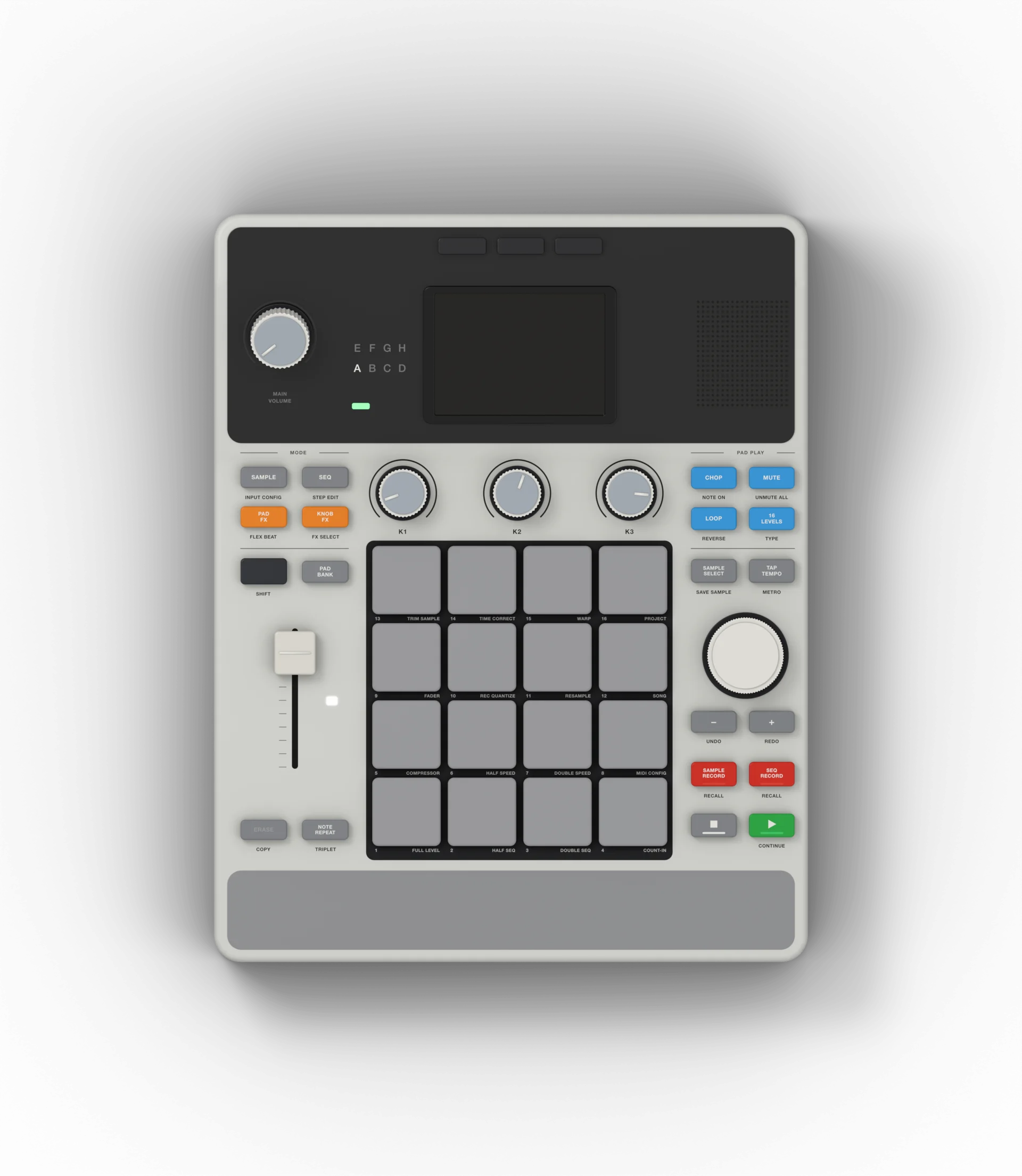
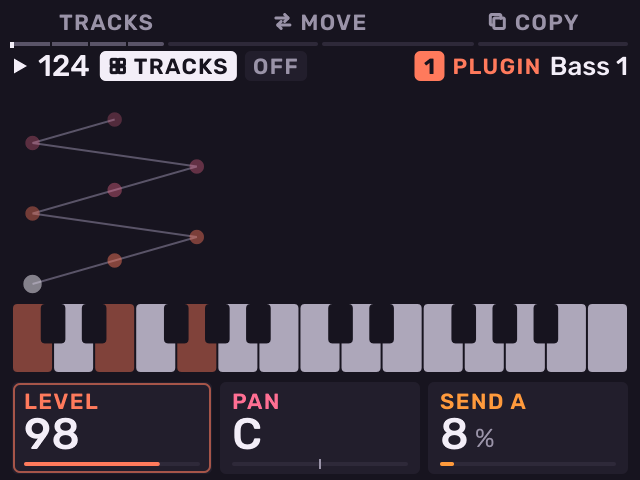
- Hold PAD BANK. The pads are the tracks. The screen stays on the page you are on.
- Press a pad. Pad 1 is track 1.
12This works on any page. To see the tracks side by side, open the mixer: its pads select tracks too.
While PAD BANK is held, only the keys change: TRACKS, MOVE and COPY. Holding PAD BANK never changes the bank; only a tap does.
| With PAD BANK held | Action |
|---|---|
| Pad | Select that track. |
| K1–K3 | The selected track’s level, pan and send to bus A, on any page. |
| B1 (TRACKS) | Open the mixer on the tracks. |
| B2 (MOVE), a track, a pad | Move the track there (below). |
| B3 (COPY) or SHIFT + ERASE, a track, a pad | Copy the track there. |
| ERASE + pad | Clear that track (asks first). |
| Encoder, or − / + | Change the kit’s bank. |
Move or copy a track
- Hold PAD BANK.
- Press B2 (MOVE), or B3 (COPY) to copy.
- Press the track.
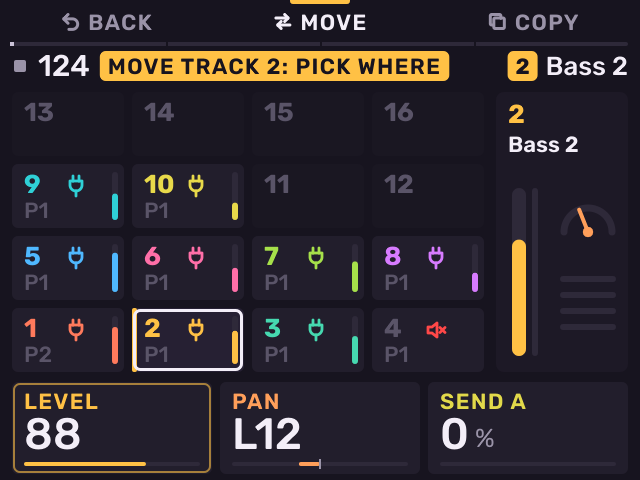
- Press the pad it goes to. A track already there swaps places with it.
1234During a move or copy the screen shows the tracks. B1 (BACK) steps back.
A moved track takes its sound, patterns and mixer strip, and everything that refers to it:
- Its Song clips
- Looper sources
- Knob FX tracks
- Sidechain keys
- The Pad FX punches kept in any pattern
- MOD and MACRO lanes
Track colour
Each track has a colour: track 1 coral, track 2 amber and so on. You can give a track another colour, for example a watery blue for a pad sound.
- Select the track.
- On the mixer, hold the encoder to open the Menu. Push TRACK COLOUR.
- The pads light in the 16 colours. Press a pad, or turn the encoder, to pick a colour. The track shows it at once: on the screen, on the pads and on the fader light.
- Press B3 (DONE) or push the encoder to keep it.
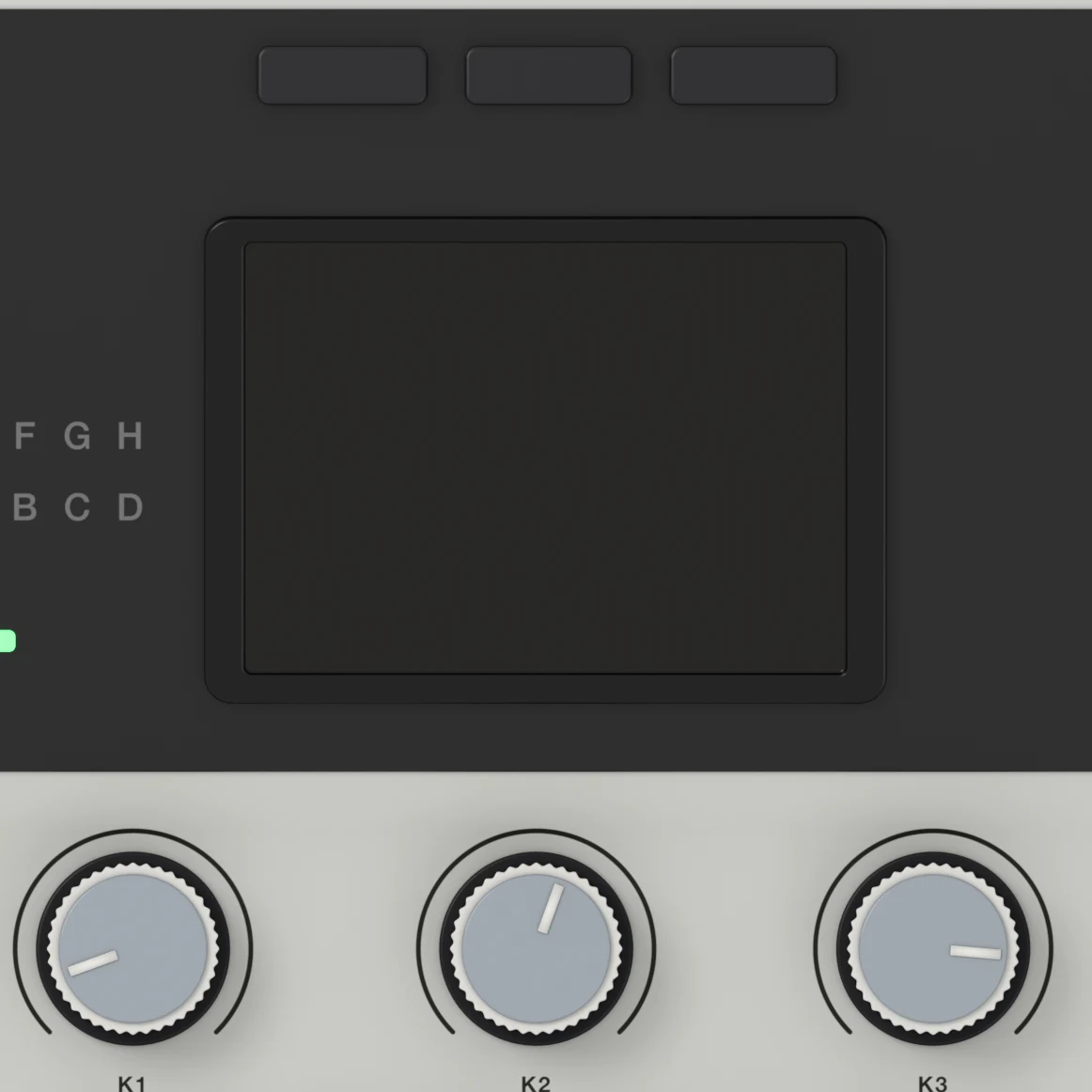
1234B1 (BACK) keeps the colour the track had. B2 (DEFAULT) gives the track the colour of its place again.
| The colour | |
|---|---|
| Move, copy or clear the track | The track keeps its colour. |
| Its patterns, Song clips and kit pads set to the track’s colour | Take it too. |
| Undo | Puts the colour back. |
| The project | Keeps it. Older Melodee versions open the project with each track in the colour of its place. |
Track speed
A track can play its patterns slower or faster: ×1/64, ×1/32, ×1/16, ×1/8, ×¼, ×½, ×¾, ×1, ×1½, ×2 or ×4.
- Open Patterns.
- Hold SHIFT and turn K3 (SPEED).
1- At ×1/64 one bar of the pattern lasts 64 bars.
- The notes stay as written.
- The Patterns header and track list show the speed when it is not ×1.
Track direction
A track can play its patterns’ steps forward (FWD), backward (REV) or in a new order each pass (RND). A step is one step of the pattern’s Q; each note keeps its place in its step and its length.
- Open Patterns.
- Press SHIFT + LOOP to step through FWD, REV and RND.
1| Direction | Plays |
|---|---|
| FWD | The steps forward. |
| REV | The last step first. |
| RND | Every step once a pass, in an order of its own each pass. The orders are the same each time the pattern plays from the top. |
- Motion and its locks follow the steps.
- A kit lane of its own length turns round on its own length.
- The editors’ playhead shows the step that plays.
- An audio track plays forward.
The Patterns header shows ◀ or a die beside the speed, and so does the playing pattern’s cell.
Make a new track
A new project has no tracks: it opens on track 1 with the track types.
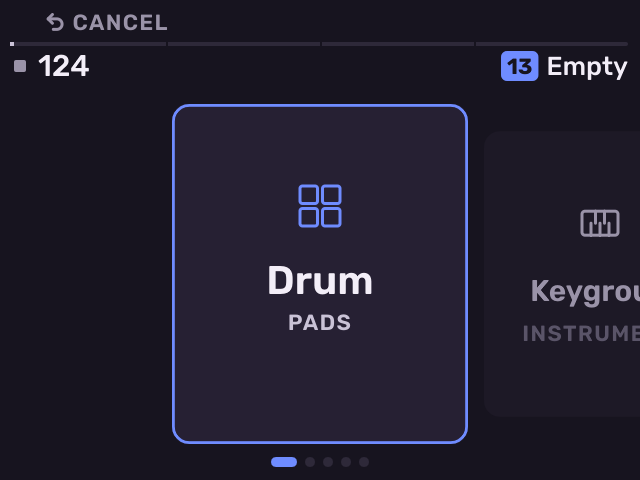
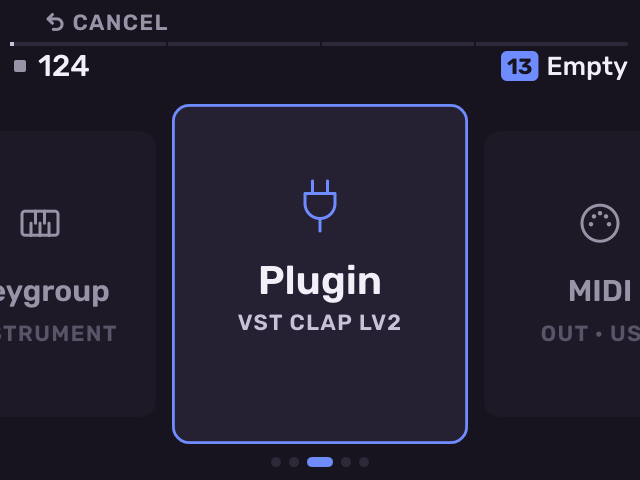
- Select an empty track with PAD BANK + pad, or press SAMPLE on an empty track. Stage shows the track types as on the MPC: Drum, Keygroup, Plugin, MIDI and Audio.
- Turn the encoder to move along the cards.
- Push the encoder to pick the card in the middle.
12Making a track is one undo step.
| Type | Push |
|---|---|
| Drum | Opens the Drum sources (below). |
| Keygroup | Makes a keygroup track: one instrument or sample played across the keys. The Samples browser opens for it. B1 (CANCEL) at the top of Samples leaves the track empty. |
| Plugin | Makes a plug-in track. The plug-in picker opens. The track stays empty until you pick a plug-in. |
| MIDI | Opens the MIDI ports (below). |
| Audio | Makes an audio track, which records the input into its patterns. Stage opens on its INPUT. |
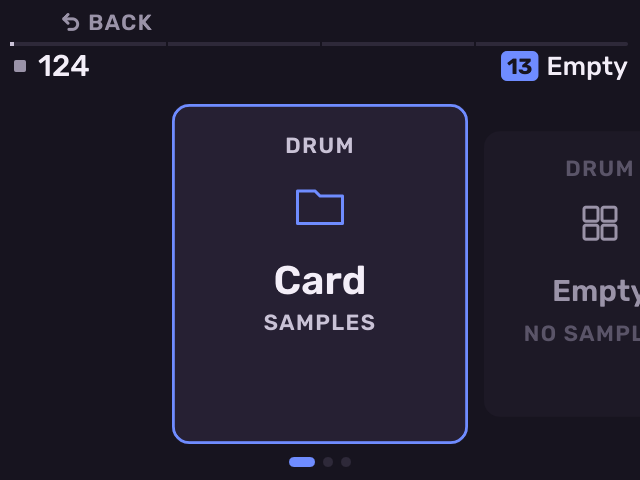
Drum and MIDI show their sources next. Push makes the card in the middle. B1 (BACK) goes back to the types.
| Source | Makes |
|---|---|
| DRUM Card | A kit. The Samples browser opens for its first sample. B1 (CANCEL) at the top of Samples leaves the track empty. |
| DRUM Empty | A kit with no samples. |
| DRUM Input | A kit. Sample Record opens to record its first sample. |
| MIDI Out jack | A MIDI track on the MIDI Out jack. |
| MIDI USB-C | A MIDI track on the USB-C port. |
| MIDI All USB | A MIDI track on every USB MIDI device. |
Until the track is made
| Control | Until the track is made |
|---|---|
| PLAY, STOP, TAP TEMPO | Still work. |
| PAD BANK + pad | Selects another track. |
| The other buttons | Wait. |
| Project or Settings | Hold the encoder for the Menu, press B3 (GO), then PAD 14 (Project) or PAD 15 (Settings). |
| B1 (CANCEL), on the types | Selects the nearest track that is not empty. When every track is empty, B1 has no job. |
When you pick an empty track with a pad (on the mixer, with PAD BANK held, or on a Song lane), Stage opens and, once the track is made, you go back to the page you picked it on.
Freeze a track
Freezing renders a track’s patterns to audio files (prints) on the card. The frozen track plays the prints instead of its sound and its effect chain. This saves CPU. The pads still play the sound live.
Select the track. Then:
- Press SAMPLE RECORD to open the PRINT sheet. On a kit, press SAMPLE RECORD for Record, then B3 (PRINT).
- The pads are the track’s patterns. Lit pads are printed. Tap a pad to leave its pattern out or take it back. B2 (ALL) lights every pattern with notes. − / + change the bank of patterns.
- Turn K1 (TAP): Post FX or Pre FX (below).
- Turn K2 (TAIL): Loop, Ring or Cut (below).
- Press B3 (FREEZE).
12345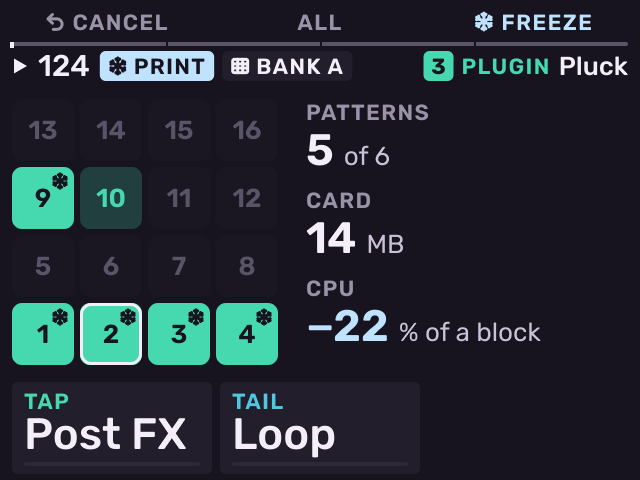
| Card | Values |
|---|---|
| K1 (TAP) | Post FX prints the sound with its effect chain. Pre FX prints the sound alone, and the chain runs live. |
| K2 (TAIL) | Loop (the end wraps into the start), Ring (one pass and its tail) or Cut (one pass). |
- Beside the pads the sheet shows how many patterns are lit, the space the prints take on the card, and the CPU the freeze saves.
- While the prints are made, B1 (CANCEL) calls them off.
- The track plays live until the prints are ready, then switches on a bar line.
Freeze single patterns
- Hold SEQ.
- Press SAMPLE RECORD.
- Press a pattern pad to freeze or thaw that pattern.
- Let go of SEQ. The prints are made. The other patterns play live.
123Deep freeze
SHIFT + B3 (DEEP FREEZE) freezes every pattern with notes and also unloads the track’s plug-ins to save memory; its pads then play nothing. It works on the PRINT sheet and on a frozen track’s Stage.
MIDI tracks cannot be frozen yet: their sheet says MIDI TRACKS Later.
A frozen track
| On a frozen track | |
|---|---|
| Level, pan, sends, mute and solo | Stay live. |
| A kit’s pad sends | Are printed with it and still reach the buses. |
| Stage and the Menu’s header | Show a snowflake. Stage shows the print of the pattern playing. |
| Cards whose values the print holds | Are dim with a snowflake. |
| A change to anything a print is made of (the sound, a pad, the chain, a frozen pattern’s notes) | Asks Unfreeze track N? first: B3 (UNFREEZE) or B1 (CANCEL). |
Unfreeze
- Open the PRINT sheet (step 1 of Freeze a track).
- Press SHIFT + B1 (UNFREEZE), or press B3 (UNFREEZE) with no pattern lit.
12- A deep-frozen track shows THAWING while its plug-ins load again; the prints play meanwhile.
- The prints stay on the card. At the next freeze, only patterns you changed are printed again.