Melodee 0.10.5This is the manual for Melodee 0.10.5. The newest release is 0.10.6: what's new since 0.10.5 · this page for 0.10.6.
Manual · Chapter 10
Song
Song lays out clips of each track's patterns on a lane per track: placing and editing clips, the tempo lane, sections, recording into the song, jam capture and export.
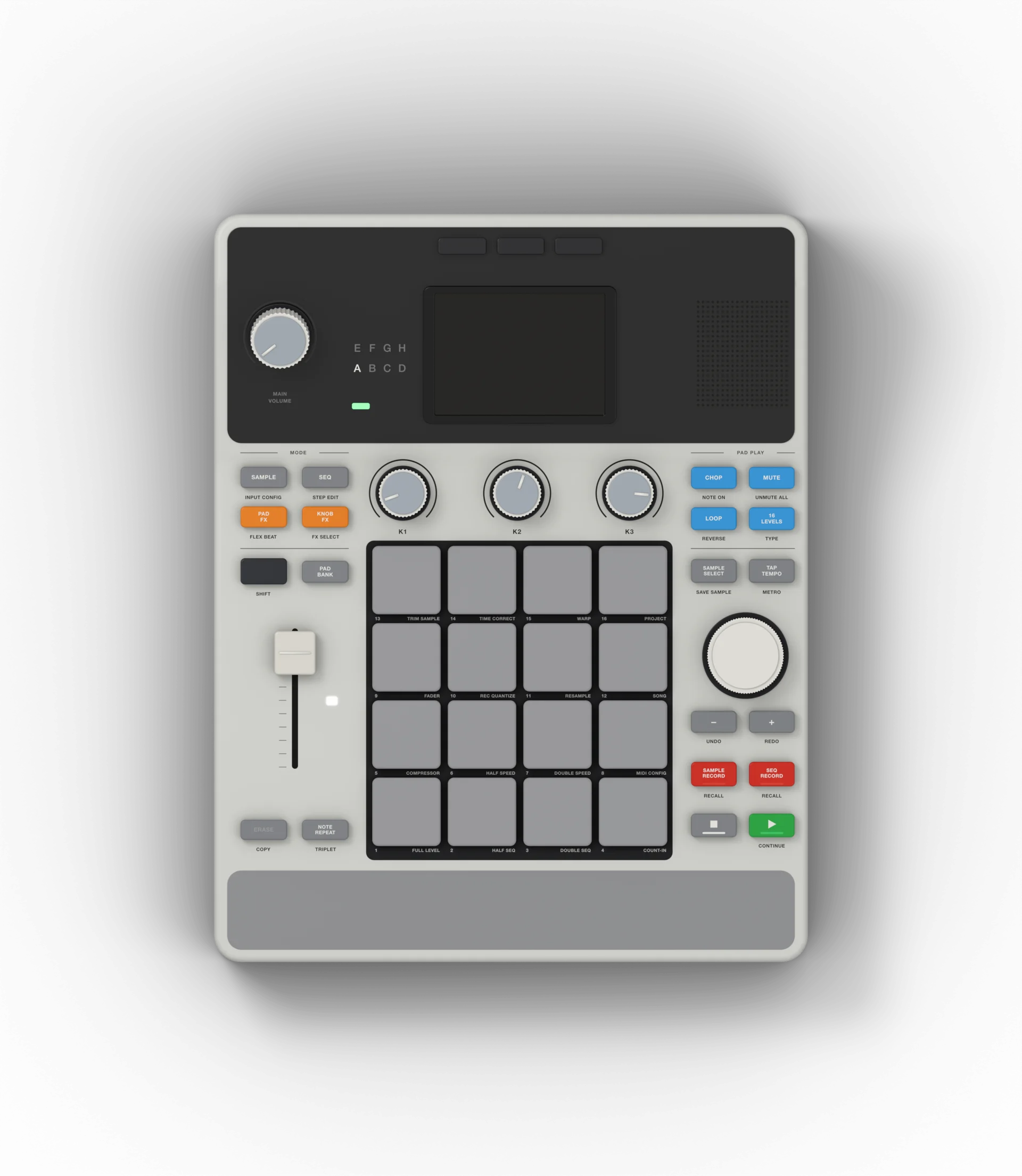
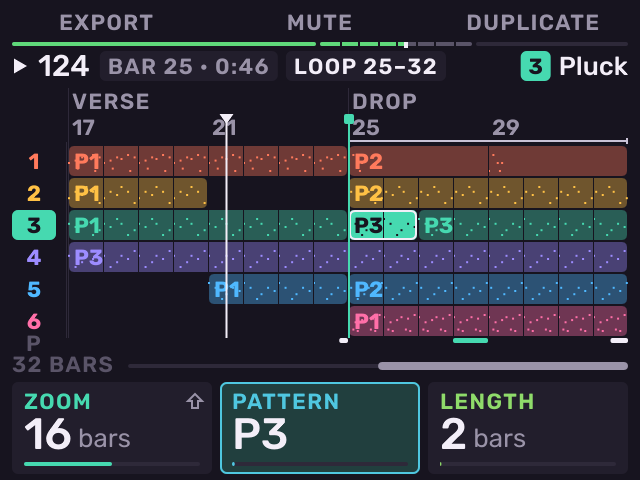
Each track has a lane on Song. Each lane holds clips of that track’s patterns.
- Hold SHIFT and press PAD 12 to open Song. Press it again on Song to close it.
- Press a pad to select a lane.
- Turn the encoder to move the cursor by a bar.
- Turn K2 for the clip’s pattern and K3 for its length.
- Press B3 (PLACE).
12345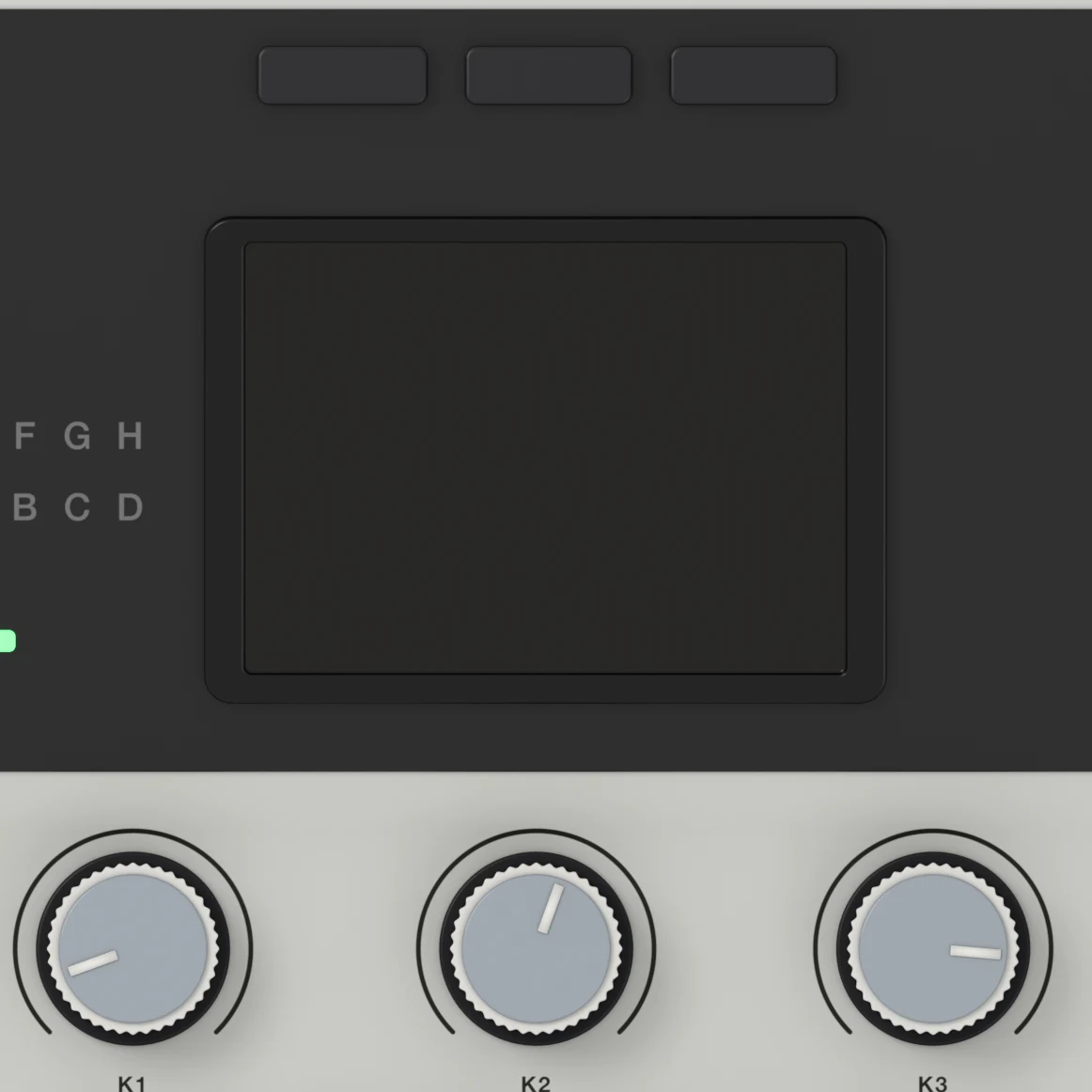
- Song’s own keys stay its actions: B1 (EXPORT), B2 (MUTE) and B3 (PLACE, or DUPLICATE on a clip).
- The header shows the cursor’s bar and time, and the loop.
- Each clip edit is one undo step.
Cursor and lanes
| Control | Action |
|---|---|
| Encoder | Move the cursor by a bar. |
| Pads | Select a lane. An empty track opens its new track cards, then comes back to Song. |
| K1 | Zoom (4–64 bars). |
| PAD BANK | Show all 16 tracks at once, or the selected track’s lanes again. With all tracks shown, copy, paste and erase of a loop range work on every track. |
Clips
| Control | Action |
|---|---|
| K2 / K3 | The next clip’s pattern and length (1–128 bars), or those of the clip under the cursor. K2 steps through the track’s patterns that hold notes and the next empty one (A1, A2 … H16). |
| B3 | Place a clip of the pattern and length on K2 and K3. On a clip: duplicate it after itself. |
| Encoder push | Open the clip’s notes: Roll, or Step Edit on a kit. On empty time, place a clip. After a copy of bars: paste them at the cursor. |
| B2 | Mute or unmute the clip. |
| SHIFT + B2 (MOTION) | Open the clip’s pattern on the Motion page. |
| SHIFT + B3 (OWN PATTERN) | Make the clip’s pattern its own copy. |
| CHOP | Split the clip at the cursor. |
| ERASE | Delete the clip. With a loop range: take its bars out (see Sections). |
| SHIFT + ERASE | Copy the clip, placed after itself. With a loop range: copy its bars. |
| NOTE REPEAT | Repeat the clip up to the next marker. |
| SHIFT + B1 (JAMS) | The jams you played outside Song, to put after the end of the song (see Jam capture). |
Loop, markers and play
| Control | Action |
|---|---|
| LOOP | Press it at the first bar, move the cursor, press it at the last bar: that is the loop. On a clip, press it twice without moving the cursor to loop the clip’s bars. With a loop on, a press turns it off. |
| SHIFT + encoder push | Add a marker. On a marker: name it. |
| − / + | Jump between markers (with no markers, between clip edges). |
| PLAY | Play the song from the cursor. |
| SHIFT + PLAY | After the song stopped: continue it from the bar where it stopped. |
- While the loop plays, each time it comes round every track’s clip plays its pattern from where the song is, so a loop inside a longer clip stays in time.
- A clip you change while it plays is heard from the next bar.
- A clip that ends part way through its pattern stops its sounds at its end: one-shot samples and held notes do not play on into the next bar. A clip that ends at the end of its pattern lets them ring out. A muted clip after it stops them.
Tempo lane
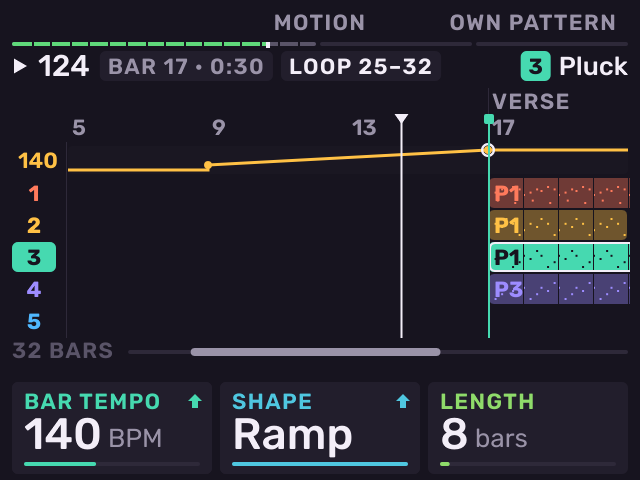
- Turn the encoder to a bar.
- Hold SHIFT and turn K1 or K2.
12| Knob | Card | Sets |
|---|---|---|
| SHIFT + K1 | BAR TEMPO | The tempo from the cursor’s bar. Turn it below 30 (Off) to remove that point. |
| SHIFT + K2 | SHAPE | The change: a Step at its bar, or a Ramp from the point before. |
- Before the first point, the project’s tempo plays.
- With points, the lane shows over the tracks with the tempo at the cursor.
Sections
The loop range marks a section of the song to copy, paste or take out.
- Press LOOP at the section’s first bar, then again at its last bar. The encoder moves the cursor between them. The header shows LOOP with the bars.
- Press PAD BANK to work on all tracks (the header shows ALL), or leave it to work on the selected track.
- Press SHIFT + ERASE to copy the section. The header shows COPY.
- Move the cursor and push the encoder to paste. What is at the cursor and after it moves on to make room.
- Push again to paste another copy after it, for example to make a part longer. Press ERASE to stop pasting.
1234Take a section out
- Set the loop range: LOOP at the first bar, LOOP at the last.
- Press ERASE. What comes after it moves back to close the gap.
- With all tracks shown, markers and tempo points move too.
- Each paste and each erase is one undo step.
- Playing from a bar after the loop range, the song plays on to its end and stops.
Record into the song
With SEQ RECORD on while the song plays, each pattern you launch becomes a clip.
- Press PLAY on Song. The song plays from the cursor.
- Press SEQ RECORD.
- Launch patterns or sequences: on Patterns, on Sequences, or with SEQ held. Each launch starts a clip on that track’s lane at the next bar.
- Press SEQ RECORD again, or STOP. Each clip ends with the bar that was playing.
1234- A clip grows a bar at a time while its pattern plays. After 128 bars a new clip carries on.
- Pad FX punches you play while recording are written into the song too. They end where the song ends.
Audio tracks
On an audio track’s lane, SEQ RECORD records the track’s input onto the lane. The input is the one set on Stage’s INPUT (B2).
- Press the track’s pad to select its lane.
- Move the cursor to the bar to start on.
- Press SEQ RECORD.
- Press PLAY. After the count-in the take starts at the cursor, in a new clip of the track’s first empty pattern. The clip has a red frame and grows a bar at a time.
- Press SEQ RECORD again, or STOP. The clip ends with the bar that was playing. Its pattern is as long as the clip.
- Press SEQ RECORD while the song plays: the take starts on the next bar.
- Clips under the take give way to it.
- With a loop on, the take stops when the loop comes round.
- A take is 128 bars at most.
- SHIFT + − (Undo) takes back the clip and its take together.
Jam capture
Melodee keeps each jam. From PLAY to STOP outside Song, it notes for every bar the pattern each track plays, the tracks that are muted, the tempo and the sequences you launch.
- You do not have to arm anything.
- Each run from PLAY to STOP is a jam of its own.
- Song shows how many there are at the bottom right (3 JAMS), with a red dot while one is being written.
- Press PLAY and play your patterns: launch patterns and sequences, mute and unmute tracks, change the tempo.
- Press STOP.
- Hold SHIFT and press PAD 12 to open Song.
- Hold SHIFT and press B1 (JAMS).
- Turn the encoder to pick a jam.
- Press B3 (TAKE).
123456JAMS shows the picked jam large: the sequences you launched, the bars, and each track’s patterns. Under it, each jam has a row with a small picture and its length, the newest first.
| Control | Action |
|---|---|
| Encoder, − / + | Pick a jam. |
| K1 (FROM) / K2 (TO) | The first and last bar to take. The rest is dimmed. |
| B2 (PLAY), PLAY | Play the jam from FROM to TO, as Song will. Press it again, or STOP, to stop. |
| B3 (TAKE), encoder push | Put the bars after the end of the song. |
| ERASE | Delete the jam. |
| B1 (BACK) | Back to Song. |
TAKE puts the bars after the end of the song, or at bar 1 when the song is empty, and goes back to Song:
| In the jam | In the song |
|---|---|
| Each run of the same pattern on a track | One clip. A track that played nothing, or an empty pattern, gets no clip there. |
| Bars where a track was muted (or another track was soloed) | Muted clips. B2 (UNMUTE) brings one back. |
| Each launched sequence | A marker with its name, or SEQ and its number |
| Tempo changes | Steps in the tempo lane |
- TAKE and ERASE are one undo step each.
- A jam stays in the list after you take it.
- Melodee keeps the newest 8 jams and saves them with the project.
- A run shorter than 2 bars is not kept.
- A jam fills Song up to 999 bars and 256 clips. The message says when some was left out.
Export
- Press B1 (EXPORT).
- Turn the encoder to choose what to export. B2 shows the choice.
- Press B2 to export.
- Name the export (see Naming).
123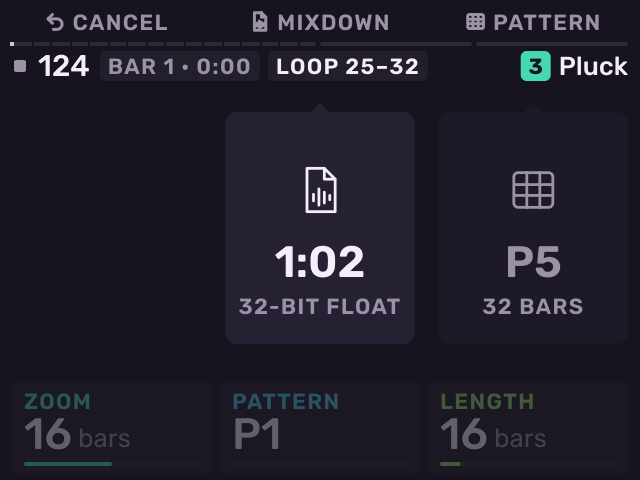
| Choice | What it writes | Where |
|---|---|---|
| MIXDOWN | A 32-bit float, 24-bit or 16-bit WAV | Melodee/Mixdowns |
| STEMS | One WAV per track and bus, one per submix the tracks play into, each kit pad the song plays, and the mix (see Stems of kit pads) | Melodee/Stems/<name>/ |
| MIDI FILE | A MIDI file | Melodee/MIDI |
| MPC 3 | An MPC 3 project (see MPC 3 project) | Melodee/MPC 3/ |
| LIVE SET | An Ableton Live Set (see Ableton Live Set) | Melodee/Ableton/ |
A MIDI FILE, an MPC 3 project and a LIVE SET also work with an empty song: they take the patterns.
| Key | Action |
|---|---|
| B2 | Export the choice. |
| B3 (PATTERN) | Write the song into new patterns, end to end. |
| B1 (CANCEL) | Go back to the song. |
A .mid file in the browser loads its notes onto the selected track’s pattern.
Stems of kit pads
STEMS also writes each kit pad the song plays as a WAV of its own, in a folder for each kit beside the kit’s own WAV: 03 Drums pads/A01 Kick.wav is pad A01 of track 3, named after its sample.
- A pad’s WAV is the pad after its own effects, volume and pan, at the kit track’s level, pan and mute, as its pad sends are taken.
- The kit track’s effects, filter and mixer strip are not on it. With none on the kit, its pads add up to the kit’s WAV.
- The kit’s own WAV holds all its pads, as before. Use one or the other, not both.
- A pad that stays silent in the song gets no WAV.
- A frozen kit’s pads are not split.
- When there are more stems than one play of the song can write to the card, STEMS plays the song again for the rest of the pads. The message says which pass runs (Stems: pass 2 of 3). Each play has the same hits.
MPC 3 project
MPC 3 writes Melodee/MPC 3/<name>.xpj and its <name>_[ProjectData] folder with the samples. MPC One, Live, Key, X and the MPC 3 software open it.
| In Melodee | In MPC 3 |
|---|---|
| A kit track | A drum track. Its pads keep their samples, layers, trim, loop, tune, level, pan, mute group, envelope, filter and warp. |
| A pad playing an instrument (SFZ, MPC keygroup program, EXS, DecentSampler), and a sample pad its patterns play at other pitches | A keygroup track of its own. Its notes go with it. |
| A keygroup track | An MPC keygroup track |
| An audio track | An MPC audio track. Each pattern’s take becomes an audio region in its sequence. |
| A plug-in track | An audio track of its prints. The export prints each pattern with notes first, skipping prints that are up to date. The project needs a file for its prints: save it first. |
| Each pattern number | A sequence |
| The song | One sequence, Song, in the first free number. MPC 3 opens on it. |
| A MIDI track | An MPC MIDI track on its channel, with its bank and program. Pick its output port on the MPC. |
| A track sent to a submix | Plays into the same submix in MPC 3. Each submix a track plays into keeps its level, pan, mute and solo. |
Left out: effects, sends, the mixer’s strips (trim, EQ, compressor, width), a submix’s name, muted buses, the song’s tempo changes and samples that are not WAV files. The message after the export says what was (mixer settings left out for the mixer).
Ableton Live Set
LIVE SET writes Melodee/Ableton/<name> Project/ with <name>.als in it and a copy of every sample in Samples/Imported/. Copy the whole folder to a computer and open the .als in Ableton Live 12.1 or later.
| In Melodee | In Live |
|---|---|
| Each pattern | A clip in Session View, in the scene of its number: A1 is the first scene, B1 the seventeenth. Scenes keep their names and tempos. |
| The song | Laid out in Arrangement View. Its markers become locators, its loop becomes Live’s loop and its tempo changes become tempo automation. |
| Notes | Play as they do in Melodee: swing, ratchets, the pattern’s speed and each lane’s own length are written out. |
| A kit track | A Drum Rack with a Simpler on each pad. Pads keep their sample, trim, level, pan, tune, envelope, one shot or gate, loop, reverse, warp and velocity layers. A mute group becomes a choke group. |
| A pad its patterns play at other pitches | A track of its own with a Simpler |
| A keygroup track | A Simpler, or a Sampler for an instrument with several zones (Sampler needs Live Standard or Suite) |
| A plug-in track | A MIDI track of its notes with no instrument, plus an audio track of its prints beside it. The export prints each pattern with notes first, as for MPC 3: save the project first. |
| A MIDI track | A MIDI track. Each clip sends its program. |
| An audio track | Its takes become audio clips. |
| Each track’s level, pan, mute, solo and sends | Kept. Buses that tracks send to become return tracks. |
Left out: effects, Motion, pad filters, pad sends, the mixer’s strips, the submixes and muted buses. A track sent to a submix plays to the master. The message after the export says mixer settings left out when the mixer had any of them.