Melodee 0.10.5This is the manual for Melodee 0.10.5. The newest release is 0.10.6: what's new since 0.10.5 · this page for 0.10.6.
Manual · Chapter 06
Plug-ins
Which plug-ins run on the MPC and where they go on the card, plug-in instruments and effects, their pages and presets, plug-ins' own screens, and Neural Amp Modeler.
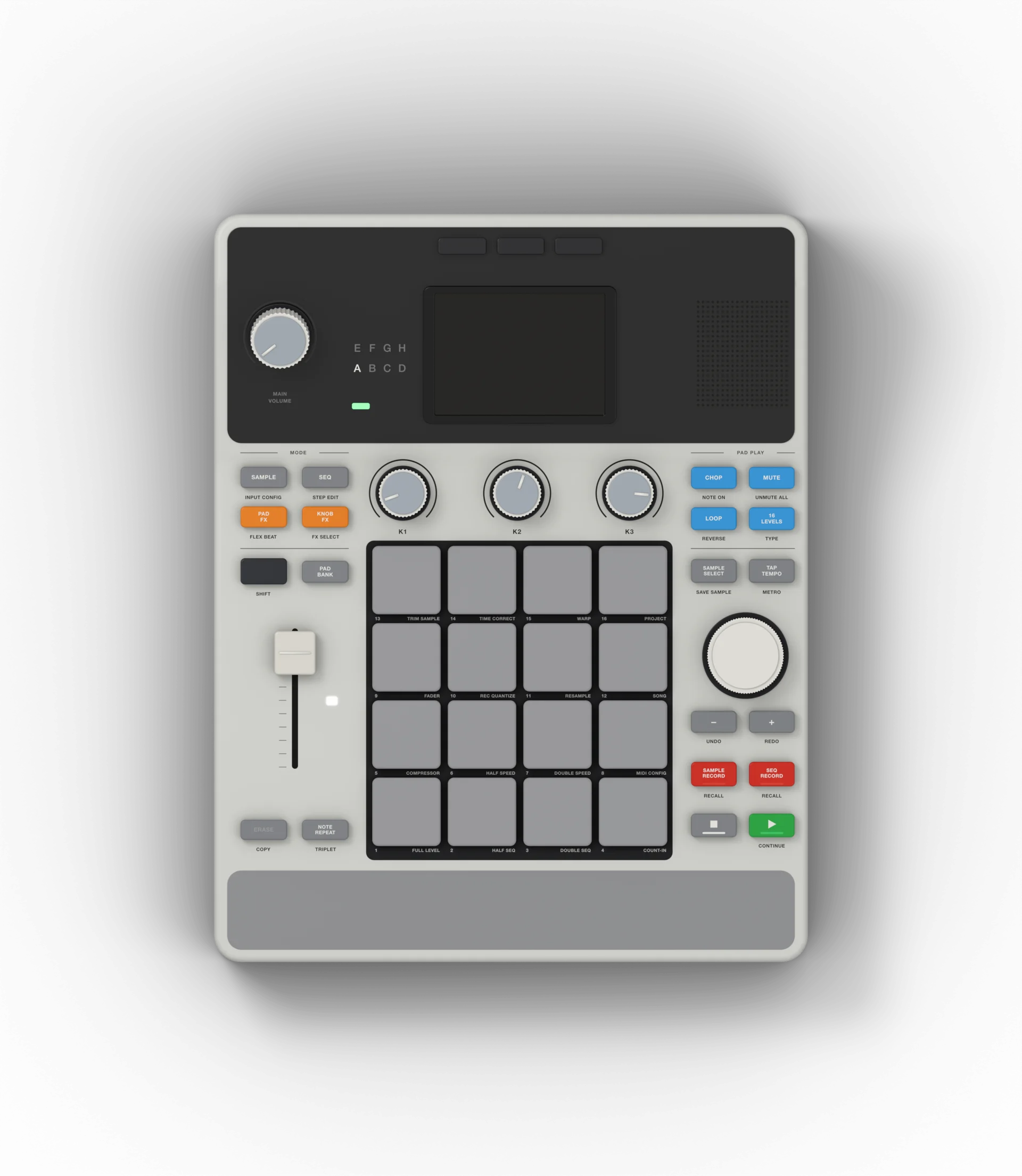
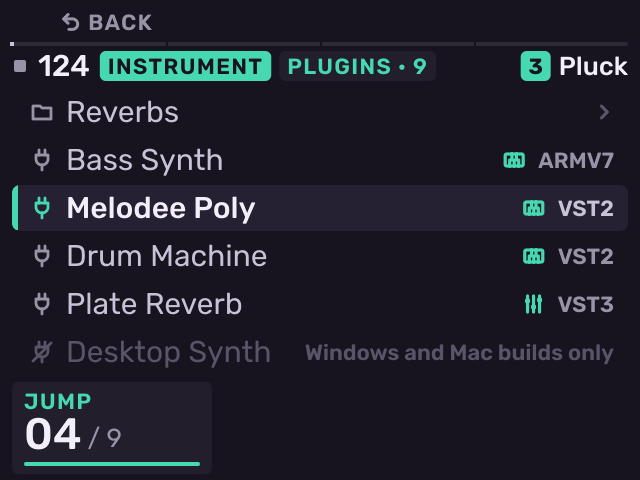
Melodee hosts VST3, LV2, CLAP and VST2 plug-ins, instruments and effects.
What runs
- Put plug-ins in
Melodee/Pluginson the card (thePluginsfolder inside theMelodeefolder at the top level), in any subfolders. - Earlier versions read a
Pluginsfolder at the top level of the card. Move its contents intoMelodee/Plugins. Projects saved with an earlier version find their plug-ins there.
The plug-in picker:
- Opens on
Melodee/Plugins(the header says PLUGINS), and after that on the folder and row you left it on. - B1 (BACK) goes up a folder, as far as the top of the card, to load a plug-in kept anywhere else on the card.
- At the top of the card the header says CARD and B1 reads CANCEL.
Formats
Melodee loads plug-ins built for the MPC’s ARM processor:
| Format | What loads |
|---|---|
| VST3 | Bundles with a Contents/aarch64-linux/ build |
| LV2 | Bundles (.lv2 folders) built for 64-bit ARM Linux (aarch64) |
| CLAP | .clap files built for 64-bit ARM Linux (aarch64) |
| MPC plug-in folders | Folders named Maker - VST - Name: the folder of a -mpc-sdk.zip (Akai’s plug-in format, with a plugin.json), or an Open MPC folder (a VST2 .so with a plugin-meta.xml). Melodee opens the 64-bit build when the folder has one, else the 32-bit build. |
| VST2 | .so files for 64-bit ARM (aarch64), or 32-bit ARM (armv7) |
- Surge XT (CLAP) needs its data folder: put
SurgeXTData(theresources/datafolder of Surge XT’s source, for the same version) next toSurge XT.clap. Without it Surge XT has no presets or wavetables. - MPC plug-in folders: the plug-in’s data (samples, skins, presets) is read from the card. Plug-ins kept in
VST2 Pluginsat the top of the card, where MPC Sample 1.4 reads them, load too: press B1 (BACK) up to the top of the card and openVST2 Plugins. - 32-bit plug-ins run in a separate bridge process. If one crashes, only the bridge stops.
- Most commercial plug-ins have no Linux ARM build. The picker shows plug-ins that cannot run dimmed, with the reason.
- Melodee carries the libraries that plug-ins often need beside their own files: libsndfile, libsamplerate and FFTW. A plug-in that needs another library shows MISSING LIBRARY when it opens.
The Melodee synths
The Melodee synths are Open MPC plug-ins:
| Plug-in | Sound |
|---|---|
| Melodee Poly | Two oscillators with sync and noise, four-pole ladder filter, two envelopes, LFO, poly mod, glide, unison, drift. Eight voices. |
| Melodee PD | Phase distortion with eight waveforms, two lines, DCW and DCA envelopes. Eight voices. |
| Melodee Chip | Chip voice with ring and sync, pulse width LFO, crush and a multimode filter. Six voices. |
Each has factory presets, pad pressure and its own mod matrix. They are free downloads: Melodee Poly, Melodee PD and Melodee Chip.
- From each release, download the
-mpc-sample.zip. - Copy it into
Melodee/Plugins. - Open the plug-in picker. Melodee unzips the zip, deletes it and lists the plug-in folder (for example
Ellic Studio - VST - Melodee Poly).
- A zip that cannot be unzipped stays, dimmed, with Won’t unzip (or Card full when the card has no room for it).
- Zips in other folders on the card are left as they are.
- Other MPC plug-in releases install the same way: copy their
-mpc-sdk.zipintoMelodee/Plugins.
Install over USB-C
To install a plug-in without moving the card:
- Connect the MPC to a computer with USB-C.
- While Melodee runs, open http://melodee.local (or http://192.168.155.1).
- On Device, drop the
-mpc-sample.zipon Plug-ins. - Press Install. Melodee unzips it into
Melodee/Pluginsand the header shows Plug-in installed. An open plug-in picker lists it at once.
To remove one, press the delete button on its row under Installed.
The same page updates Melodee: drop the release zip on Update, press Send, then press INSTALL on the MPC. Its Quickstart and Manual tabs hold this guide.
A new build of a plug-in a track uses takes over by itself. Copy it over the old file on the card (from this page, over card access, or any other way) and a moment after the copy ends Melodee opens it again, with the sound it had. The header shows Reloaded and the plug-in’s name. That track is silent while the plug-in opens. Melodee looks only at the plug-in’s own file (a bundle’s library), not at the folders beside it: after changing those, pick the plug-in again with SAMPLE SELECT.
Plug-in instruments
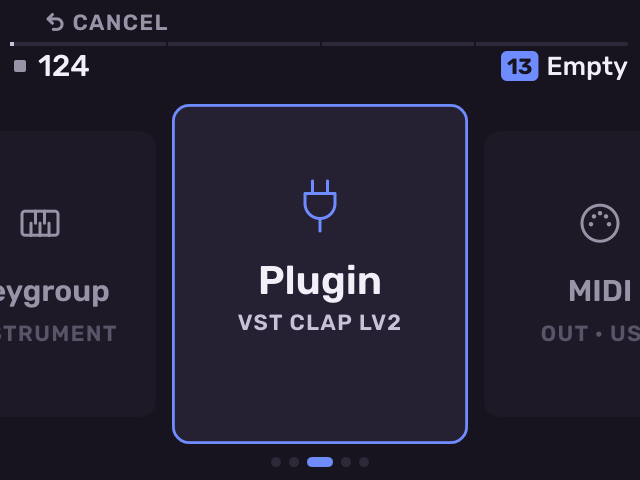
- Select an empty track with PAD BANK + pad. Stage shows the track types. A new project opens on track 1 with the track types.
- Turn the encoder to Plugin and push it. The plug-in picker opens.
- Turn the encoder to a plug-in and push to load it.
 12
In the picker:
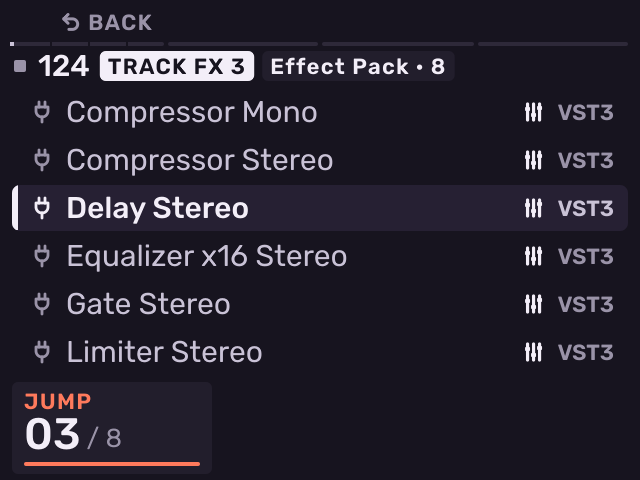
- Each row shows the plug-in’s format (VST3, LV2, CLAP, VST2, ARMV7), and a keyboard for an instrument or sliders for an effect.
- A check marks the plug-in loaded.
- A bundle with many plug-ins shows as one row with a count. Push to open it.
- K1 jumps through the list.
- ERASE deletes the plug-in or the folder under the cursor from the card. Melodee asks first: B3 (DELETE) or B1 (CANCEL). Undo does not bring it back.
- A plug-in the open project uses is not deleted. To remove a plug-in with its data (Surge XT with its patches), delete its folder.
Change a track’s plug-in
- Press SAMPLE SELECT on the track. The picker opens.
- Pick another plug-in. Melodee asks first, for example “Replace Surge XT?”.
The old plug-in’s sound and settings go. SHIFT + − (undo) brings it back with its settings. The same question comes on an effect slot.
Stage’s pages
| B1 page | What it shows |
|---|---|
| PANEL | The first page under B1. A plug-in that draws its own screen shows it here, and Stage moves here as soon as the plug-in is open (see A plug-in’s own screen). |
| PRESETS | K1–K3 are FILTER, ECHO and SPACE on every plug-in (see Stage on a plug-in track). |
| EDIT | The last page under B1: the plug-in’s parameters. Once you pick a plug-in, Stage opens on EDIT. |
EDIT
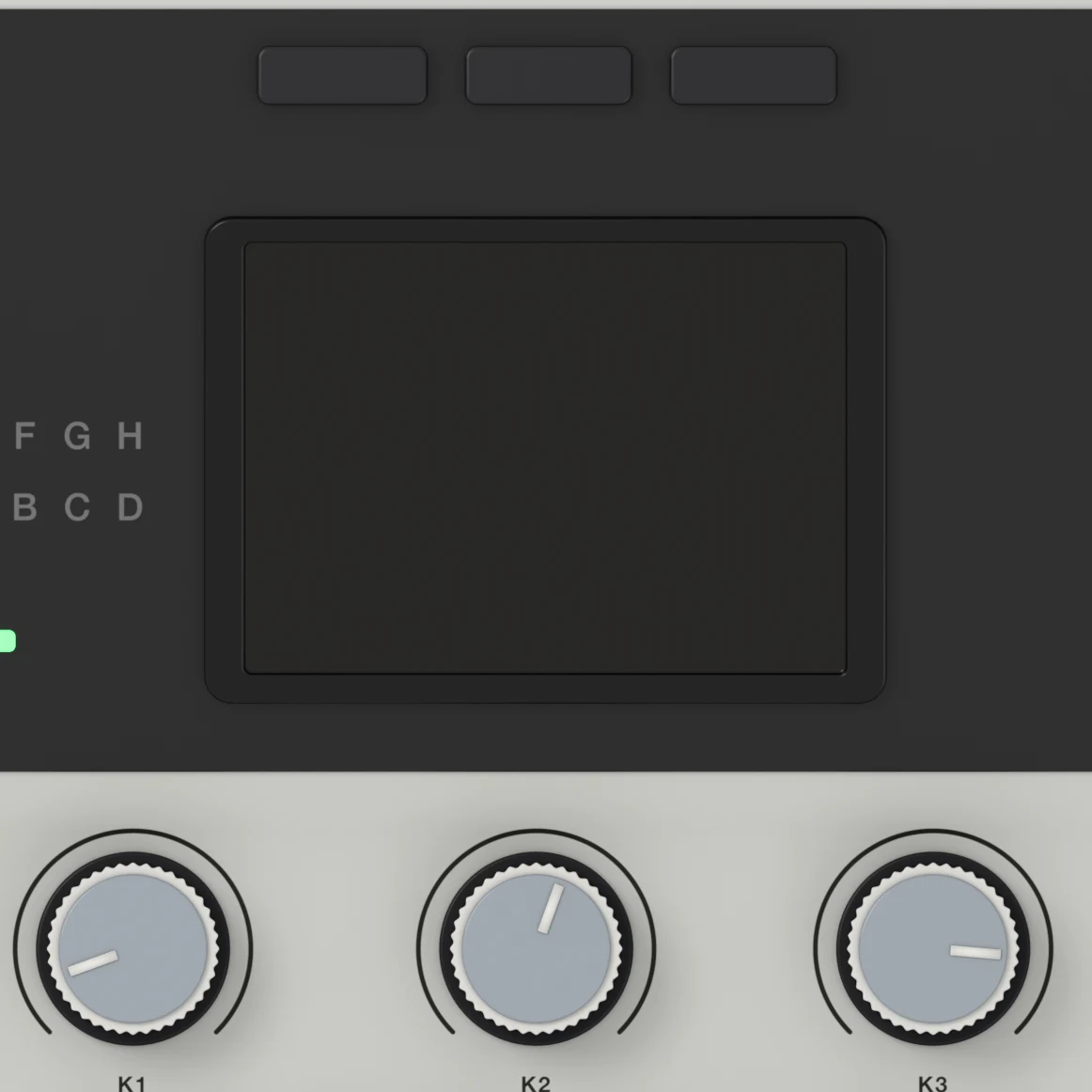
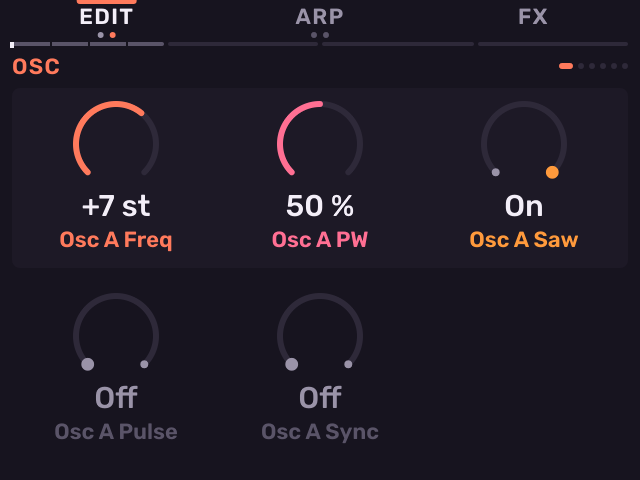
The page shows the plug-in’s parameters in rows of three, each over its pot.
 123
| Part | What it shows | |
|---|---|---|
| 1 | Page | The parameters come in pages, named at the top left. The dots at the right show which page is open. The pages are the plug-in’s own (an Open MPC plug-in’s skin tabs, a CLAP plug-in’s pages), then its groups of parameters. |
| 2 | Raised row | The row the pots turn, in their colours: K1, K2, K3. A pot that has not reached its parameter’s value yet shows faint, with a white dot where the pot is. |
| 3 | Next row | The next three parameters. |
A page with an envelope (attack, decay, sustain, release) or a filter (cutoff and resonance) draws it above the row.
| Control | Action |
|---|---|
| K1, K2, K3 | Turn the raised row’s parameters. |
| Encoder | Move to the next row of three. |
| − / + | Go to the page before or after. |
| SHIFT + encoder | Step the parameter turned last by one of its own values. |
| ERASE + a pot | Set its parameter back to the plug-in’s default. |
Page files
- A page file sets the pages by hand: which parameters, their order, shorter names and a picture.
- Put it in
Melodee/Plugin Pages/on the card. Some plug-ins bring their own, and Melodee has one for Neural Amp Modeler. The format is in Plug-in page files. - A page file can bring a skin: the maker’s own art for the page, with its knobs and sliders turning with the values. On the controls K1–K3 turn, a white dot shows where a pot sits until it reaches the value.
- Settings > SCREEN > Plug-in screens turns skins and plug-ins’ own screens off for every plug-in.
SHIFT keys
Hold SHIFT on PRESETS, PANEL or EDIT for the plug-in’s own keys:
| Press | Action |
|---|---|
| SHIFT + B1 (PLUG-INS) | Opens the picker, as SAMPLE SELECT does. |
| SHIFT + B2 (PRESETS) | Opens the plug-in’s presets, when it has some. |
| SHIFT + B3 (TRANSPORT) | Sets whether the plug-in hears Play and Stop. Its light is on by default. |
Every plug-in hears Melodee’s Play and Stop, the tempo and the place in the song, so its own sequencer plays only while Melodee plays. Turn TRANSPORT off for a plug-in with its own sequencer or arpeggiator, so that only the track’s notes play it. It still follows the tempo.
Presets
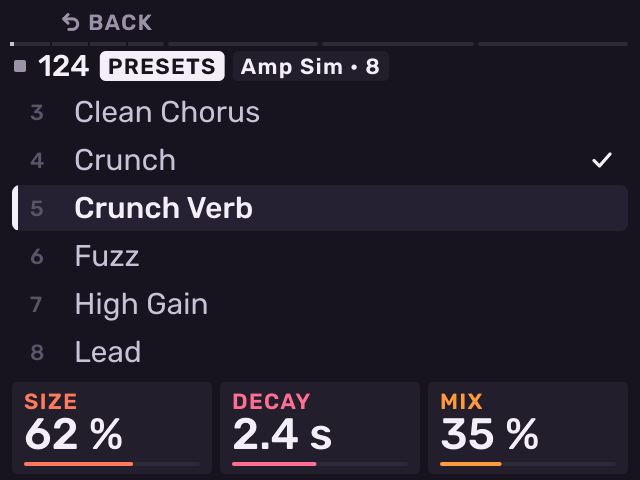
- Press SHIFT + B2 (PRESETS), or push the encoder on Stage’s PRESETS page. The preset list opens.
- Turn the encoder to a preset and push to load it. The page stays open, so you can play each preset in turn.
12K1–K3 still set the three parameters shown on EDIT. B1 goes back.
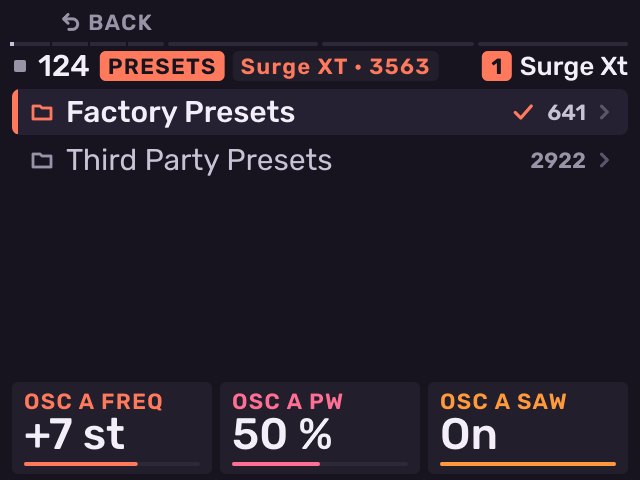
A plug-in that keeps its presets in folders (most CLAP plug-ins):
- Lists the folders first, each with the number of presets in it.
- Push to open a folder. B1 goes back out.
- A check marks the preset loaded and the folder it is in.
- The list opens in the folder of the preset picked last.
| Plug-in | Its presets |
|---|---|
| LV2 | Listed too. |
| MPC plug-in folder | Its own preset files (the .xpl files in its Presets folder) list after the plug-in’s programs, in a Presets folder, or at the top when the plug-in has no programs of its own. A preset file with the same name as one of the plug-in’s programs is not listed twice. The preset files show a moment after it loads. |
| CLAP | Show a moment after it loads. |
- Until the presets show, the page says LOOKING.
- The first time, Melodee reads every preset file, which takes a while for a plug-in with thousands. It keeps what it read in
Melodee/Plugin Data/.cache, so later it reads only new or changed files.
The project saves each plug-in’s state, so presets and edits come back when you load the project.
Drum machine plug-ins
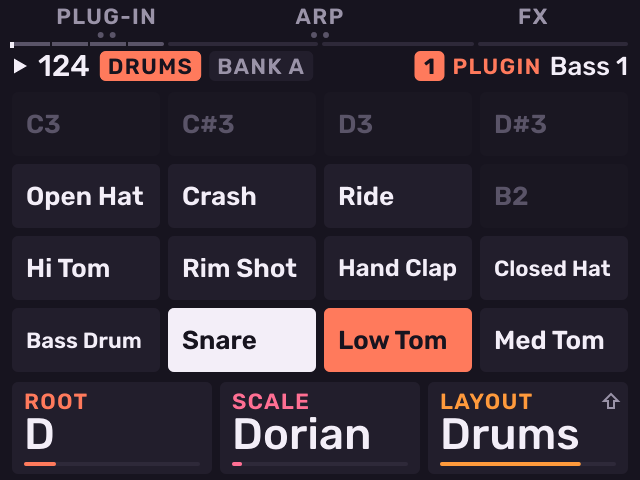
- A drum machine plug-in that names its voices (for example Open MPC drum machines) sets its track’s pads to Drums: pad 1 of bank A plays note 36, the drum rack layout of the MPC and most DAWs.
- Each pad shows the voice it plays.
- For any other drum plug-in, set K3 to Drums on Keys.
Plug-in effects
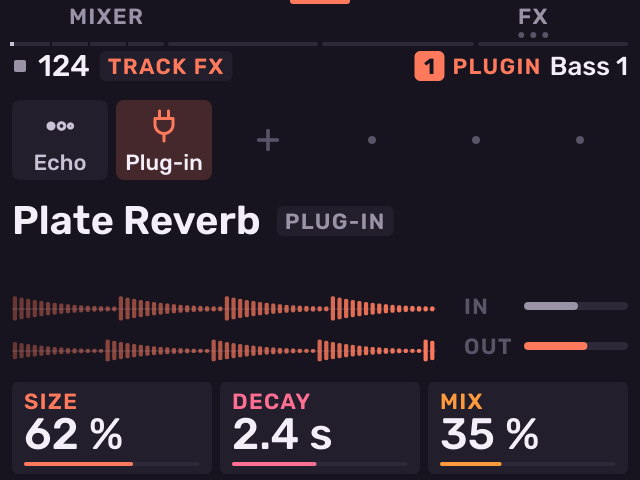
- On an effect chain (see Effect chains), open the effect picker.
- Choose the last family, Plug-ins.
| Chain | Plug-ins |
|---|---|
| Track, bus, master and loop chains | Take plug-ins |
| A kit pad’s own chain, Knob FX | Take no plug-ins |
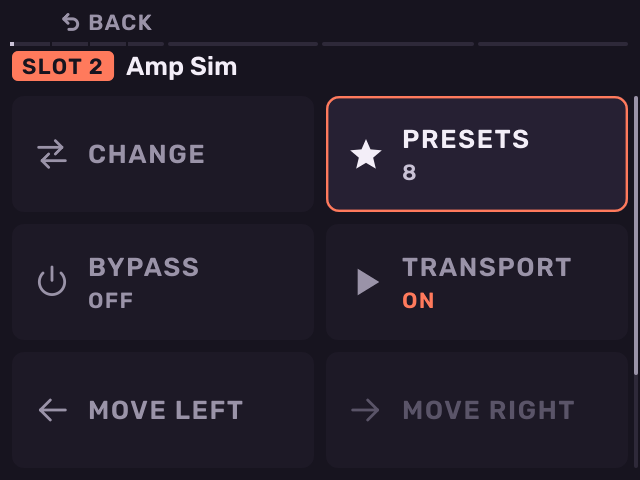
Push the encoder on a plug-in effect’s slot to open its sheet:
| On the sheet | Action |
|---|---|
| PRESETS | Opens its presets, when it has some. |
| TRANSPORT | Works as SHIFT + B3 on a plug-in track’s Stage. |
A plug-in effect that draws its own screen draws under the slots instead (see A plug-in’s own screen).
A plug-in’s own screen
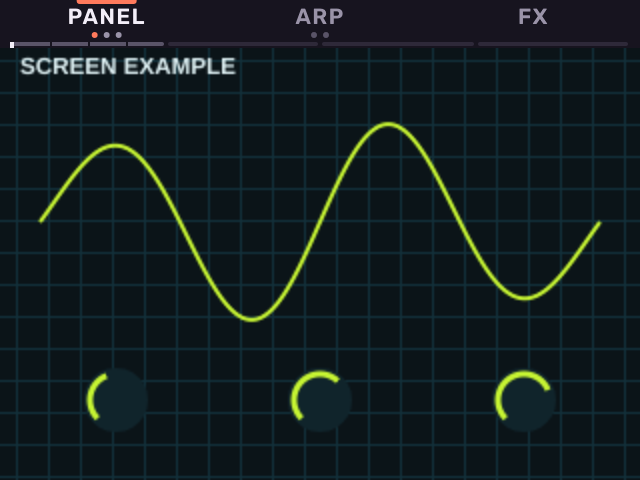
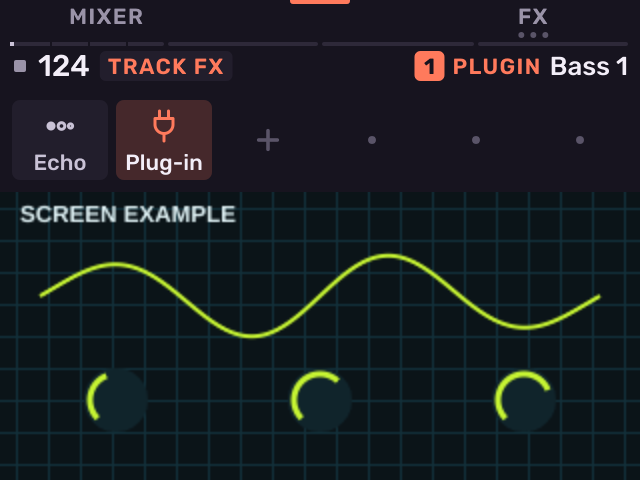
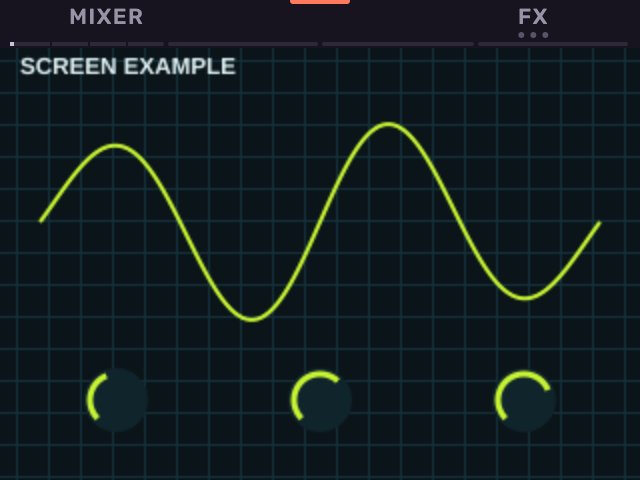
Some plug-ins draw their own page on the MPC Sample.
- Melodee keeps B1–B3 and draws nothing over the plug-in’s knobs: the plug-in shows where a pot sits until it reaches its value.
- K1–K3 turn the three parameters it names.
- Settings > SCREEN > Plug-in screens off: Melodee’s own pages for every plug-in.
On a plug-in track
On Stage, B1 goes PANEL (its page), PRESETS, EDIT (Melodee’s pages of its parameters). PANEL comes first: the track opens on the plug-in’s own page, presets and all, when you pick the plug-in and when you come back to the track.
| On its page | Action |
|---|---|
| Encoder, its push, − / + | The plug-in’s. |
| MUTE tap | On a page with a list of its own (an effect chain inside the plug-in): switches the lit item off or on. Held with pads, MUTE still mutes tracks. |
| ERASE tap | On a page with a list of its own: removes the lit item. ERASE lights while it can. |
As an effect
- On a chain the plug-in draws everything under the slots, with no cards.
- Push opens its full page. B3 or SHIFT + push goes back.
- SHIFT + B3 opens the slot’s sheet (on any effect).
Plug-in makers: Plug-in screens.
A screen installed apart from the plug-in
A companion screen gives a VST2 plug-in a page of its own without changing the plug-in. Copy the screen’s folder into Melodee/Plugin Screens/ on the card. The plug-in stays in Melodee/Plugins/ as it is.
- It shows on PANEL as a plug-in’s own screen does, when the plug-in has none of its own.
- Melodee checks that the screen is for that plug-in and that every parameter it uses is where it expects. When one is not, Melodee shows its own pages and says why in
Melodee/Plugin Screens/problems.txt. - A screen that stops working is closed: Melodee’s pages come back with a notice, and the plug-in plays on.
- Delete the screen’s folder to go back to Melodee’s pages. Projects never need the screen.
Screen makers: Companion screens.
Neural Amp Modeler
Melodee’s own amp sim is the Amp sim effect in the Dirt family. For amp and pedal captures, the Neural Amp Modeler plug-in can be added on its own. It plays amp and pedal captures (.nam files) with a cab IR. Its MPC Sample build is a free download: Neural Amp Modeler.
- From the release, download
NeuralAmpModeler-<version>-mpc-sample.zip. - Copy it into
Melodee/Plugins. - Open the plug-in picker. Melodee unzips it into the
Neural Amp Modelerfolder. - Put the files it plays in
Melodee/Plugin Data/Neural Amp Modeler.
| Folder | Holds |
|---|---|
Models | .nam captures, in folders if you like |
IRs | Cab impulse responses (.wav) |
Melodee makes both folders the first time the plug-in opens. Files added later show the next time it opens.
Load it as a plug-in effect on a track chain.
| Row | K1 | K2 | K3 |
|---|---|---|---|
| First | Model | Cab | Output |
| Second | Bass | Middle | Treble |
- On the first row, turn K1 or K2 to pick a file.
- Slim sets the size an A2 capture plays at: 0 (lite) runs in about a sixth of a block on the MPC, full costs about four times that. Melodee leaves it as you set it.
- A cab IR longer than 8192 samples is cut there.
The TONE3000 plug-in:
- Plays its amp captures at the size its preset or the saved project gives, lite or full. Full takes about three times the processor of lite and can crackle.
- Reads its presets from
.config/TONE3000/PresetsinMelodee/Plugin Data.
Plugin Data
Plug-ins save their settings and presets in Melodee/Plugin Data on the card, laid out as a Linux home folder. Most use a hidden .config folder there. On a Mac, press Cmd-Shift-. in Finder to show it.
Latency and sample rate
- Melodee compensates for plug-in latency: tracks, buses and sequenced MIDI out are delayed to line up with the slowest path.
- MIDI you play goes out at once.
- Settings’ AUDIO page shows the compensation (PDC).
- Open MPC plug-ins run at 44.1 kHz. At 48 or 96 kHz Melodee converts their audio, so they play in tune at any rate.