Melodee 0.10.5This is the manual for Melodee 0.10.5. The newest release is 0.10.6: what's new since 0.10.5 · this page for 0.10.6.
Manual · Chapter 08
Audio tracks
Audio tracks record what comes into the MPC Sample into a pattern: making one, the input, recording, editing and warping a take, takes on the Song, and their files.
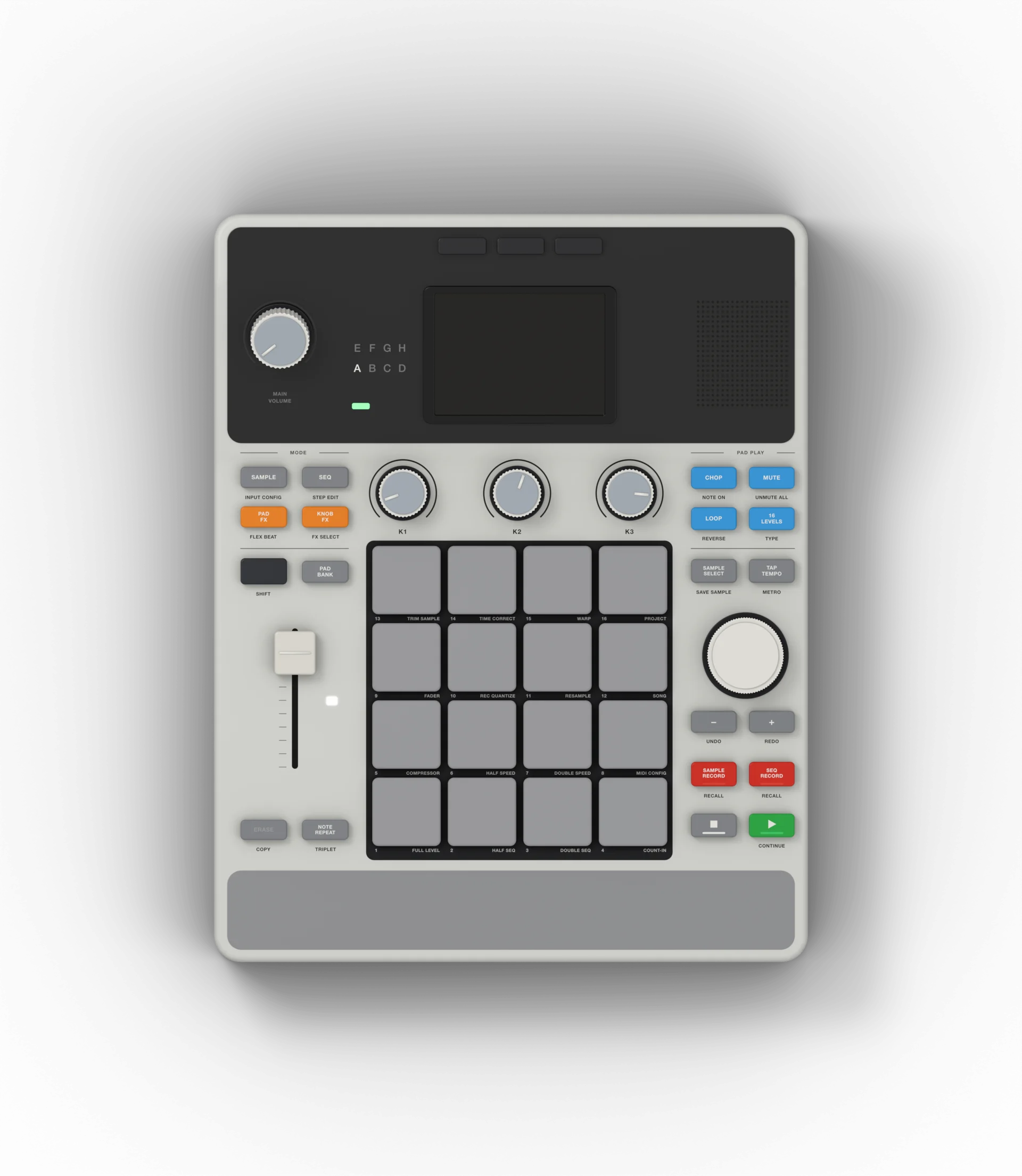
An audio track records what comes into the MPC Sample, as an audio track does on the MPC 3.
- Each take goes into the pattern you record it in, and plays wherever that pattern plays: from the pads’ pages, on Patterns and in the Song.
- The pads play nothing on an audio track.
Make an audio track
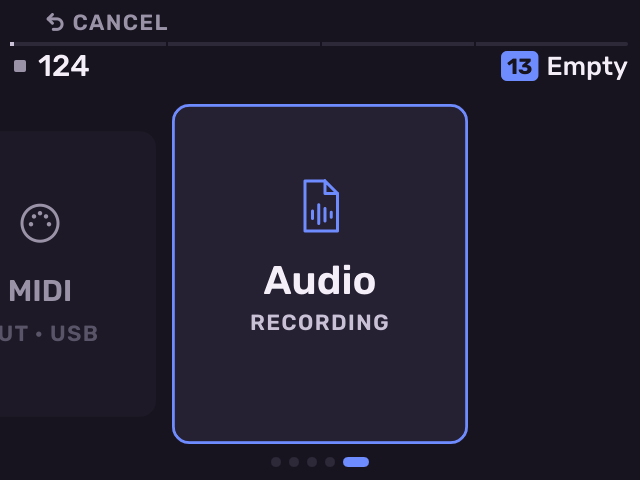
- Select an empty track with PAD BANK + pad. Stage shows the track types. A new project opens on track 1 with the track types.
- Turn the encoder to Audio, the last card, and push it. Stage opens on INPUT.
12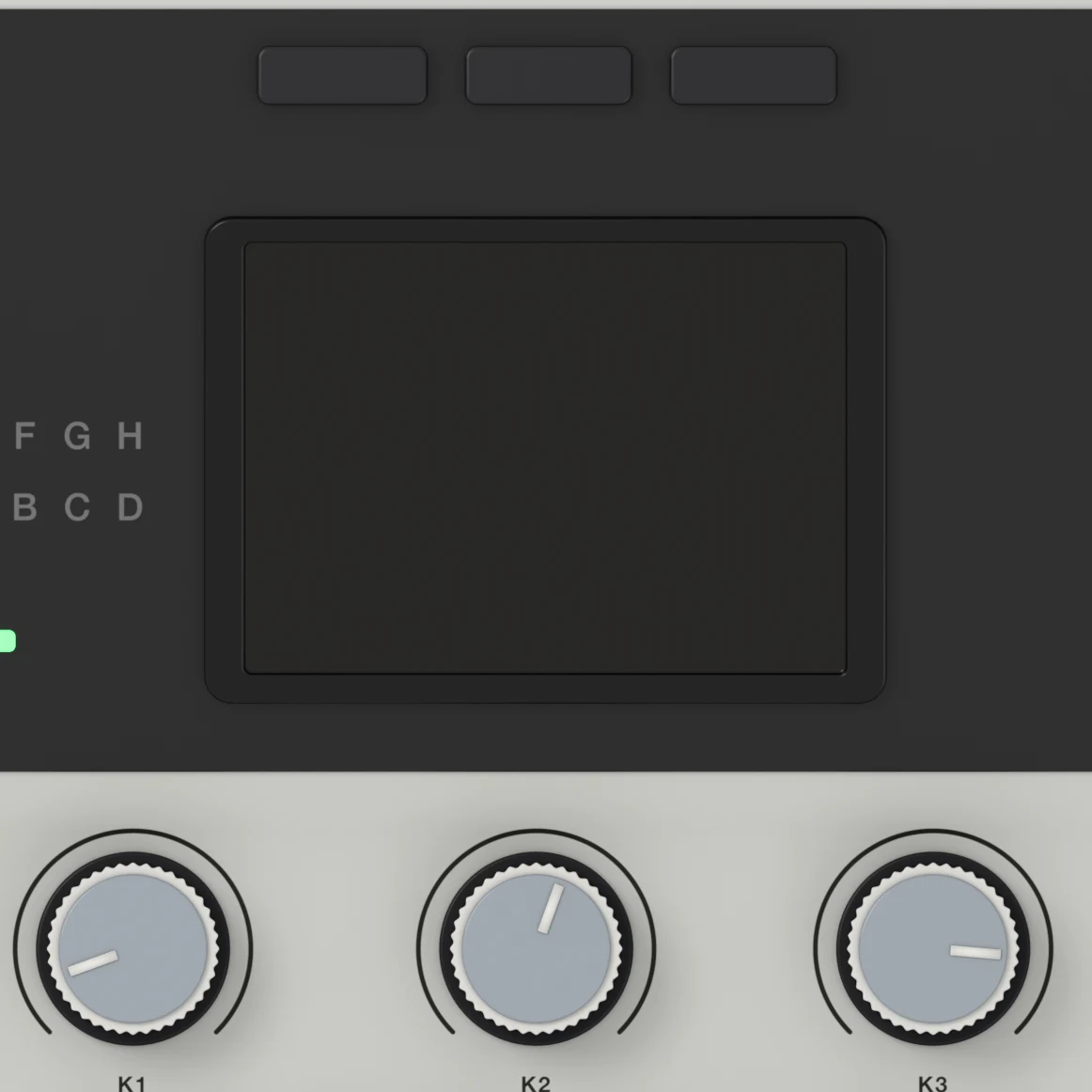
Input
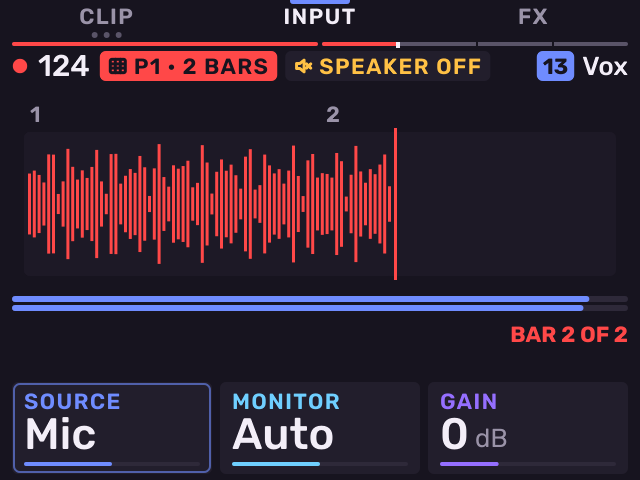
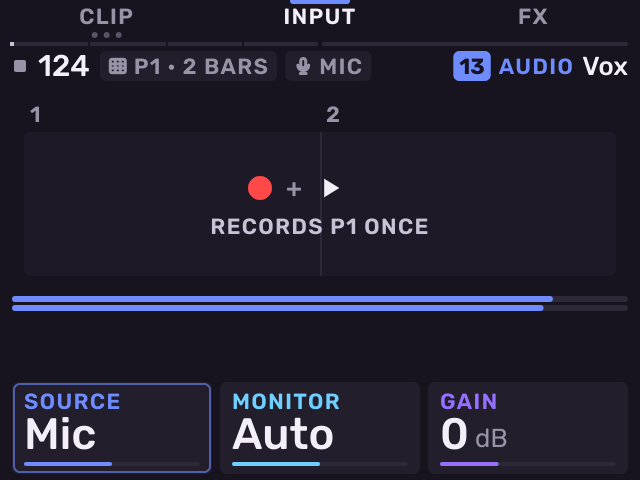
Press SAMPLE RECORD on an audio track, or B2 on Stage, to open INPUT.
- The frame shows the pattern in hand, numbered by its bars.
- The bars under it show the input’s level, left over right.
| Control | Action |
|---|---|
| K1 (SOURCE) | What the track records: Rear L+R, Rear L, Rear R, Mic, USB L+R, USB L or USB R. |
| K2 (MONITOR) | When you hear the input: Auto, On or Off (below). |
| K3 (GAIN) | The input’s gain, −12 to +24 dB (the same gain as Input Config’s). |
| MONITOR | You hear the input |
|---|---|
| Auto | While the track is armed or recording. |
| On | Always, also while you play or stop, and while a track that is not an audio track is selected (the first audio track set to On). |
| Off | Never. |
- With the built-in mic as the source, the speaker goes quiet while you hear the mic, so it does not feed back. The header then shows SPEAKER OFF. Plug in headphones to hear yourself.
- While a MIDI track or a Looper loop uses the other input (the rear inputs for Mic, the mic for Rear), the source shows IN USE, is silent and does not record.
Record
Select the pattern to record into. Its length is the length of the take: set it on Patterns (K1).
- Press SEQ RECORD. The pattern’s chip turns red: the track is armed.
- Press PLAY. After the count-in (when Count-In is on), one pass of the pattern is recorded from its top. At the end of the pass recording stops, SEQ RECORD turns off and the pattern plays on with its new take.
12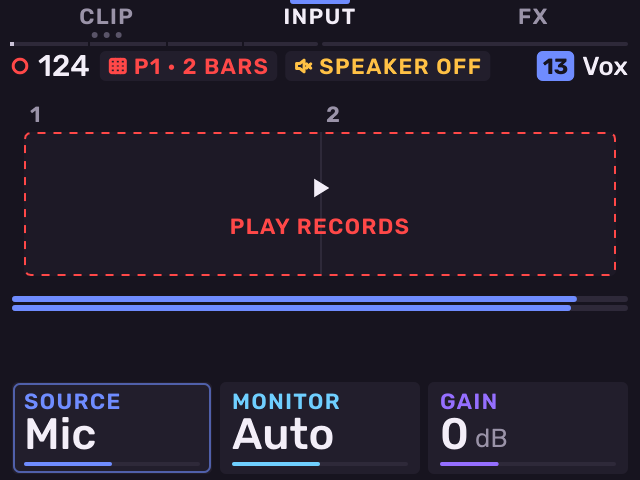
| Press | When | What happens |
|---|---|---|
| SEQ RECORD | While the pattern plays | The take starts the next time the pattern comes round. |
| SEQ RECORD | On Song | Records into a new clip at the cursor. See Record into the song. |
| STOP | During a take | Ends the take early. What was recorded is kept. |
| SHIFT + − (Undo) | After recording into a pattern that already had a take | Brings the old take back. A new take replaces the old one. |
Edit the take
B1 (CLIP) edits the take of the pattern in hand. The take always plays from the top of its pattern. START and END set which part of the recording it plays.
- Press B1 for CLIP, again for FADES, a third time for WARP.
- Turn K1, K2 and K3 to set the page’s values (below).
- Turn the encoder for fine steps.
123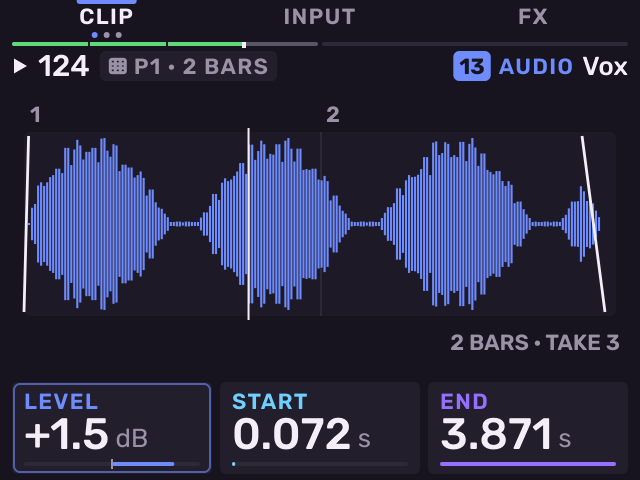
| Page | K1 | K2 | K3 |
|---|---|---|---|
| CLIP | LEVEL (−60 to +12 dB) | START | END |
| FADES (B1 again) | FADE IN | FADE OUT | REVERSE |
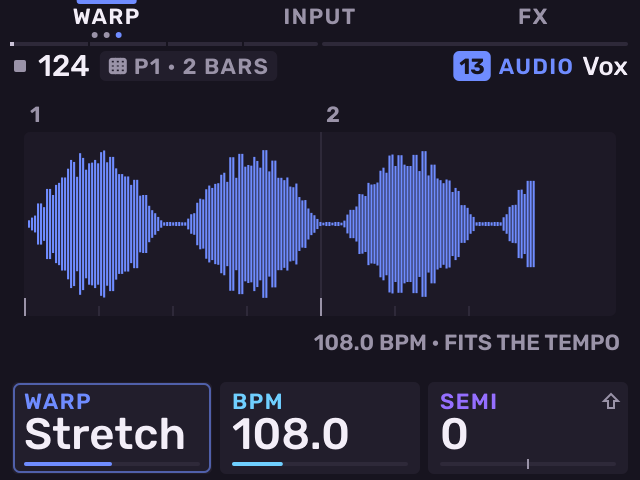
| WARP (B1 a third time) | WARP: Off, Stretch or Repitch | BPM | SEMI (SHIFT: FINE) |
B3 opens FX, as on other tracks. The track’s level, pan and sends are on the mixer.
Patterns and the Song
- A take belongs to its pattern. Copy the pattern, or the whole track, and the take comes with it.
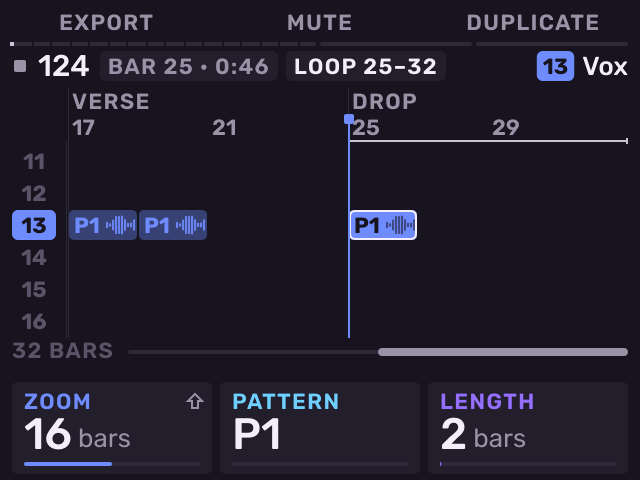
- On the Song, place the pattern on the track’s lane like any other pattern. Each clip shows the take’s wave, and plays it each time the pattern starts.
Warp
A take plays at the speed it was recorded at. To have it follow the tempo, turn WARP on, as with Warp on the MPC.
- Press B1 three times. WARP opens.
- Turn K1 to Stretch or Repitch.
12| WARP | The take plays | Its pitch |
|---|---|---|
| Stretch | Faster or slower | Stays. SEMI and FINE move it without changing the take’s length. |
| Repitch | Faster or slower | Moves with the speed. |
BPM is the tempo the take was recorded at. Melodee sets it when you record. Change it if the take was played to another tempo.
Files
| File | What it is |
|---|---|
Take 001.wav, Take 002.wav and so on, in <project> Audio beside the project | Each take: a 24-bit WAV file at the sample rate Melodee runs at |
A .peaks file beside each take | The take’s overview for the screen |
- Save As copies the folder with the project.
- When a project opens, take files that no pattern plays any more (takes you undid or recorded over) are deleted.
MPC 3 projects
| What happens to audio tracks | |
|---|---|
| Export to MPC 3 | Each audio track becomes an MPC 3 Audio track, and each pattern’s take an audio region in its sequence. |
| Open an MPC 3 project | Each of its Audio tracks becomes an audio track. The region at the start of each sequence becomes that pattern’s take, with its level, fades, warp and tune. A pattern plays one take from its top, so other regions are left out (the note after opening says so). |
Until you save an opened MPC 3 project, its takes wait in a hidden folder beside the projects. The first save copies them into the project’s own Audio folder.