Melodee 0.10.5This is the manual for Melodee 0.10.5. The newest release is 0.10.6: what's new since 0.10.5 · this page for 0.10.6.
Manual · Chapter 15
Settings
Every row on Settings' pages and its values, what else Melodee keeps with the settings, Basic and Full, the usage log, the screensaver, palettes and fonts, and Screen Mirror.
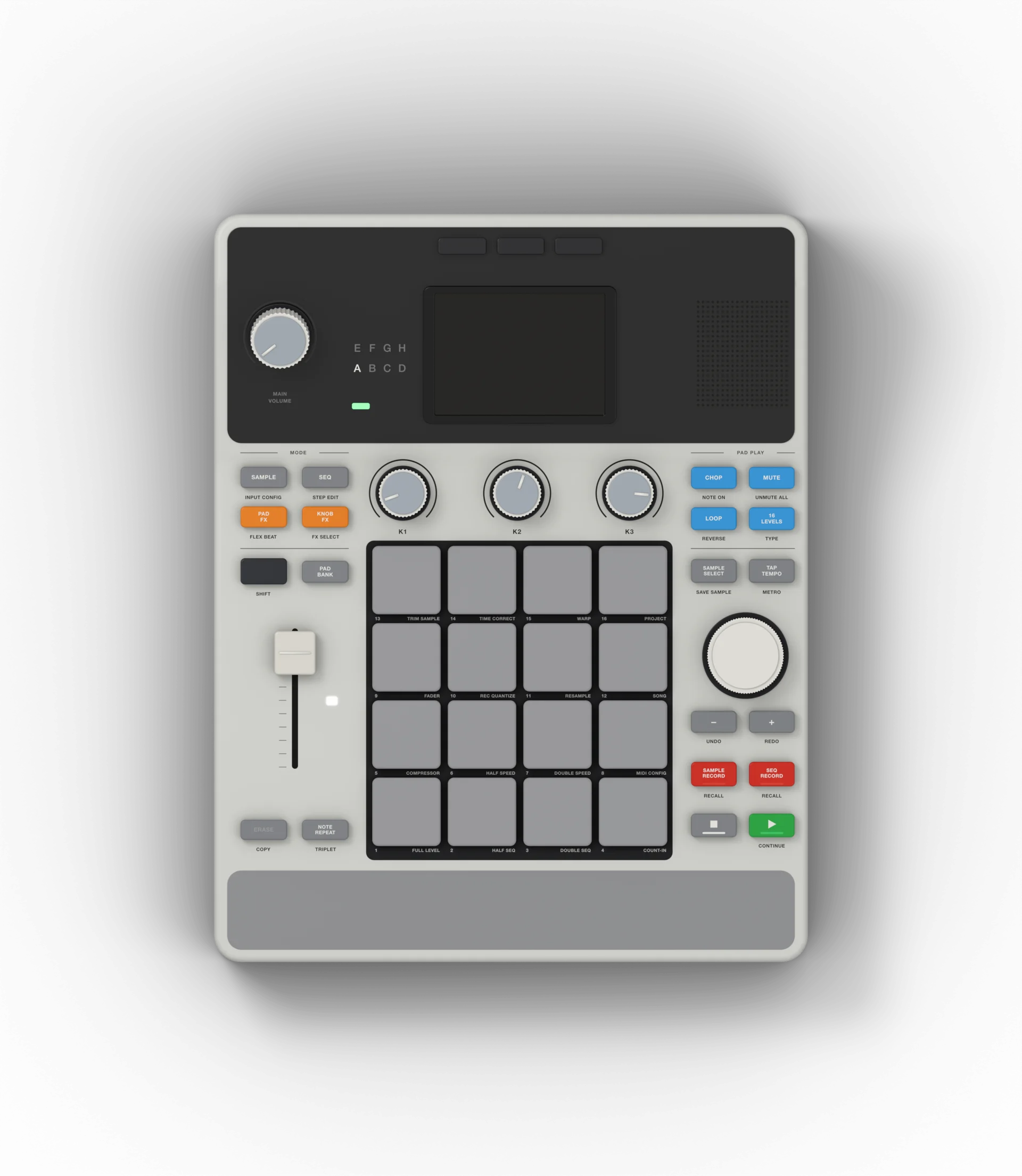
- Hold SHIFT and press PAD 8.
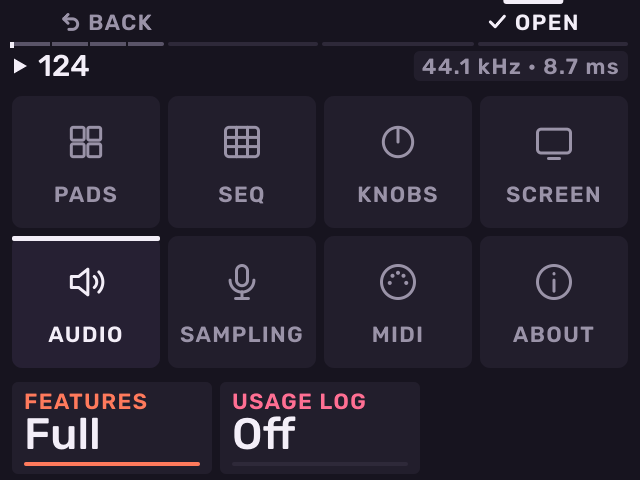
- Turn the encoder to a page and push it, or press B3 (OPEN). On the page, turn the encoder to a row.
- Turn K1 to set the row. − / + step it one value at a time.
- Press B1 to go back.
1234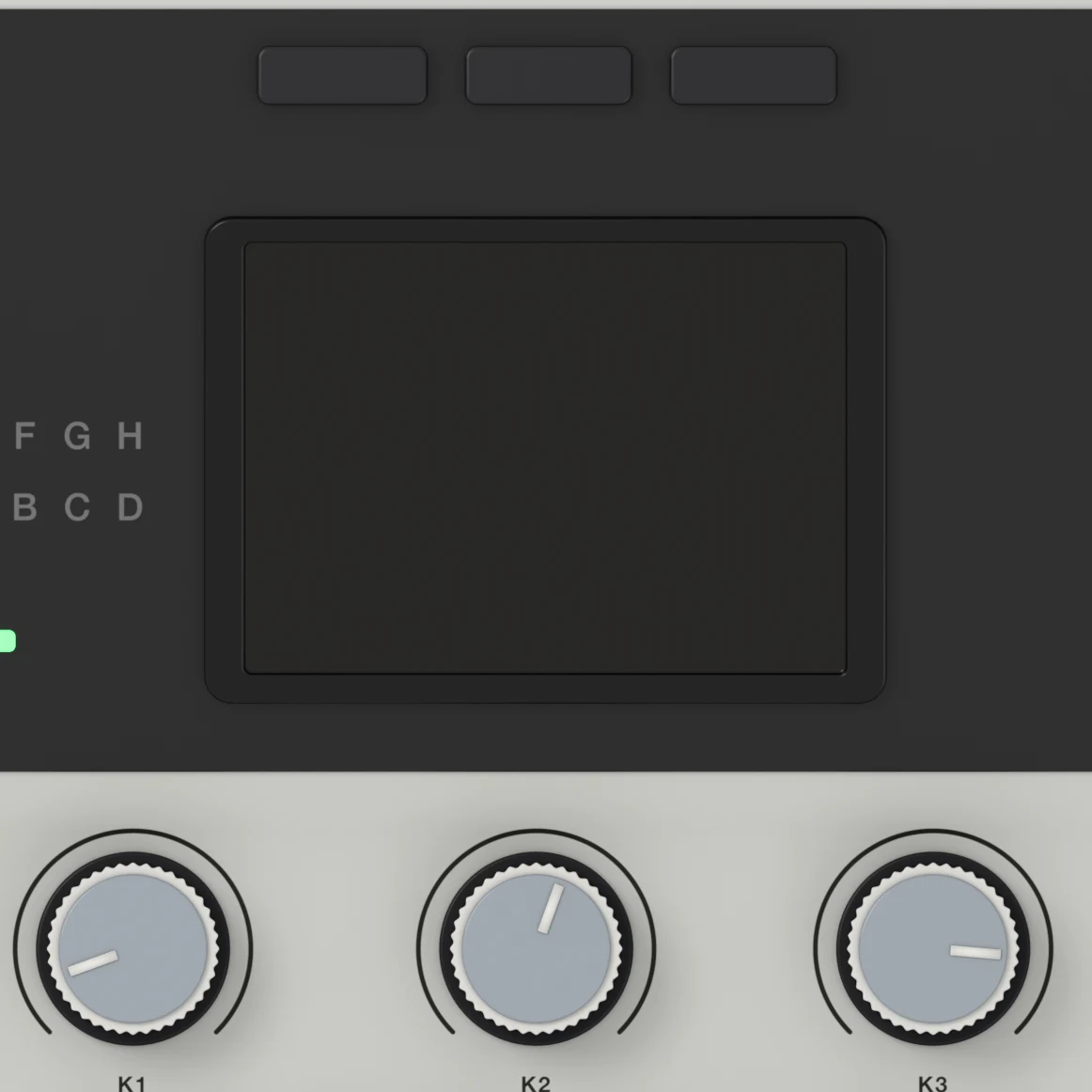
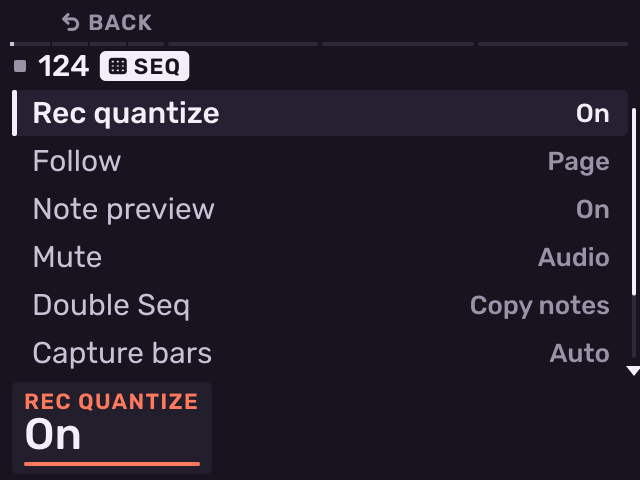
- K1’s card shows the row’s name and value.
- Sample rate, Audio buffer and the three Screen Mirror rows change once K1 stops turning. Until then the new value shows in amber.
- A page with more rows than the screen holds scrolls: a bar at the right edge shows where you are, with an arrow at the top or bottom while more rows are that way.
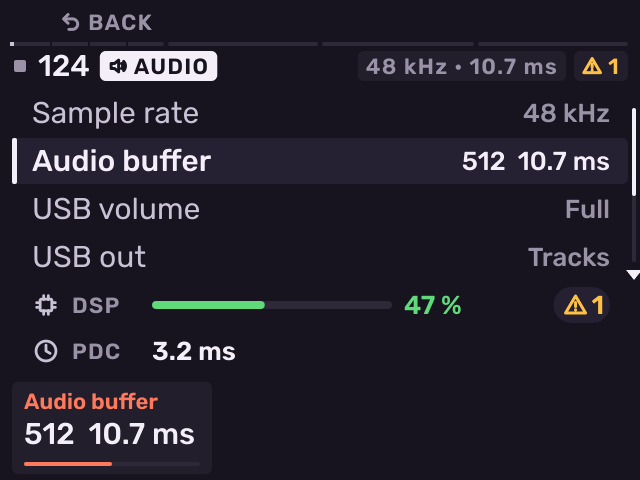
- On the first page and on AUDIO, the header shows the sample rate and the buffer (in ms) the audio runs at, and in amber the audio dropouts since Melodee started.
- Settings are the same for every project.
The pages are PADS, SEQ, KNOBS, SCREEN, AUDIO, SAMPLING, MIDI and ABOUT. The first page also has K1 (FEATURES, see Basic and Full) and K2 (USAGE LOG, see Usage log).
PADS
| Row | Setting |
|---|---|
| Pad response | Soft, medium, hard or full level |
| Pad pressure | On or off |
| Repeat velocity | Strike: every repeat as hard as the pad was struck. Pressure: as hard as the pad is held. |
| Pad lights | Track colours, white or off |
| Pad fade | How fast a pad’s light fades after its sound stops: 60, 100, 150 or 250 ms |
| Tap Tempo light | Flashes on the beat while playing: on or off |
SEQ
| Row | Setting |
|---|---|
| Rec quantize | On or off, as SHIFT + PAD 10: recorded notes land on the pattern’s Q. |
| Follow | Step Edit and Roll while the pattern plays: Off, Page or Step (see Sequencing). |
| Note preview | On or off: a note you write or move on Step Edit or Roll without playing it is heard once (see Sequencing). |
| Mute | Audio: a muted track or pad is silent at once. Notes: it plays no new notes, and what it plays rings out (see Basics). |
| Mute quantize | On or off: while a pattern plays, mutes and solos wait for the next step of its Q (see Basics). |
| Seq + pad | Patterns: SEQ + pad launches a pattern, SEQ + SHIFT + pad a sequence. Sequences: the other way round (see Sequencing). |
| Double Seq | What Double Seq (SHIFT + PAD 3) copies |
| Capture bars | The capture length: how many bars Recall takes |
| Capture quantize | The capture grid: how Recall places the notes |
| Autosave | On, or Off: the project is saved only when you save it (see Projects and files). |
KNOBS
| Row | Setting |
|---|---|
| Knob takeover | Pickup, Scaled or Instant |
| Knob FX takeover | Pickup, Scaled or Instant |
| Fader takeover | Pickup, Scaled or Instant |
| Fader lock | On or off: the fader controls the last pad’s volume on every page except the mixer (see Fader lock). |
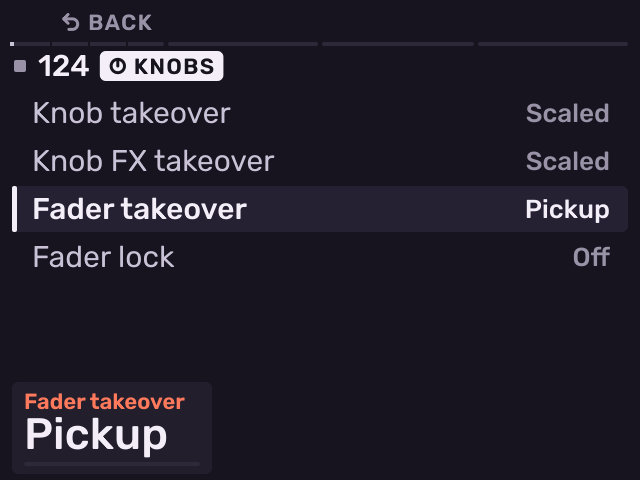
See Knob takeover.
SCREEN
| Row | Setting |
|---|---|
| Palette | See Palette and Font. |
| Font | See Palette and Font. |
| Brightness | 20 to 100 % |
| Screensaver | Off, 1, 2, 5, 10 or 30 min (see Screensaver) |
| Place bar | At the top or bottom |
| Plug-in screens | A plug-in’s own screen and page files’ art: on or off |
| Screen mirror | On or off: the screen as a USB camera for a computer (see Screen Mirror) |
| Resolution | Screen Mirror’s picture size |
| Frame rate | Screen Mirror’s pictures a second: 30 or 60 |
AUDIO
| Row | Value | What it does |
|---|---|---|
| Sample rate | 44.1, 48 or 96 kHz | The rate the audio runs at. On MPC firmware 1.4: 44.1 kHz only. A change stops playback for about a second while the audio restarts. |
| Audio buffer | 256 to 1024 frames | A longer buffer gives fewer crackles on a busy project. A shorter one responds sooner. |
| USB volume | Full (the default) | What a computer records from the MPC over USB-C (inputs 1 and 2): the mix at full level, whatever MAIN VOLUME is set to. |
| Knob | Inputs 1 and 2 follow MAIN VOLUME, as the jacks do. | |
| USB out | Tracks (the default) | What a computer records on inputs 3 to 18, after the mix: tracks 1 to 16, one mono input each. |
| Submixes | Submixes 1 to 8 in stereo (3 and 4 submix 1, up to 17 and 18 submix 8), each as it goes into the master. | |
| USB-C in | Direct (the default) | What a computer sends plays straight to the jacks, about 3 ms after it arrives, wherever Melodee would play it (a MIDI track’s AUDIO input on USB with MONITOR on, Input Config’s monitor, a loop), at the level and pan it would have there but without effects. |
| Tracks | It plays through those, with their effects, about 8 ms later. | |
| Direct level | −24 to +6 dB | The direct sound’s level, on top of its level there (0 dB: as loud as Tracks). MAIN VOLUME comes after. |
| File sharing | On or off | The card as a network drive for a computer on USB-C (see Projects and files). |
- Changing USB out keeps the computer connected.
- Turning Direct on or off, muting and the volume knob fade the direct sound in a few milliseconds.
Under the rows:
| Shows | What |
|---|---|
| DSP | The audio’s processor load, with the dropouts in amber |
| PDC | How long plug-in delay compensation holds the sound back while a plug-in needs it |
SAMPLING
| Row | Setting |
|---|---|
| Recall grab, Recall gap, Recall trim end | Audio Recall settings (see Audio Recall and Resample) |
| Take auto end, Auto end after | When a Free take ends on its own |
| Silence below | The level that counts as silence |
MIDI
MIDI Config (see MIDI and sync).
ABOUT
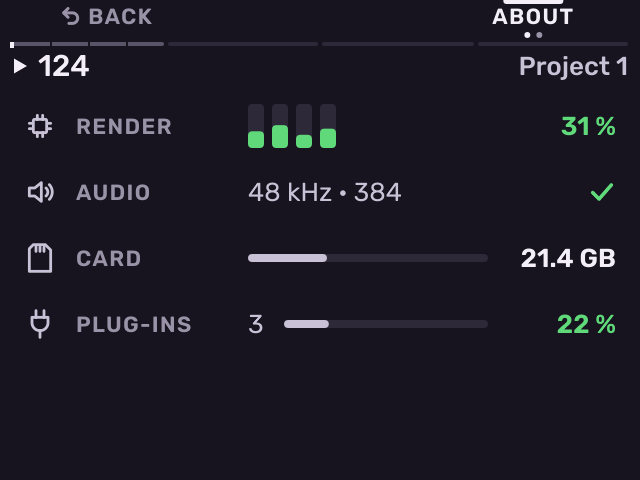
How the MPC is doing: processor load, audio dropouts, card space, plug-in load. B3 shows the version and what Melodee is built on.
Kept with the settings
Melodee keeps the settings on the card, in Melodee/settings. These choices made outside Settings are kept there too:
- Full Level (SHIFT + PAD 1), Count-In (SHIFT + PAD 4) and Rec Quantize (SHIFT + PAD 10)
- The metronome and its level
- Input Config
- Your starred sounds
- PREVIEW in the sample browser, on or off, and its level (the fader)
- BEST (B2) on a sample’s stems
- How Chop’s TO PADS plays the slices: POLY, MONO, THRU or KIT
- The Chop type picked last (K3 on Chop)
Basic and Full
- Hold SHIFT and press PAD 8.
- Turn K1 (FEATURES) to Basic or Full.
12- Melodee starts on Full and stays there until Basic is picked.
- Full shows every page.
- Basic shows the stock app’s pages plus tracks, plug-ins, the mixer and Song.
- Nothing is deleted or changed by the switch: what a project holds keeps playing, and Full shows it again.
| Area | Basic leaves out |
|---|---|
| The MENU’s GO | MOTION and LOOPER. The other places keep their pads. |
| The MENU’s HERE | LOOPER, FREEZE and FOLLOW TO ALL |
| SEQ | B3 (MOTION, MOD, MACRO), unless the pattern holds Motion. Follow actions and VARY. |
| The mixer | EQ, COMP, FX and the submixes. SENDS keeps send A, SHIFT + K1 pan, and the fader the level. |
| A kit pad’s SAMPLE pages | LAYERS, COLOUR, FOLLOW, CLOUD, SENDS and KIT FILT. The stock app’s seven pages stay: Trim, Tune, Amp Env, Play, Mix, Filter, Filt Env. |
| LOOP | The Looper: LOOP held and LOOP + 16 LEVELS. A tap of LOOP still loops the last pad. |
These still work in Basic by their own keys:
- Every track type
- Step Edit’s TRIG and EUCLID cards
- Freeze (SAMPLE RECORD on a plug-in track)
- The auto sampler
- A sample’s stems (SHIFT + B3 on TRIM)
- Stems and MPC export on Song
- The buses’ effect chains
Usage log
On the first Settings page, K2 (USAGE LOG) turns the usage log on or off. It is off until you turn it on.
With it on, Melodee writes what your hands do to a file in Melodee/Usage on the card:
| Written | Not written |
|---|---|
| The pages you open, presses and turns that did nothing on a page, undo, MENU picks and lesson steps | Project, sample, plug-in or file names |
- A new file starts each time Melodee starts.
- Send the files to the developer to show where Melodee is hard to use.
tools/usage_report.pyin the source lists what they hold.
Screensaver
With Screensaver set, the Melodee logo bounces around the screen once the controls have rested that long.
- The logo changes colour at each edge, and the screen dims to the second lowest brightness step.
- It does not start while the sequencer plays, a sample take is armed or recording, or a render runs.
- Any button, knob, pad or MIDI note brings the page back, and does its job as well.
- It is off by default.
Palette and Font
- In SCREEN, push the encoder on Palette or Font. The choices show as cards.
- Turn the encoder, or press − / +, to move between them. The whole screen changes as you go, so you see each one on the page.
- Push the encoder, or press B3 (KEEP), to keep it. B1 (BACK) goes back to the one you had.
123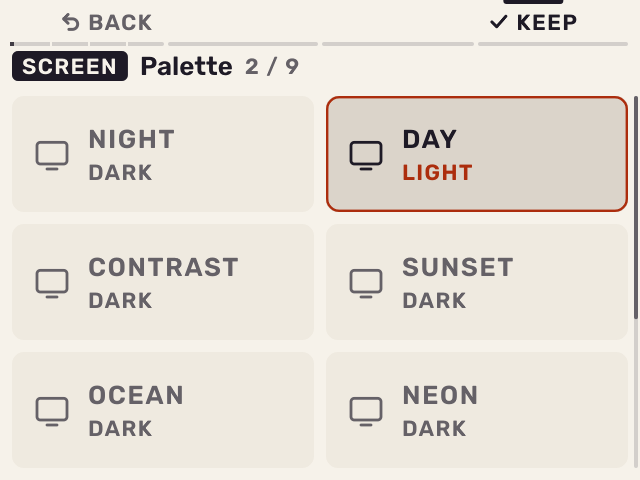
Palettes: NIGHT (the default), DAY, CONTRAST, SUNSET, OCEAN, NEON, CANDY, LO-FI and LCD.
- LCD looks like an old sampler’s backlit LCD: dark letters on a grey-green screen, no colour, always in the Melodee Pixel font.
- Each track keeps its colour family in every palette, so track 1 is always coral. On DAY and CANDY the colours are darker so they read on the light screen.
- The pads keep their own colours.
Fonts: Rubik (the default), Inter Tight, Atkinson, Space Grotesk, IBM Plex and Manrope, and two pixel fonts: Melodee Pixel and VT323. Melodee Pixel is drawn only at whole sizes of its grid, so its edges stay sharp.
Screen Mirror
With the MPC connected to a computer by USB-C:
- Hold SHIFT and press PAD 8.
- Open SCREEN and turn the encoder to Screen mirror.
- Turn K1 to On. The computer sees the MPC as a camera named MPC Sample.
- On the computer, choose MPC Sample in any camera app (QuickTime Player, OBS, a video call) to show the screen.
123Macs, Windows and Linux computers and iPads with USB-C take it. iPhones do not take USB cameras.
Resolution sets the picture size the computer gets, and Frame rate how many pictures a second (30 or 60). Each size is the screen scaled up by a whole number, so its pixels stay sharp squares:
| Resolution | Scale | 30 fps | 60 fps |
|---|---|---|---|
| 320 x 240 | 1 | uncompressed | uncompressed |
| 640 x 480 | 2 | uncompressed | JPEG |
| 1280 x 720 | 3, black bars at the sides | JPEG | JPEG |
| 1280 x 960 | 4 | JPEG | JPEG |
- Uncompressed pictures are exact to the pixel. JPEG is used where USB could not carry them uncompressed.
- The pictures go out evenly spaced, about two frames behind the MPC’s screen.
- If the picture looks soft in an app, pick a larger size: the app then stretches it less.
- USB audio, MIDI and the network drop for about a second when you turn it on or off or change the resolution.
Under the rows while it is on:
| Shows | Means |
|---|---|
| READY | The computer has the camera. |
| LIVE | An app shows it. |
| CARD MOUNTED | The card is mounted on a computer. The camera pauses, and comes back after. |
| IN USE | An app shows the camera, and a change waits (below). |
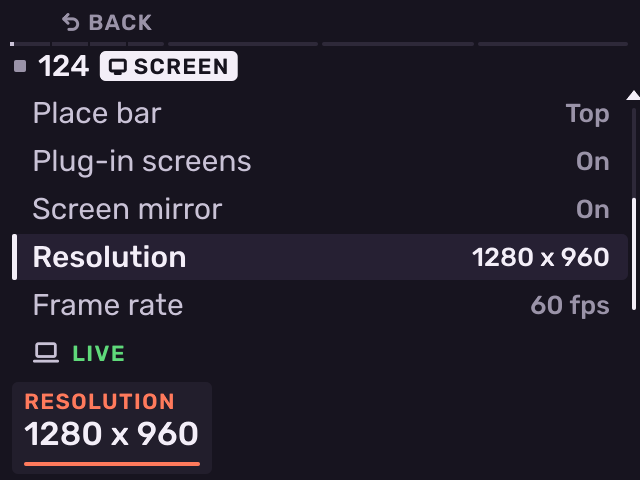
While an app shows the camera
The MPC never unplugs the camera while an app shows it.
| What | While an app shows the camera |
|---|---|
| Turning it off, or changing the resolution or frame rate | Waits, with IN USE under the rows, until you close the camera in that app |
| SD card access | Says CAMERA IN USE and does not start |
| A new sample rate | Reaches the computer once the camera is closed |
| Melodee restarts | The picture stops for a moment and then goes on |