Melodee 0.10.5This is the manual for Melodee 0.10.5. The newest release is 0.10.6: what's new since 0.10.5 · this page for 0.10.6.
Manual · Chapter 05
Kits and sampling
A kit's pads and their pages on Stage, loading samples and instruments, banks, Chop, recording, Stems, 16 Levels, and loop, reverse and Note On.
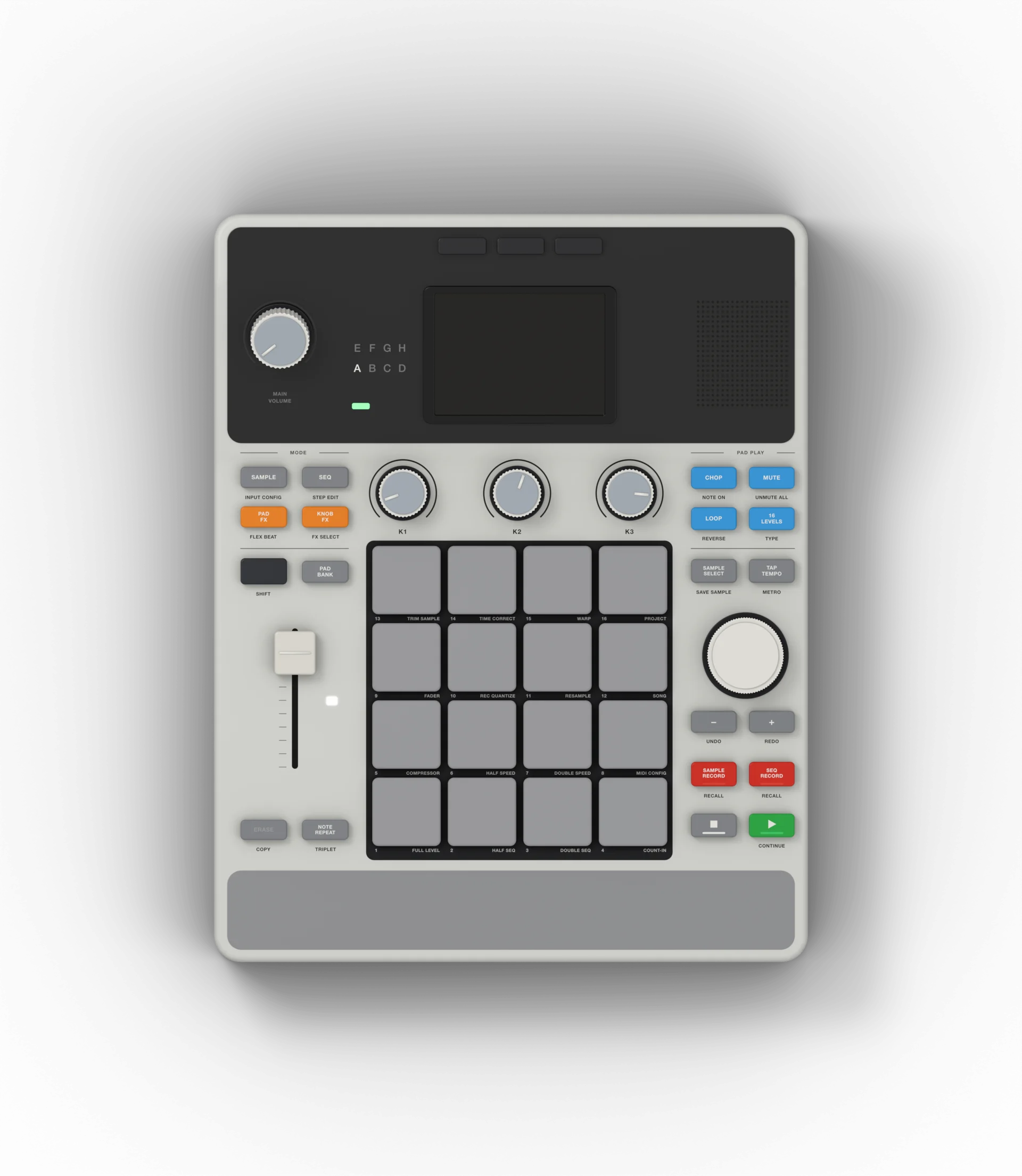
A kit has 128 pads in 8 banks (A–H). Each pad plays a region of a sample, or a sampled instrument.
A project holds as many samples as fit in memory. When memory is full:
| Sample | When memory is full |
|---|---|
| Longer than 2 seconds | Plays from the card instead. |
| Shorter | Is not loaded. Its pad stays silent and Memory full shows on the screen. |
To empty a pad, or to close the gap an empty pad leaves, see Erase and copy.
Stage on a kit
- Press SAMPLE to open Stage. On a kit, Stage shows the pages of the last pad you hit.
- Hit a pad to edit it. To select a pad without playing it, hold SAMPLE and press the pad.
- Press B1, B2 or B3 for a page. Press the lit key again to go to its next page.
 123
Every track uses the keys the same way:
| Key | For | A kit pad’s pages | In Basic |
|---|---|---|---|
| B1 | The sound’s source | TRIM, LAYERS, TUNE, AMP ENV | TRIM, TUNE, AMP ENV |
| B2 | How it plays | PLAY, COLOUR, FOLLOW, CLOUD | PLAY |
| B3 | Where it goes | MIX, SENDS, FILTER, FILT ENV, KIT FILT | MIX, FILTER, FILT ENV |
In Basic, a kit pad has the stock app’s seven pages, as in the last column. The other pages are in Full (see Basic and Full).
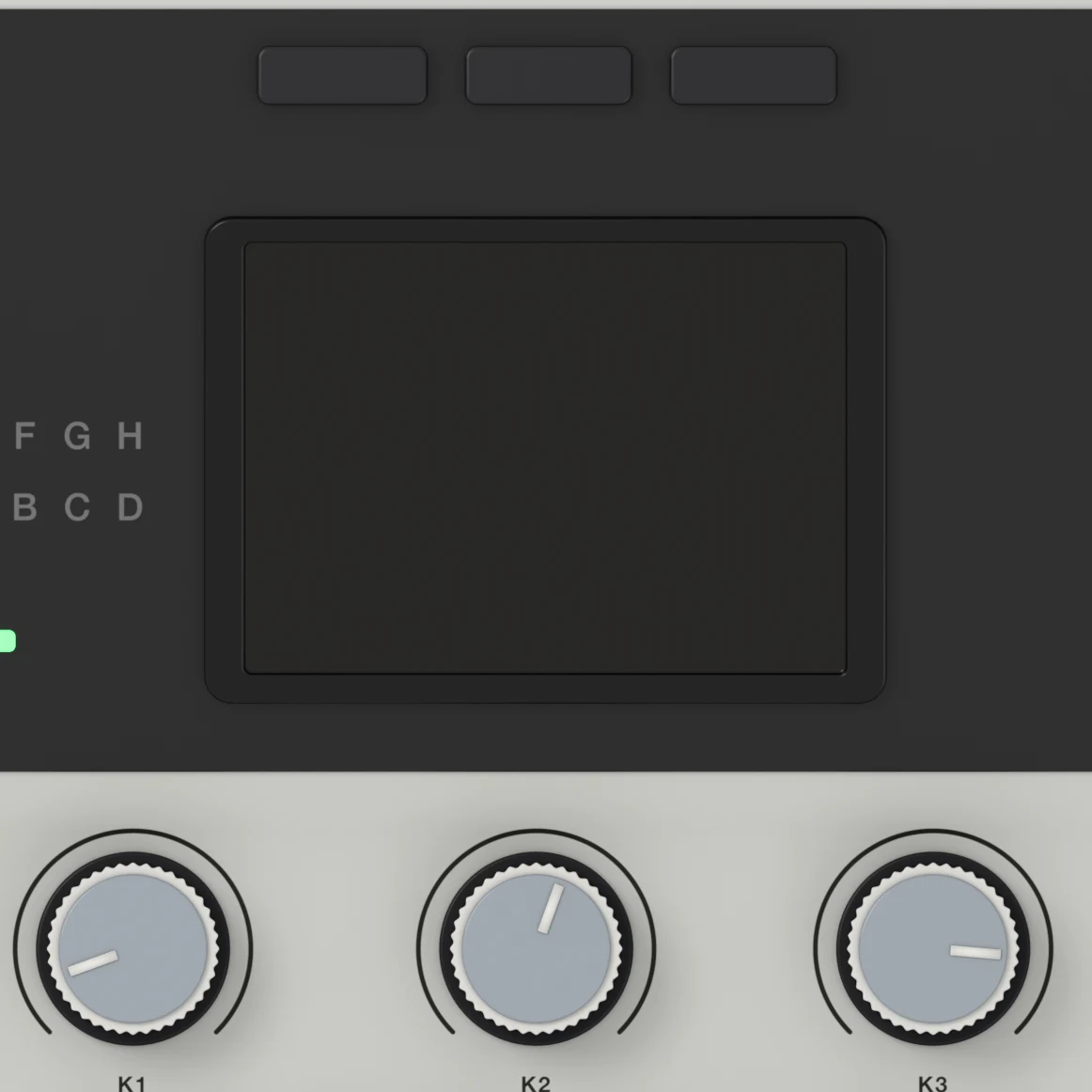
Press B1, B2 or B3 under the screen to step through a kit pad’s pages, as on the MPC:
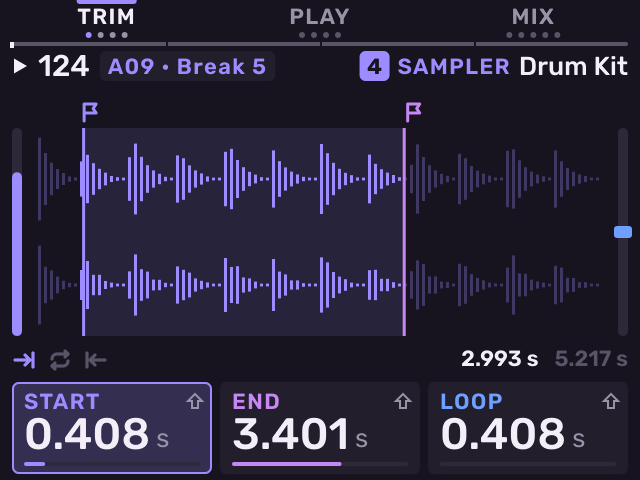
TRIM Where the sample starts and ends, and its loop point.
Each track remembers its last page. On Stage, SAMPLE goes back to TRIM, and − / + change the bank.
TRIM
| K1 | K2 | K3 | |
|---|---|---|---|
| Turn | Start | End | Loop point |
| SHIFT + turn | Zoom in at the start | Zoom in at the end | Zoom in at the loop point |
| Control | Action |
|---|---|
| Encoder | After you turn K1–K3, moves that point in fine steps. Zoomed all the way in, one step is one frame. Turn it fast to travel further. |
| SHIFT + B1 | Loop Lock |
| SHIFT + B2 | Normalize |
| SHIFT + B3 | Stems (see Stems) |
A stereo sample’s waveform shows both sides, left above right, on every Stage page and on Chop.
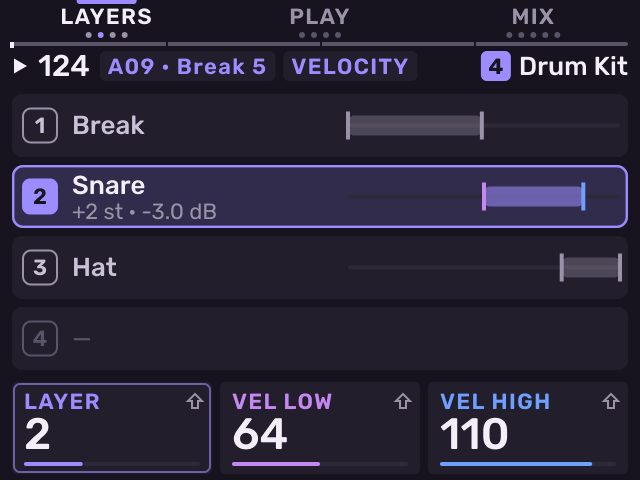
LAYERS
Up to four samples on one pad. A pad with a sampled instrument has no LAYERS page (see Sampled instruments).
| K1 | K2 | K3 | |
|---|---|---|---|
| Turn | The layer | The lowest velocity that plays it | The highest velocity that plays it |
| SHIFT + turn | How a hit picks layers (below) | The layer’s tune | The layer’s level |
| Key | Action |
|---|---|
| SHIFT + B1 (LOAD) | Load a sample onto the layer. |
| SHIFT + B2 (CLEAR) | Remove the layer. |
SHIFT + K1 sets how a hit picks layers:
| Choice | A hit plays |
|---|---|
| Velocity | Every layer in range. |
| Cycle | The next layer each hit. |
| Random | One layer at random. |
| Cycle hold, Random hold | As Cycle and Random. While NOTE REPEAT repeats the pad, every repeat plays the layer the first one picked, until you let go. |
| CC 1 to CC 127 | The layer a MIDI controller picks (below). |
With a CC, a MIDI controller picks the layer, for example a hi-hat pedal on CC 4:
- Turn SHIFT + K1 past the hold choices. The first CC choice is CC 1; turn on to CC 4.
- Turn K2 / K3 (CC LOW / CC HIGH) to set the controller values that play the layer, 0 to 127.
When you first choose a CC and every layer still plays the whole range, the range is split between the layers in order. With four:
| Layer | Values | Hi-hat |
|---|---|---|
| 1 | 0-31 | Closed |
| 2 | 32-63 | Quarter |
| 3 | 64-95 | Half |
| 4 | 96-127 | Open |
- Until the controller moves, the first layer plays.
- With SEQ RECORD on, the controller is recorded as a CC lane on Motion and plays back with the pattern.
TUNE
| K1 | K2 | K3 | |
|---|---|---|---|
| Turn | Semitones | Fine tune, in cents | Warp: Off, 50–200 %, or Seq to fit the sample to the tempo |
| SHIFT + turn | – | – | The number of beats in the sample |
AMP ENV
| K1 | K2 | K3 | |
|---|---|---|---|
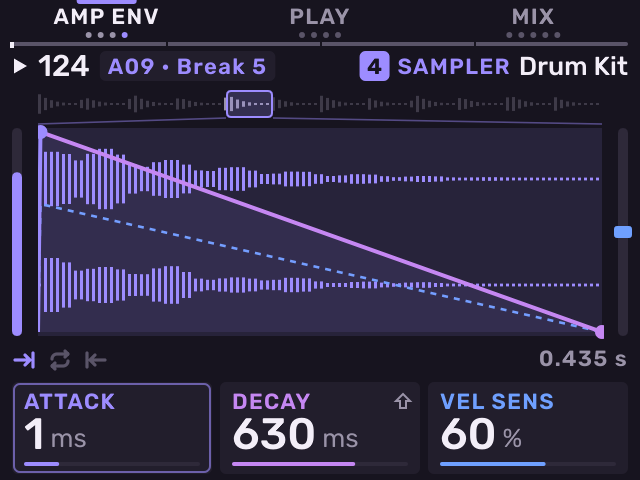
| Turn | Attack | Decay (release in Note On mode) | Velocity sensitivity |
| SHIFT + turn | – | Whether decay starts from the start or the end | – |
- Velocity sensitivity at 100 %: a hit at velocity 64 plays 6 dB below a full hit, and softer hits quieter still.
- Decay from the start: a one shot fades to silence over its decay. Sustain is for Note On mode.
PLAY
| K1 | K2 | K3 | |
|---|---|---|---|
| Turn | Mono or Poly | Mute group | Start offset |
| SHIFT + turn | – | Pad Link | Loop crossfade |
- New pads are Mono: a new hit stops the pad’s last one, also in 16 Levels. Set Poly to play chords.
- An instrument loaded on an empty pad is Poly.
COLOUR
The bank’s pads, each in its colour. The last pad you hit has a ring.
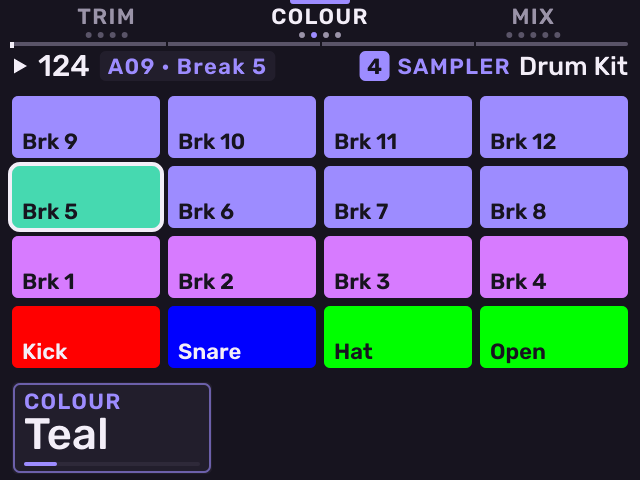
K1 or the encoder changes that pad’s colour. Hit another pad to colour it.
| Choice | Colour |
|---|---|
| Track | The track’s colour |
| One of 16 colours | That colour |
| Kit | The colour the pad came with from an MPC kit. Turn back to the end of the list to get it back. |
The pads light in their colours on every kit page.
FOLLOW
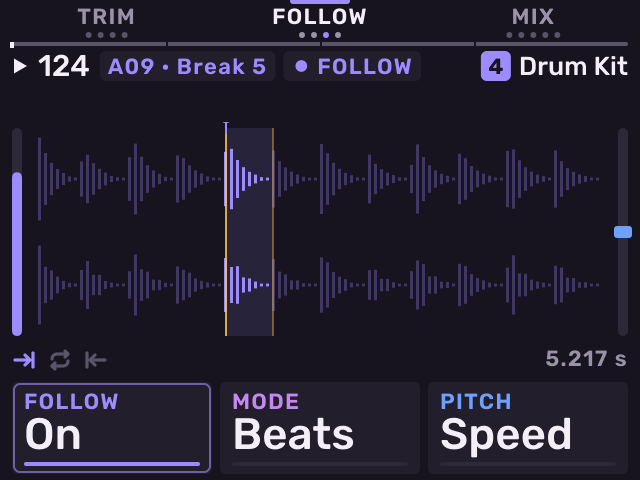
The kit follows the project tempo.
| K1 | K2 | K3 |
|---|---|---|
| On or off | The mode: Beats, Tones or Tape | How pitch follows |
CLOUD
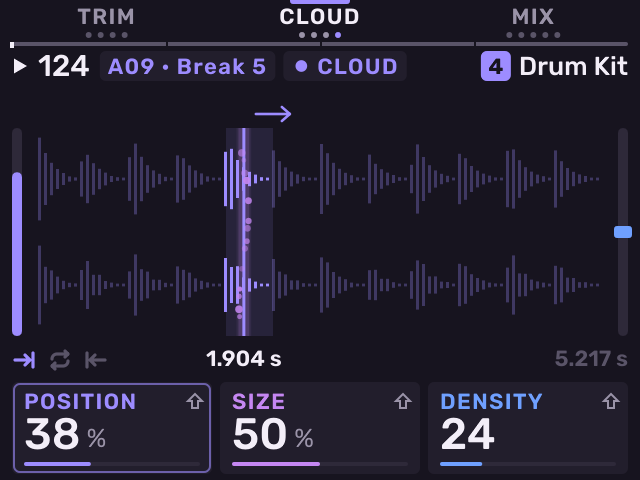
The selected pad plays as a grain cloud. Each pad has its own Cloud settings.
| K1 | K2 | K3 | |
|---|---|---|---|
| Turn | Position | Grain size | Density |
| SHIFT + turn | Scan | Spread | Cloud on or off |
MIX
| K1 | K2 | K3 |
|---|---|---|
| Volume | Kit volume | Pan |
SENDS
The last pad’s own sends. The kit track’s own sends are on the mixer.
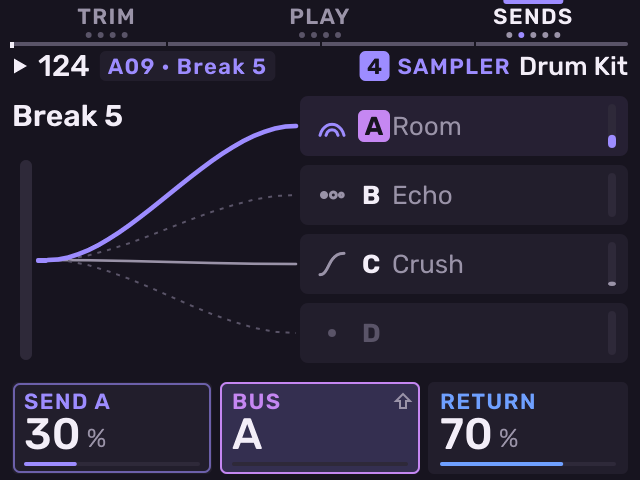
| K1 | K2 | K3 |
|---|---|---|
| The pad’s send to the bus shown | The bus: A–D | The bus return |
- A pad’s send is taken after its Pad FX, volume and pan, and follows the kit’s level, pan and mute.
- The pads light as bright as their send to the bus shown. Pads that send nothing stay dark.
- With Seq Record on, turning a pad’s send writes a lane of that pad.
See Pad sends for an example.
FILTER
| K1 | K2 | K3 |
|---|---|---|
| Cutoff | Resonance | Type: Off, Classic, LPF2, LPF4, HPF2, HPF4, BPF2, BPF4 |
FILT ENV
| K1 | K2 | K3 |
|---|---|---|
| Attack | Decay | Depth |
KIT FILT
One filter after every pad of the kit.
| K1 | K2 | K3 |
|---|---|---|
| Cutoff | Resonance | Type |
The Pads page
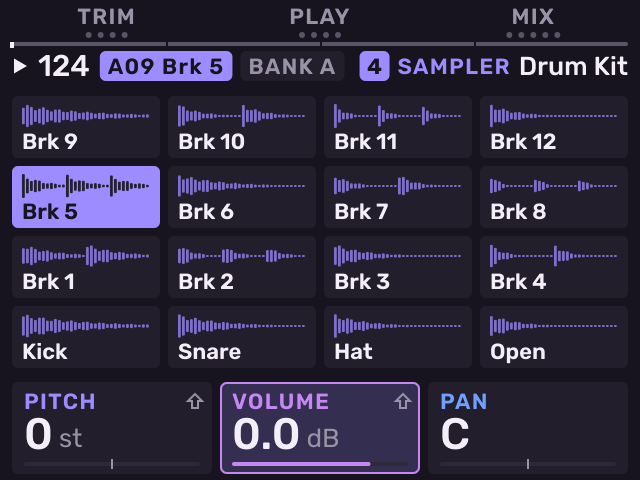
- Hold SAMPLE on a kit. Pads shows the bank in view, each pad with its own waveform.
- While you hold it, press a pad to select it without playing it.
- Turn K1 for the pitch, K2 the volume and K3 the pan of the last pad.
123- B1–B3 open Stage’s pages.
- On Step Edit and Roll the editor stays in view and the header names the held pad.
Loading samples
- Hit the pad the file goes on. The browser’s header shows it (→ A09).
- Press SAMPLE SELECT on a kit to open the sample browser.
- Turn the encoder to a file and push it. The file loads onto the pad. The pad keeps its settings.
- Press SAMPLE SELECT again to close the browser.
123The browser opens at the top of the card the first time. After that it opens where you left it. Kits, keygroups, audio tracks and the rest each keep their own folder.
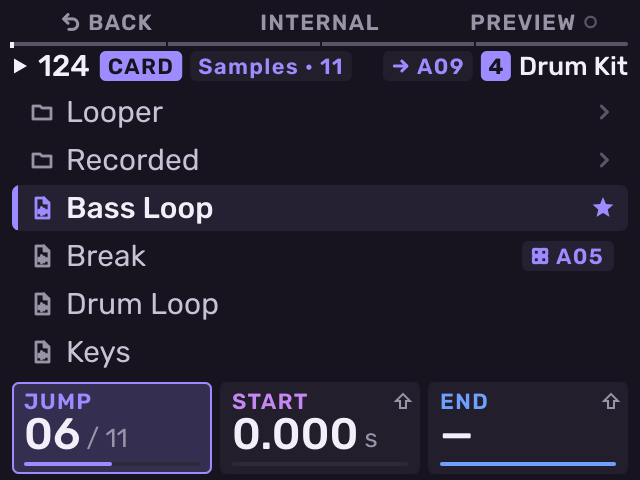
| Control | Action |
|---|---|
| Encoder, − / + | Move through the list. |
| K1 (JUMP) | Jump through the list. |
| Encoder push | Open a folder, or load the file onto the last pad you hit. The pad keeps its settings. |
| B1 | Go back out of a folder. At the top, CANCEL closes the browser. |
| B2 | Switch between the card (CARD) and the MPC’s factory samples (INTERNAL). The key names the other drive. Each drive keeps its folder and row. The internal drive is read only. |
| B3 | PREVIEW: play each file when you move to it. Melodee keeps this setting when you restart. |
| Fader | The preview level. It changes the file playing now too. Melodee keeps the level when you restart. |
| SHIFT + B3 | STAR: star the file under the cursor, or take its star off. The key’s light shows whether it is starred. |
| SHIFT + pad | Load the file onto the next empty pad. |
| ERASE | Delete the file or folder under the cursor from the card. Melodee asks first: B3 DELETE, B1 CANCEL. In STARRED or RECENT: take the file off that list. The file stays on the card. |
In a folder, MPC kits come first, then instruments, then folders, then samples.
Trim a sample before loading it
K2 and K3 set the start and end of the sample under the cursor before it goes onto a pad. The file on the card is not changed: the pad gets the start and end.
- Move to a sample and turn K2 (START) or K3 (END). The trim view opens over the list.
- Turn the encoder to move that point in finer steps.
- Push the encoder to load the sample onto the last pad you hit, with its start and end set. SHIFT + pad loads it onto the next empty pad.
12The trim view shows the whole sample and, below it, a closer view round the point you turned last.
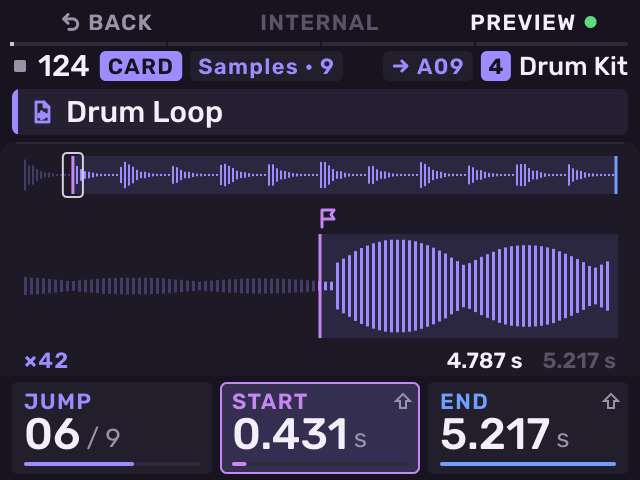
START K2 turned: the trim view over the list, the closer view round the start.
With PREVIEW on:
| Each time you stop moving | It plays |
|---|---|
| START | The part you keep, once |
| END | Its last second |
| Control | Action |
|---|---|
| K2 / K3 | Start and end. The first turn opens the trim view. |
| SHIFT + K2 / K3 | Zoom in on the start or the end, as on Trim. |
| Encoder | Move the point you turned last, in finer steps. |
| Encoder push | Load the trimmed sample onto the last pad you hit. |
| SHIFT + pad | Load the trimmed sample onto the next empty pad. |
| − / +, K1 | Move to another file. The trim view closes. |
| B1 | Close the trim view without loading. |
| ERASE | Set the start and end back to the whole sample. ERASE + K2 or K3: only that one. |
Starred and recent
The first two rows of Melodee/Samples, and of the card’s top folder, are STARRED and RECENT. Each shows how many files it holds. Push opens one like a folder; B1 goes back.
| Row | Holds |
|---|---|
| STARRED | The files you starred, by name. A starred file shows a star in every folder. |
| RECENT | The last 16 files you loaded from the browser, newest first. |
- Each row shows the folder its file is in.
- A file deleted or moved on the card is left out.
- Melodee keeps the two lists in
Melodee/Starred.txtandMelodee/Recent.txt.
Files Melodee reads
Put your samples in Melodee/Samples on the card, or anywhere else on it.
| Melodee reads | |
|---|---|
| Formats | WAV (16, 24 or 32-bit), MP3, FLAC, Ogg Vorbis and AIFF, any sample rate |
| Length | Up to 6 hours |
A sample longer than 10 seconds plays from the card, not from memory:
| File | Plays from |
|---|---|
| WAV | Its own file. |
| MP3, FLAC, Ogg or AIFF | A WAV that Melodee makes of it in Melodee/Cache on the card. Making that WAV takes a moment the first time the sample loads; later loads use it again. Your own file is not changed. |
Without a card, or with no room on it, a long MP3, FLAC, Ogg or AIFF is read into memory whole.
| A row shows | Means |
|---|---|
| MP3, FLAC, Ogg or AIFF at the right | The file’s format |
| A pad chip | A sample this kit already plays |
| A note icon and MIDI | A MIDI file. Push on it puts its notes on the track’s pattern in place of the notes there. |
Melodee writes recordings and edits into Melodee/Samples too. Melodee makes no folders at the top of the card: everything it writes is in Melodee.
Older versions kept samples in a Samples folder at the top of the card. Those still load. To tidy the card, move what is in it into Melodee/Samples: projects then find their samples in the new place.
Deleting from the card
ERASE deletes for good; undo does not bring a file back. Only files on the card can be deleted.
| What | ERASE |
|---|---|
| A folder | Deletes it with everything in it. |
An MPC 3 track file (.xty) or program | Deletes it with its own data folder, so an auto sampled keygroup goes whole. To delete one, press ERASE on its folder in Melodee/Samples/Keygroups, or on its .xty inside. |
| A file the open project uses | Does not delete it (In use by this project). Take it off its pad or track first, or open another project. |
| The folders at the top of the card | Does not delete them. |
Anything in the Melodee folder outside Melodee/Samples | Does not delete it. Plug-ins are deleted in the plug-in picker, projects on the Project page. |
From a computer
To move samples without taking the card out:
- Connect the MPC to a computer with USB-C.
- Open http://melodee.local while Melodee runs.
- On Files, open a folder.
- Drop files on the list, or press Upload.
| On Files, press | To |
|---|---|
| A sample | Hear it in the browser |
| The arrow | Download it |
| The bin | Delete it |
| Folder | Make a new folder |
Sampled instruments
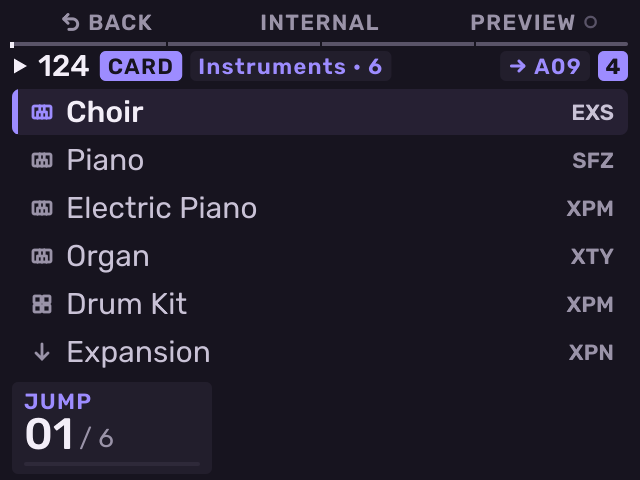
To play an instrument across the keys, make a keygroup track for it. On a kit, the browser loads an instrument onto one pad. Each row has a keyboard icon and its type at the right.
| Type | Files |
|---|---|
| SFZ | .sfz, shown as SFZ. Regions chosen by a controller (locc, hicc, for example a hi-hat on CC 4) follow it as you play. |
| MPC keygroup program | .xpm (XPM), or .xty from MPC 3 (XTY) |
| MPC drum program | .xpm, .xty or an MPC 3 drum kit’s .xtd (XTD), with a pads icon: Push opens LOAD KIT (see Loading banks of an MPC kit) |
| MPC expansion | .xpn with a down arrow: installs into Melodee/Samples/Expansions |
| Logic EXS24 / Sampler | .exs (EXS), with its samples in the same folder |
| SoundFont | .sf2 (SF2): opens as a folder of presets |
| DecentSampler | .dspreset (DS): opens with its controls as its own screen sets them |
An instrument streams from the card:
| Its samples | It opens |
|---|---|
| WAV files | At once: its files are played as they are. |
| FLAC, Ogg, AIFF and SoundFont samples | After they are decoded into Melodee/Cache on the card, the first time. This can take a while for a large library. After that the instrument opens at once. |
ZONES
On an instrument pad, Stage’s TRIM page shows ZONES: the instrument’s key and velocity zones over a keyboard. The key you play selects the zone.
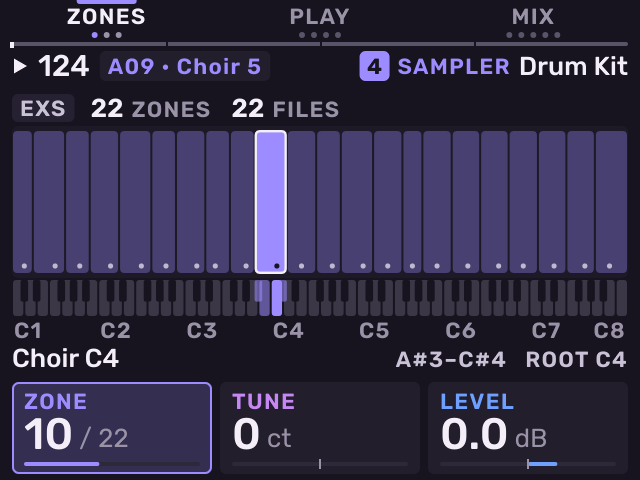
| K1 | K2 | K3 |
|---|---|---|
| Selects a zone | Tunes it, for this pad only | Sets its level, for this pad only |
- If the instrument asks for something Melodee does not play, it is named on this page.
- An instrument has its velocity layers in its zones, so an instrument pad has no LAYERS page: B1 steps through ZONES, TUNE and AMP ENV.
- Loading an instrument onto a pad removes the pad’s layers.
In pitch on a kit
To play an instrument in pitch on a kit, use 16 LEVELS with the type Scale or Tune (see 16 Levels). While 16 Levels is on, a MIDI keyboard plays the instrument with the pad’s TUNE: C4 (key 60) plays it as the pad plays it. In Zones, the keyboard plays it at its real pitch, as the pads do.
A project saved before keygroup tracks opens each kit’s instrument pad as a keygroup track of its own, with its notes. A pad of an MPC drum program stays on its kit.
Banks
A bank file saves banks of your kit, with their pads’ settings and effects: one bank of 16 pads, several banks, or every filled bank. Bank files are saved in Melodee/Samples/Banks.
Saving banks
- Press SAMPLE SELECT to open the sample browser.
- Press SHIFT + SAMPLE SELECT. SAVE BANK opens with the bank in view picked.
- To add a bank, turn to its card and push. Push again to leave it out.
- Turn to SAVE and push. Name the file and press B3 (SAVE).
1234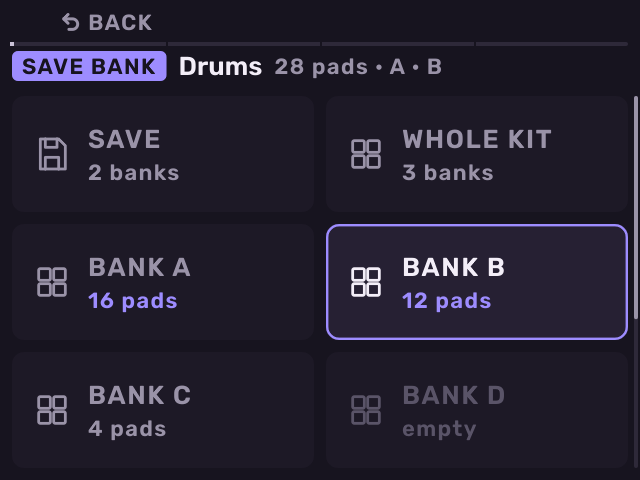
The header shows the file’s name, how many pads it holds and the banks picked. A picked bank’s pad count is lit.
| Card | What it does |
|---|---|
| SAVE | Saves the banks picked below in one file. |
| WHOLE KIT | Saves every filled bank of the kit in one file. |
| BANK A to BANK H | Your kit’s banks. Push picks a bank or leaves it out. An empty bank cannot be picked. |
A kit with one filled bank goes straight to the name. B1 (BACK) closes the sheet without saving.
Loading banks
A file of one bank:
- Select the bank with PAD BANK.
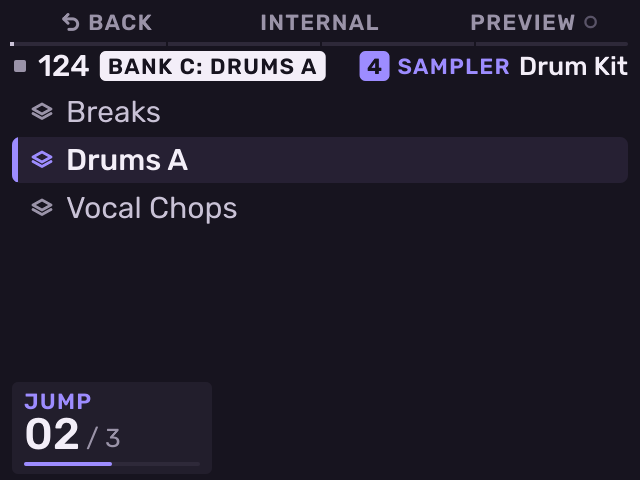
- In the sample browser, push the encoder on the bank file (the stacked-layers icon). It replaces the bank in view.
A file of several banks:
- In the sample browser, push the encoder on the file. LOAD KIT opens, each bank of the file going into the bank it was saved from (
from A,from B). - Change the cards as for an MPC kit (see Loading banks of an MPC kit).
- Turn to LOAD and push.
WHOLE KIT puts each bank of the file into its own bank and empties the other banks of your kit. A bank from a file replaces all 16 pads of the bank it goes into.
Loading banks of an MPC kit
LOAD KIT puts banks of an MPC drum program (.xpm or .xty, a pads icon in the browser) into banks of your kit. Only the program’s filled pads are loaded: the other pads and banks of your kit stay as they are.
- Select bank C with PAD BANK.
- Press SAMPLE SELECT.
- Move to the MPC kit and push the encoder. LOAD KIT opens. BANK C reads
from A · 16 pads: the kit’s first filled bank goes into the bank in view. - To add the kit’s bank B as your bank D, turn to BANK D and push until it reads
from B. - Turn to LOAD and push.
123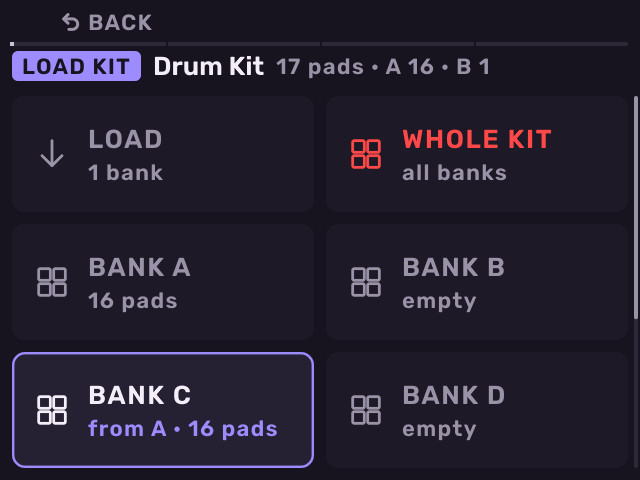
The header shows the kit’s filled banks and how many pads each has. Turn the encoder to move between the cards; push it to press one.
| Card | What it does |
|---|---|
| LOAD | Puts the banks picked below into your kit, as one undo. |
| WHOLE KIT | Loads the whole program as the track’s kit, with its pad colours and sends, in place of every pad you have. |
| BANK A to BANK H | Your kit’s banks. Push steps through the program’s filled banks, then none. |
A card in red replaces pads you already have. B1 (BACK) closes the sheet without loading.
Chop
- Hit the pad whose sample you want to slice.
- Press CHOP. The pads play the slices.
- Turn K3 to pick the chop type.
- Tap a pad to play its slice and select it.
- Press B3 (TO PADS) to put the slices on pads, or CHOP to go back to TRIM.
12345- With Seq Record on, the slices you tap are recorded (see Recording slices).
- Chop does not work on a sampled instrument.
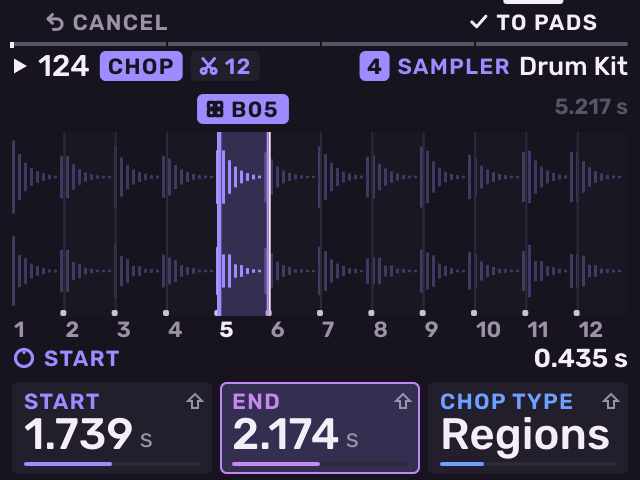
| K1 | K2 | K3 | |
|---|---|---|---|
| Turn | Start of the selected slice | End of the selected slice | Chop type: Threshold, Regions, Beats, Manual or Auto. A sample with no slices yet opens on the type you picked last. |
| SHIFT + turn | Zoom in at the slice’s start | Zoom in at the slice’s end | The amount for that type: threshold, number of slices or division. On Auto: SLICES. |
| Control | Action |
|---|---|
| Encoder | Move the selected slice’s start in fine steps (its end after K2). |
| SHIFT + encoder | Move that cut to the next or previous hit. |
| − / + | The slice before / after. |
| PAD BANK | The next 16 slices on the pads (A: 1–16, B: 17–32, up to H). SHIFT + PAD BANK: the 16 before. |
| B1 (CANCEL) | Leave without changing the pads. |
| B3 (TO PADS) | Put the slices on pads, as Poly, Mono, Thru or Kit, with a pattern of them. |
| SHIFT + B1 (EXTRACT) | Save the slice as a new file in Melodee/Samples/Edits and put it on the next empty pad. SHIFT + ERASE does the same. |
| SHIFT + B2 (SPLIT) | Split the slice in two. |
| SHIFT + B3 (MERGE) | Join the slice to the one before. |
| ERASE + pad | Take a slice out: it joins the one before (pad 1’s joins the one after), and the pads after it move down one. ERASE on its own takes out the selected slice. |
| ERASE + CHOP | Take every cut out. |
- Every cut lands on a zero crossing, so slices do not click.
- A slice’s pad plays it with the chopped pad’s tuning and Warp, as it plays once it is on a pad. A Manual take plays the sample at its own speed.
- With more than 16 slices, the pads show the bank of the selected slice. The bank lights and the header (BANK B) show which. Selecting a slice with − / + moves the pads to its bank.
Fixing a cut
- Tap the slice’s pad. It plays once and its start is selected: the wider line, with START at the bottom left.
- Turn the encoder to move the start. The screen zooms in on the cut. When you stop, you hear the cut once, from just before it into the slice.
- To jump the cut from hit to hit, hold SHIFT and turn the encoder. The hits are the small marks along the bottom of the waveform.
123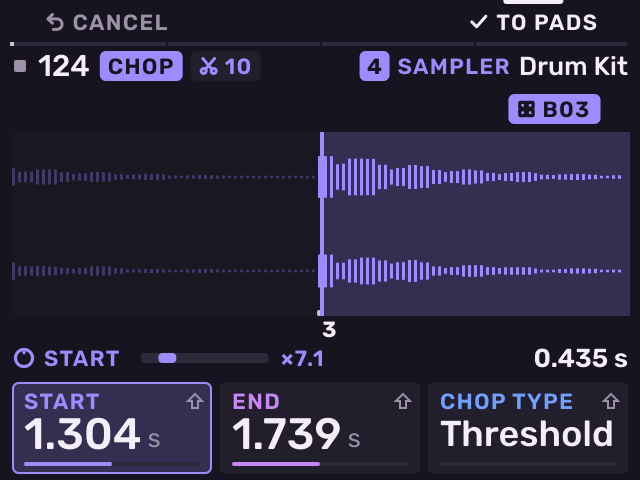
- To move the slice’s end, turn K2. The encoder then moves the end (END) until you select another slice. You hear the slice’s last second.
- A jump stays between the cuts on either side. With no hit left that way, the cut stays where it is.
- The next pad, − / + or K1 / K2 zoom back out. SHIFT + K1 / K2 set a zoom of your own, which stays.
Chop types
| Type | Cuts | SHIFT + K3 |
|---|---|---|
| Threshold | At every hit at least as strong as the threshold. | The threshold, 0–100 %: the higher, the fewer slices. |
| Regions | The region into equal slices. | The number of slices: 2 to 128. |
| Beats | A slice every division, on the sample’s own beats. | The division: 1/16, 1/8, 1/4 (one beat), 1/2, 1 bar, 2 bars or 4 bars. A bar follows the project’s time signature. |
| Manual | Where you tap the pads while the sample plays (see Manual chop). | – |
| Auto | To suit what Melodee works out the sample is. | SLICES: 8, 16 (to start), 32 or 64, the number of slices Auto aims for. |
A chop holds at most 128 slices: if a type needs more, the last slice runs to the end, and Melodee says so.
Threshold chop. A hit is a change in the sound: a drum, a hat over a held note, or a chord change at the same loudness. Each cut lands just before the hit’s attack.
Beats chop. Melodee finds the sample’s own tempo and where its beats fall when it loads.
- The tempo shows at the top right.
- Beats counts from the beat nearest the region’s start, so a lead-in before the first beat gets a slice of its own.
- A free intro or ending with no steady beat stays one slice.
- Each cut lands on the hit at that place, if there is one.
- To cut on the bar, set the region’s start near the bar’s first beat.
- A sample with no steady beat uses the project’s tempo.
Auto chop. Melodee works out what the sample is and cuts it to suit. What it found shows at the top right:
| Found | The sample | Cuts |
|---|---|---|
| DRUMS | A steady beat led by drums | On the beats Melodee finds in the sample, each cut on the hit there: every beat, every 2, 4, 8 or 16 beats, or eighths (each beat, and its strongest hit halfway to the next), whichever comes nearest SLICES. The tempo shows too. |
| MUSIC | A steady beat led by notes or chords | As DRUMS. |
| SHOTS | Single sounds with silence between them | One slice for each sound, whatever SLICES is. Each slice ends where its sound ends, and the silence is left out. |
| HITS | Anything else | On the strongest hits, spread over the region, at least 150 ms apart. |
No slice is shorter than 80 % of an eighth note (150 ms where there is no beat), and Auto keeps its cuts that far from your hand cuts.
CLEAN. B2 (CLEAN) on Auto finds the cuts on the sample’s drums alone.
- The first time, Melodee separates the sample as STEMS does (with BEST off: about 15 seconds for 13 seconds of sound). The header shows SEPARATING and the time left. B1 (CANCEL) calls it off.
- Then the picture shows the drums stem and the cuts are found on it, so hits under chords or a voice count too.
- The pads still play the sample, and KIT lays the drums stem.
- Press B2 again to cut from the sample.
- The four stems stay in
Melodee/Samples/Stems.
Manual chop
Manual cuts where you tap the pads while the sample plays.
- Set K3 to Manual. The cuts the other types made are taken out; your hand cuts stay (see Hand cuts). With no cuts, pad 1 blinks red. To start over on a chop with cuts, press ERASE + CHOP.
- Tap PAD 1. The sample plays and pad 2 blinks red.
- Tap the red pad on each hit you want to cut at. The red moves on to the next pad. After pad 16 the pads switch to bank B and its pad 1 blinks red, up to bank H (128 slices).
- Let the sample play to the end. The take is done and the pads play the slices.
123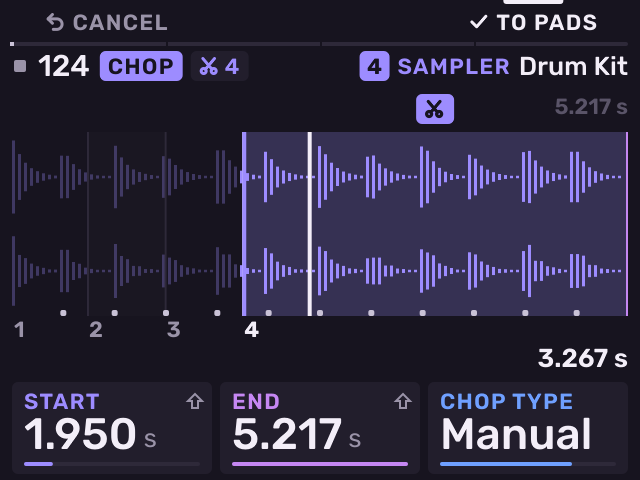
- While the take plays, only the red pad cuts. Each cut moves onto the strongest hit just before your tap.
- Tap a lit pad to go back: the sample plays again from that slice, and the cuts after it are taken out.
- To stop a take before the end, press another button, turn a knob or leave Chop. The red stays on the next pad: tap it to play on from the last cut.
- Undo (SHIFT + −) takes back a whole take.
Hand cuts
- A cut you make or move with K1, K2, the encoder, SHIFT + B2 (SPLIT) or a Manual take is a hand cut.
- Hand cuts stay when you change the chop type, threshold, division or number of slices.
- They show in the track’s colour with a tab on top.
- A cut you take out with ERASE or SHIFT + B3 (MERGE) stays out.
- Where an automatic cut would land just next to a hand cut, the hand cut wins and no sliver is left.
- ERASE + CHOP takes out the hand cuts too.
Slices on pads
- Press B3 (TO PADS). The sheet shows the number of slices and the first empty pad they go on, such as from A05. It starts on your last choice.
- Turn the encoder to POLY, MONO, THRU or KIT.
- Push the encoder. The slices go on the empty pads from that pad on, and Stage opens.
12B1 (BACK) closes the sheet.
| Choice | The slices |
|---|---|
| POLY | Play over each other. |
| MONO | Play one at a time. The slices share a mute group. |
| THRU | Play one at a time, and each plays on to the end of the region, so a slice’s pad carries the loop on from there. |
| KIT | One pad for each sound. Slices that sound the same (the kicks of a break, say) share one pad, which gets the longest of them. Kicks come first, then snares, hats and the rest. The hats share a mute group. The card shows how many sounds there are. |
- MONO, THRU and KIT’s hats use the chopped pad’s mute group, or the first free one.
- Slices put on pads keep the chopped pad’s tune, Warp, mute group and other settings.
- With Warp on Seq and a number of beats set, each slice keeps the tempo those beats give the chopped pad, so it plays at the same speed.
The PATTERN card turns the pattern on or off (push the encoder on it). When it is on, TO PADS also writes a pattern with a note for each slice where it falls, so PLAY gives you the loop back, now on pads you can change.
- With KIT, each slice’s note plays the pad of its sound.
- The pattern goes into the track’s pattern if that is empty, else into the first empty one, which then plays.
- The notes follow how the pads play: with Warp or Follow at the loop’s own tempo, else as it was recorded.
- Undo takes back the pads, the pattern and which pattern plays in one step.
- If Seq Record is on, TO PADS turns it off first, so the recording is a step of its own before it.
Recording slices
You can record slices into a pattern straight from Chop, as on the stock MPC Sample. The kit’s pads stay as they are: no pad is taken for a slice.
- Select the pad and press CHOP.
- Press SEQ RECORD.
- Press PLAY.
- Tap the slice pads. Each slice plays with the pad’s own sound (tune, envelope, filter, effects) and is recorded as a note of that pad. A note is as long as you hold its pad. PAD BANK reaches slices 17–128.
- Press SEQ RECORD again to stop recording.
1234| While | The slice pads |
|---|---|
| Seq Record is off, or the transport is stopped | Only play the slices, as before. |
| A Manual take runs | Still cut. Nothing is recorded. |
- A recorded slice note plays its slice as the chop is now.
- When you move a cut with K1, K2 or the encoder, the notes on that slice follow it.
- On Step Edit and Roll the note shows its pad and slice, such as A05 · 5.
- A slice note on a slice the chop no longer has is silent.
Changing the chop type or amount, SPLIT, MERGE, ERASE + pad and ERASE + CHOP change which part of the sample a slice number plays. When recorded slice notes use the slices that would change, Melodee asks first (Rechop?, with how many notes change sound). B3 (RECHOP) goes ahead; it asks once a visit to Chop. Undo (SHIFT + −) takes the change back.
An MPC 3 export puts each slice that is played on a free pad of the kit and moves its notes there, as TO PADS would. If the kit has no free pad left, the notes play the whole pad, and Melodee says how many.
Slices in the WAV file
- As on the MPC, slices belong to the sample and are stored in its WAV file. Melodee also stores the chop type, its amount and your hand cuts there, so they are kept after a restart.
- When you change the slices, Melodee writes them back into the WAV file, so the MPC and other projects using the file see the same slices.
- Slices made on an MPC load with the file, from an MPC project or from the sample browser. They open as a Manual chop, with every cut a hand cut.
- CHOP on any pad of a chopped sample shows its slices, with the pad’s slice selected.
- A sample that is not a WAV file keeps its slices only while the project is open.
Each slice has its own start and end, so gaps between slices stay. K1 or K2 moves an edge alone across a gap, and moves both slices where two slices touch.
Record a sample
- Press SAMPLE RECORD on a kit to open Record.
- Turn K1 to choose the source, K2 the length (Free, Seq, 1–16 bars, or 24 to 128 bars) and K3 the threshold.
- Tap a pad, or push the encoder to record onto the first empty pad. Recording starts at the threshold, or when the pattern comes round if the length is Seq. To start at once, push the encoder again.
- Tap other pads during the take to cut it there.
- To stop, tap the pad again, press STOP or push the encoder. To stop and open TRIM, press SAMPLE RECORD.
12345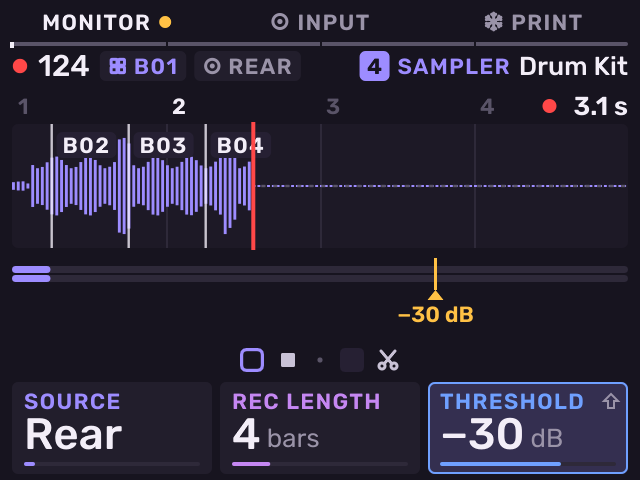
Takes are saved in Melodee/Samples/Recorded.
| A take runs up to | |
|---|---|
| With a card | 6 hours |
| Without one | 60 seconds |
With the length Free, a take also ends by itself after a quiet stretch.
| Key | On Record |
|---|---|
| B1 (MONITOR) | Sets monitoring. |
| B2 (INPUT) | Opens Input Config. |
| B3 (PRINT) | Opens the PRINT sheet to freeze the track. |
Input Config
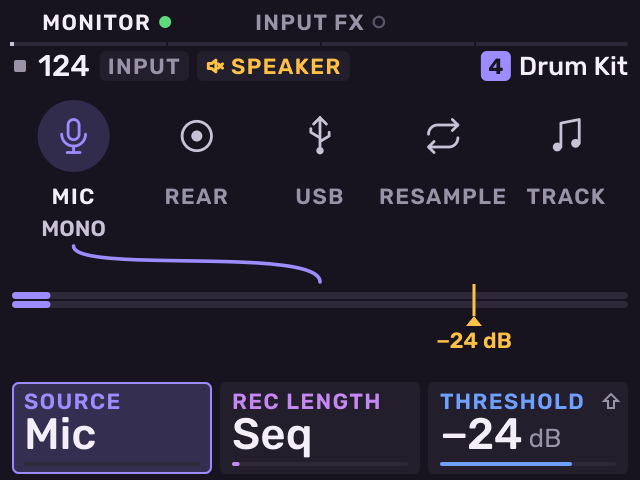
Input Config (SHIFT + SAMPLE, or B2 on Record) sets the input.
| K1 | K2 | K3 | |
|---|---|---|---|
| Turn | Source: Mic, Rear (L, R or both), USB (L, R or both), Resample, or any track with a sound | Length | Threshold |
| SHIFT + turn | With a track as the source: record it Post FX (with its effect chain) or Pre FX | – | Gain |
| Key | Action |
|---|---|
| B1 (MONITOR) | Off, Auto or On. You hear the input as loud as the take will play back. |
| B2 (INPUT FX) | Run Knob FX on the input. You hear them while the input is monitored, and they are recorded. |
- Choosing Mic while the speaker plays sets Monitor to Off. Choosing another source sets it back to what it was.
- With headphones or line out plugged in, Monitor stays as it is.
- While the mic is monitored the speaker goes quiet.
The mic and the rear inputs cannot be used at the same time:
| While | The source |
|---|---|
| A MIDI track or a Looper loop uses the rear inputs | Mic shows IN USE, is silent and does not record. |
| One uses the mic and none uses the rear inputs | Rear shows IN USE the same way. |
To sample a Melodee track, choose Track as the source. During the take the pads play that track.
Audio Recall and Resample
- Hold SHIFT and press PAD 11 (Resample).
- Press the pad to record onto. The selected pattern, with every track playing, is recorded onto it.
12| Job | Press | What it does |
|---|---|---|
| Audio Recall | SHIFT + SAMPLE RECORD | The input is always recorded into a 25-second buffer. Audio Recall puts the last phrase onto the next empty pad. |
| Resample | SHIFT + PAD 11, then a pad | Records the selected pattern with every track playing onto the pad you press. On the Song page, it records the song. On a plug-in or MIDI track, SHIFT + PAD 11 opens AUTO SAMPLE instead (see Auto sample a plug-in). |
| Trim Sample | SHIFT + PAD 13 | Saves the pad’s region as a new file in Melodee/Samples/Edits and sets the pad to all of it. |
| Save Sample | SHIFT + SAMPLE SELECT | Names the pad’s region and saves it as a WAV file in Melodee/Samples. |
Stems
Stems separates a pad’s sample into four new samples: its drums, its bass, its music (all other instruments) and its vocals.
- Select the pad and open TRIM.
- Press SHIFT + B3 (STEMS). The STEMS sheet shows the four empty pads the stems go on, the sample’s length and how long the job takes. STEMS in the Menu on Stage opens the same sheet.
- B2 (BEST) is on at first. Press it to turn it off (below).
- Press B3 (SEPARATE) or push the encoder.
1234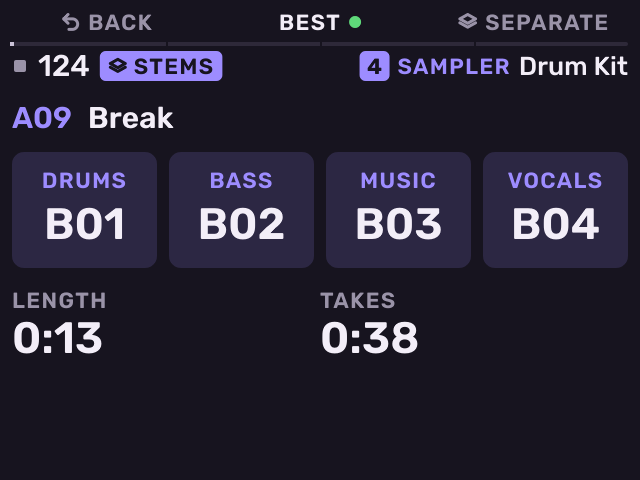
| BEST on | BEST off | |
|---|---|---|
| Separates | Up to 16 kHz, in two passes | Up to 11 kHz, in one pass, about three times quicker. The highs above that are shared out as the band below them is. |
| A 13-second sample | About 40 seconds | About 15 seconds |
| A 60-second sample | Under 2 minutes | About 40 seconds |
You can leave the sheet and keep playing while the job runs. To stop it, press B1 (CANCEL) on the sheet.
When the job is done:
- DRUMS, BASS, MUSIC and VOCALS are on the next four empty pads after the sample’s pad.
- Each plays as the sample’s pad does: the same start, end, loop, tuning, warp, envelope and filter, and the same slices in Chop.
- Played together, the four give the sample back.
- One Undo removes all four.
- The files are in
Melodee/Samples/Stems.
Stems needs a sample of one second or more and four empty pads on the track. It does not work on a sampled instrument. BEST needs more memory: when a long sample does not fit, the notice says whether it fits with BEST off.
16 Levels
- Hit a pad (on a plug-in track, play a note).
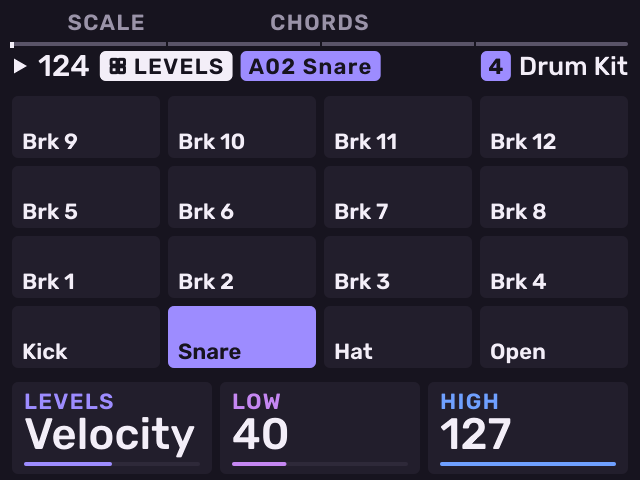
- Tap 16 LEVELS. The last pad, or a plug-in track’s last note, is spread over all 16 pads.
- Tap 16 LEVELS again to go back.
1216 Levels has no page of its own: the page in view stays.
Hold 16 LEVELS to set it up from any page. The cards show LEVELS (the type) and its two ends, LOW and HIGH.
- Hold 16 LEVELS.
- Turn K1 to choose the type. SHIFT + 16 LEVELS also chooses it.
- Turn K2 and K3 to set the type’s two values (below).
123Letting go after a hold does not turn 16 Levels on or off.
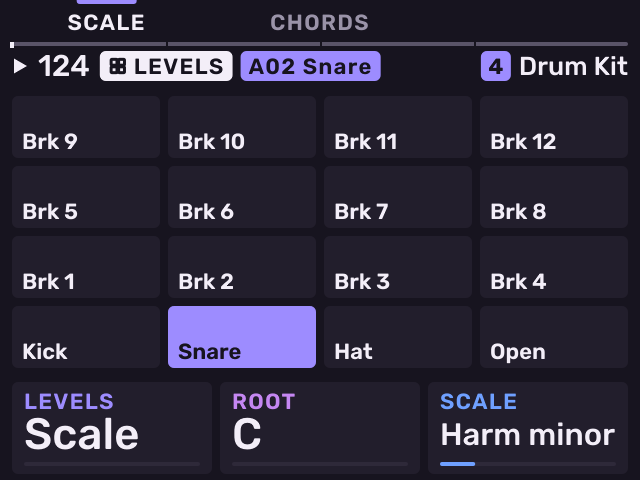
Types
| Type | Each pad | K2 | K3 |
|---|---|---|---|
| Velocity | Plays louder, from pad 1 to pad 16. | LOW: pad 1’s value | HIGH: pad 16’s value |
| Filter (kits) | Opens the filter more. | LOW: pad 1’s value | HIGH: pad 16’s value |
| Tune | Plays a semitone higher. The original pitch is on pad 4. | LOW: pad 1’s value | HIGH: pad 16’s value |
| Scale | Plays the next note of the project’s scale. | ROOT: the root | SCALE: the scale |
| Zones (a pad holding an instrument) | Plays one key that has a sound in the instrument (below). | – | – |
| Chords | Plays a chord of the track’s chord progression (below). | KEY: moves the progression to another key | VOICING: how the notes are spread |
| Hold 16 LEVELS and press − / + | |
|---|---|
| Scale, Tune, Chords | The octave |
| Zones | The next 16 keys |
Zones.
- Each pad plays one key that has a sound in the instrument, lowest on pad 1, so a drum or percussion instrument has every hit on a pad. Keys without a sound are skipped.
- With more than 16 keys, hold 16 LEVELS and press − / + for the next 16.
- On an instrument with one sound per key, such as a drum kit, 16 Levels opens in Zones when Scale or Tune was chosen.
Chords.
- Each pad plays a chord of the track’s chord progression, with the pad’s one sample at every note of the chord.
- To pick a progression from the card, hold 16 LEVELS and turn the encoder: Melodee’s own in
Melodee/Progressions, and the.progressionfiles of MPC expansions. - A kit plays the first 16 chords; pads with no chord stay dark.
- On an instrument track the chords are those of the bank in view, as on the Keys page’s Prog layout.
- With Chords on, holding 16 LEVELS shows the chord of each pad, laid out as the pads. The header’s first chip reads CHORDS on every page while the pads play chords.
Keys while held
While you hold 16 LEVELS, B1–B3 are its keys. They change with the type:
| Type | B1 | B2 | B3 |
|---|---|---|---|
| Any type but Chords | SCALE | CHORDS | |
| Chords | SCALE | FILE | SET |
SCALE and CHORDS choose that type and turn 16 Levels on, in one press.
FILE
FILE lists the progression files on the card, one folder at a time: its folders first, then its files. It opens on the folder of the file the track plays.
- On Chords, hold 16 LEVELS and press B2 (FILE).
- Turn the encoder to a folder and push it, or press B3 (OPEN), to see what is in it.
- Turn the encoder to a file and push it, or press B3 (PICK).
12- B1 (BACK) goes up one folder. At the top it closes the list and leaves the progression as it was.
- The file the track plays has a check.
- Your own progressions and their folders are at the top, with Progressions (the card’s
Progressionsfolder) and Expansions. - You can let go of 16 LEVELS while the list is open.
SET
SET makes a chord of your own.
- On Chords, hold 16 LEVELS and press B3 (SET).
- Tap the pad the chord goes on.
- Turn K1 (ROOT), K2 (CHORD: m7, maj9, 7sus4 and so on) and K3 (INVERSION) to set it. Tap the pad to hear it.
- Press B3 (DONE). The progression is saved, and SET waits for the next pad.
1234- B1 (BACK) puts the chord back as it was. Pressed again, it leaves SET.
- A track with no progression starts a new one, named Mine 1, Mine 2 and so on, in
Melodee/Progressions. - A progression from another folder is saved there as a copy.
The sample’s note
In Scale and Chords, a sample plays from its note. Melodee finds the note when the sample is loaded or recorded.
| Sample | Plays |
|---|---|
| One that holds one note, such as a bass note, a sung note or a synth note | From that note, so pad 1 plays the root of the key. |
| A chord stab | From its chord’s root. |
| A drum or a phrase | As if it were a C. |
| A sample of a project saved with an older version | As if it were a C. |
A MIDI keyboard
While 16 Levels is on a kit pad, a MIDI keyboard plays that pad on every key.
| Sample | The keys |
|---|---|
| One that holds one note | Each key plays its own note. |
| Other samples, and an instrument | C4 (key 60) plays the sample as the pad plays it, with the pad’s TUNE. |
| An instrument, in Zones | It plays at its real pitch. |
Loop, reverse and Note On
These act on the last pad from any page:
| Press | Action |
|---|---|
| LOOP | Loop the pad on or off. |
| SHIFT + LOOP | Reverse the pad. |
| SHIFT + CHOP | Switch between Note On (plays while held) and One Shot. |
| SHIFT + PAD 15 (Warp) | Time stretch or Pitch for the kit. |